
Invite someone else to a call
Bring a family member, an interpreter or a colleague into a call already running.
- Who can use it
- All staff
- Plans
- Paid plans
- Select Participants to open the panel beside the video.
- Select Invite at the top of that panel.
- Choose how to send it, fill in the one field it asks for, and send.
Invite is the only way in from a call. There is no copy-the-link option here, because you are not handing somebody an address to keep: you are asking one person to join the session that is already running.
They join the same way a client does: open the link, give a name, wait to be admitted.
The three ways to send it
INVITE VIA at the top of the dialog is the choice. The rest of the form is nearly the same whichever you pick, so it is worth knowing what actually differs.
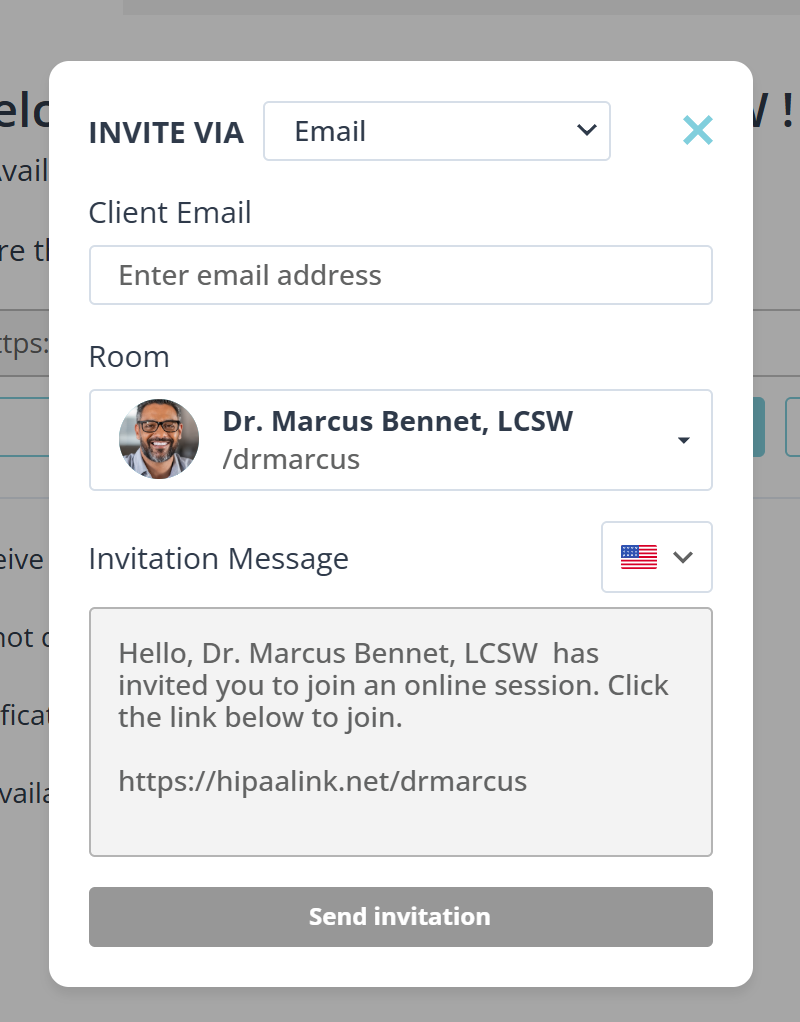
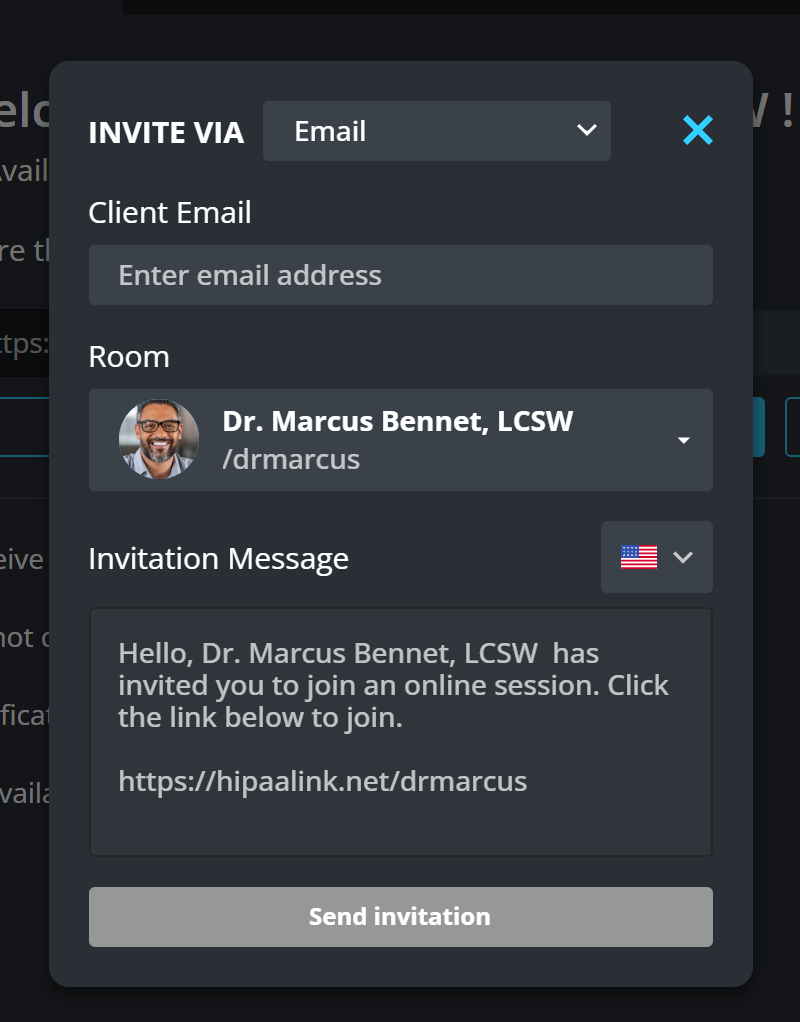
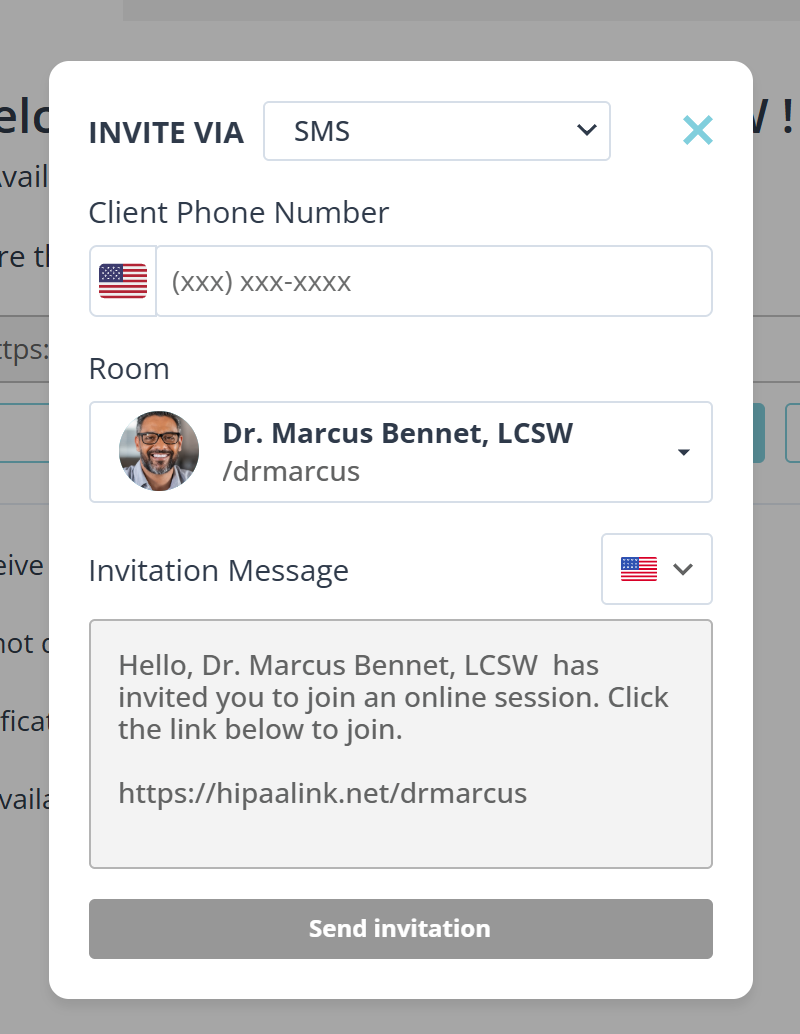
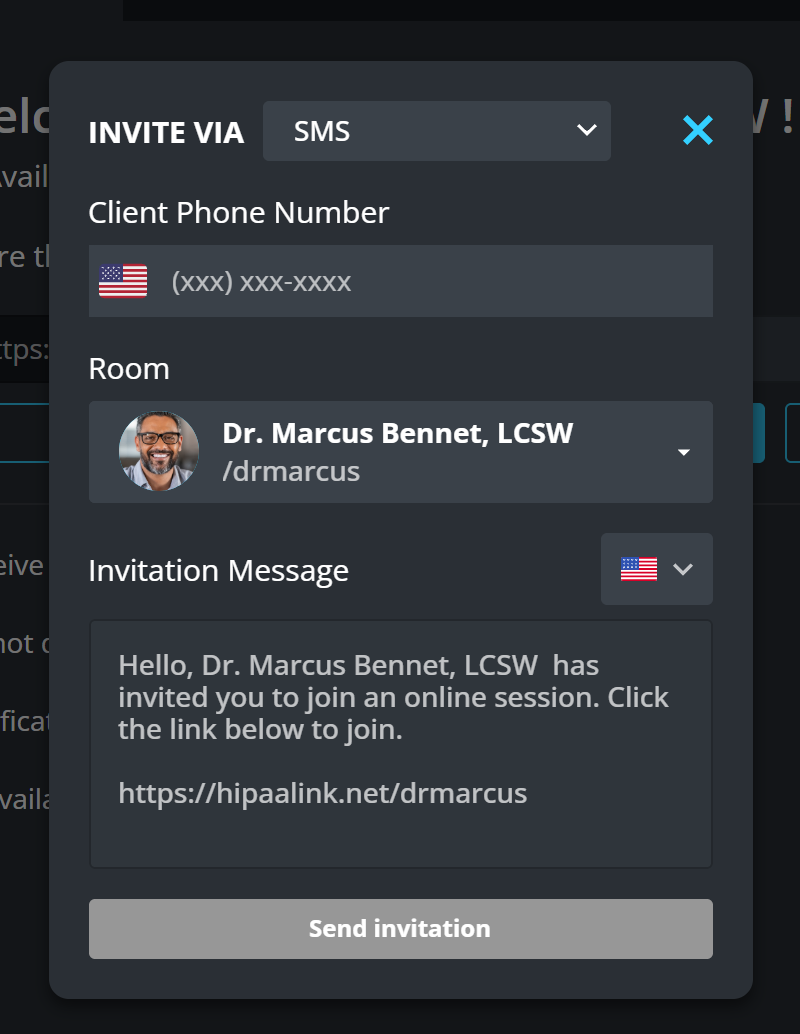
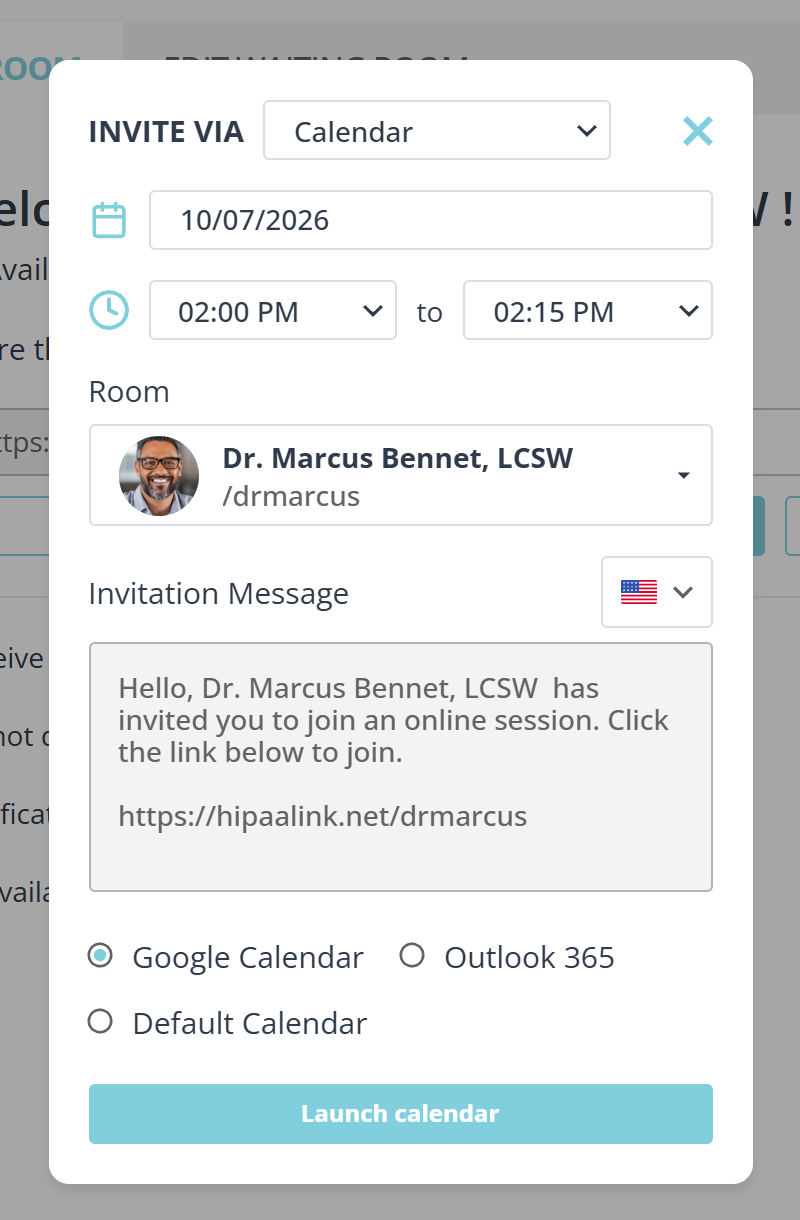
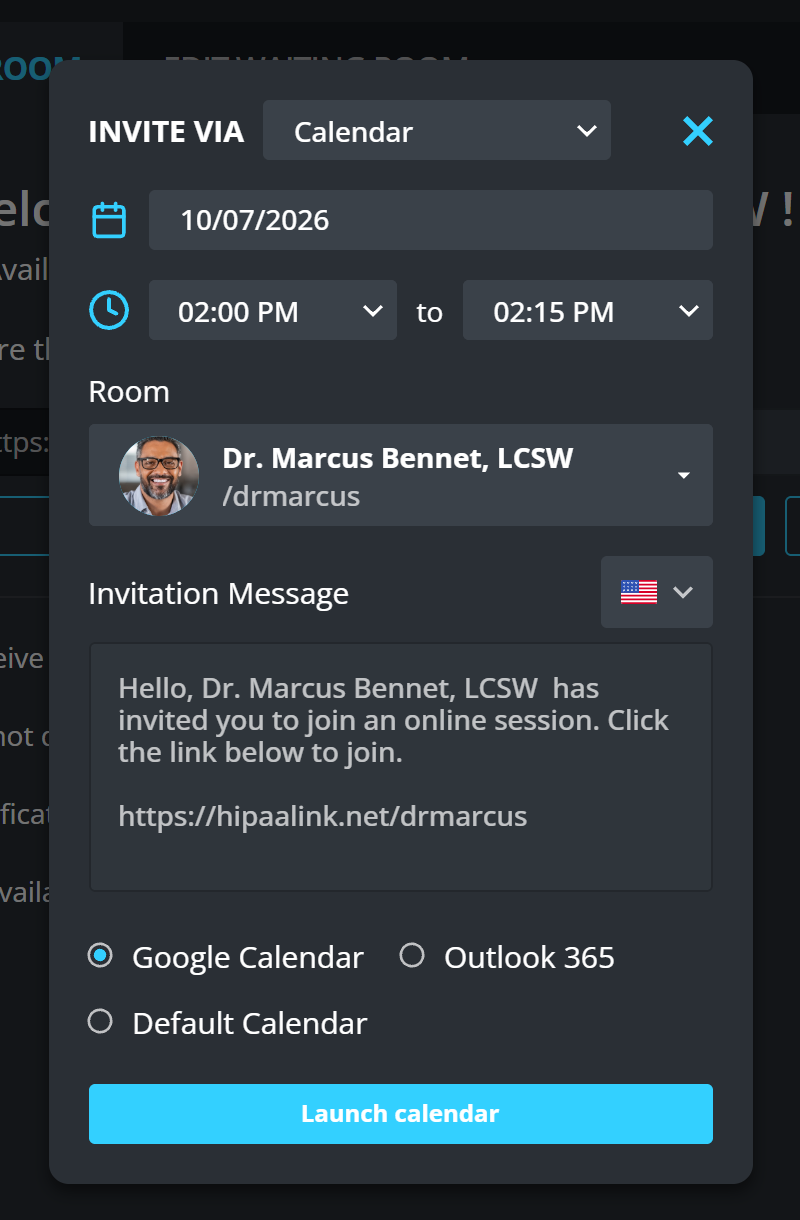
Client Email and Client Phone Number are the only difference between the first two. Calendar is the one that behaves differently: it asks for a date and a time, and Launch calendar opens Google Calendar, Outlook 365 or Default Calendar with the appointment ready to save. Nothing is sent to anyone until you send it from there.
Invitation Message is written for you, including the link, and the flag beside it picks the language it is written in.
Bring in someone already waiting
A client who has checked in does not need an invitation. They are already here, so there is nothing to send and no link to copy.
- Open Client Queue in the lower left corner of the call.
- Select Join on their row.
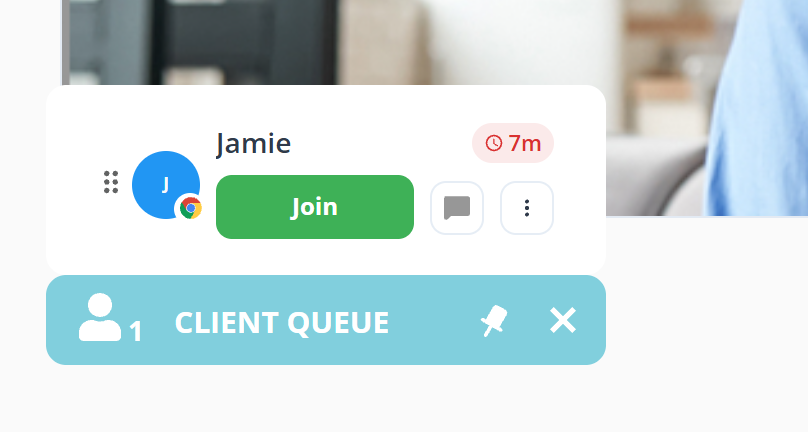
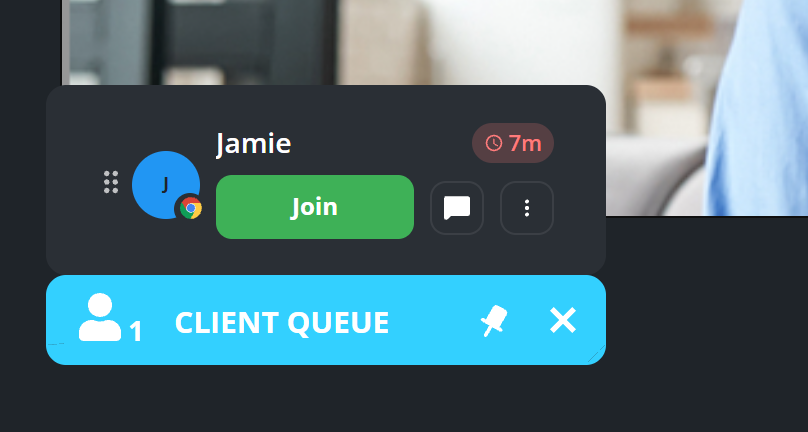
They join the call you are already in, rather than starting a second one. The rest of the call is undisturbed, and everyone already in it stays in it.
The number beside the person icon on the blue bar is how many clients are waiting, so you can see somebody arrive without opening anything.
The rest of the row
The row carries the same controls it has on your dashboard, so you do not have to leave the call to deal with somebody who is not in it yet.
- The speech bubble is Chat. See Message a client.
- The three dot button opens Transfer, Teleconsent, Assessments, Contact, Status and Remove, exactly as it does on the dashboard. See Move a client to another room for what that menu holds.
Keep the panel open
The panel opens when you point at the blue bar and closes again when you move away. The pin at the right of the bar holds it open, and while it is pinned the bar no longer collapses it: unpin it first. The cross closes the panel.
What to know
- Free plan supports 1:1 calls only. Upgrade for group sessions.
- Everyone in the call sees and hears everyone else. There is no private side channel.
- Participants shows who is in, and is where you remove somebody.