
Mute, camera and device settings
Turn your microphone or camera off, and switch to a different one without leaving the call.
- Who can use it
- All staff
Mic and Camera toggle yours off and on.
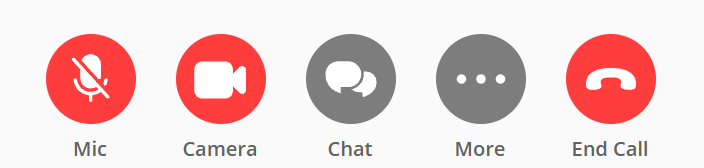

The color is the signal: a control is red when it is off and grey when it is on. The microphone also gains a line through it. The camera does not, so do not go looking for one.
Red does not always mean off, though. End call is red whatever is happening, because of what it does rather than what state it is in.
The client sees your microphone and camera state on your tile.
Switch device mid call
- Select the small arrow beside Mic or Camera.
- Choose from Select microphone or Select camera.
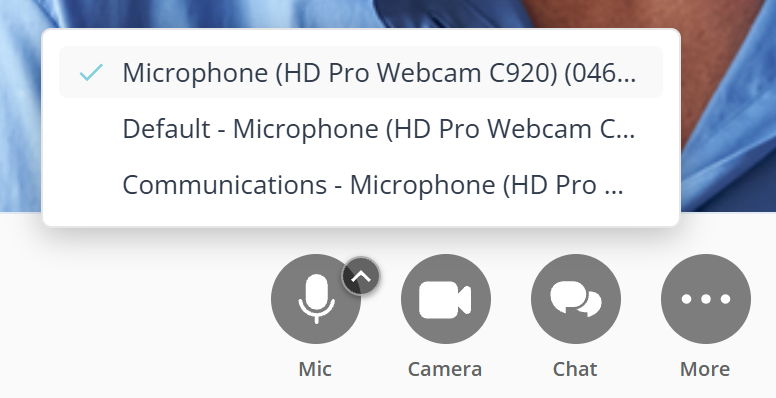
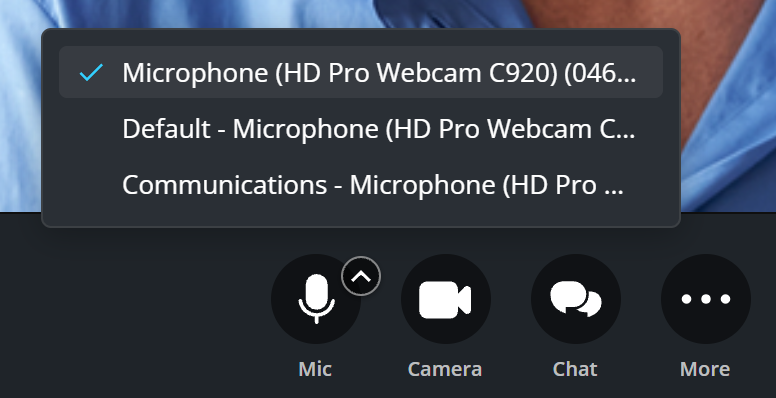
The call keeps running. You do not rejoin and the client is not interrupted.
The list often holds the same microphone more than once, under names like Default and Communications. Those are the operating system’s own entries for whichever device it has been told to prefer, not extra hardware. If you are unsure, pick the one that names the device itself.
If your microphone drops out
Plugging in or unplugging headphones mid call can lose the microphone. You will see Reconnecting microphone…, then either Microphone restored or Couldn't reconnect your microphone. Try re-selecting it in Settings.
If it fails, pick the device again from the arrow beside Mic.
What to know
- Muting yourself does not mute the client. To mute them, open Participants.
- A client whose camera is blocked joins with it off, and the call still works.