
Manage participants
See who is in the call, mute somebody, or take them out of it.
- Who can use it
- All staff
Select Participants to open the list beside the video.
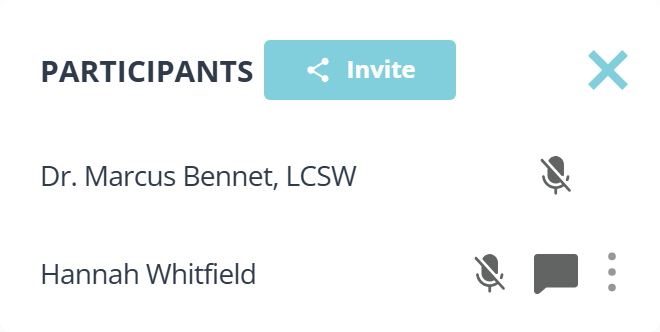
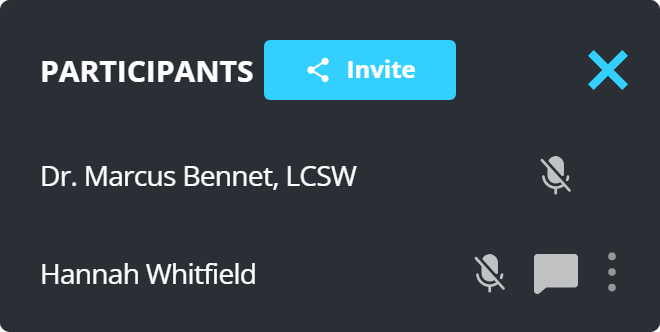
Everyone in the call is listed, you included. The controls sit at the end of each row, and the same dot menu described below sits there as well as on each video tile.
Invite at the top of the panel brings somebody new into this call. See Invite someone else to a call.
The dot menu on a tile
Every participant’s video tile carries a dot menu in its lower corner. It holds four things.
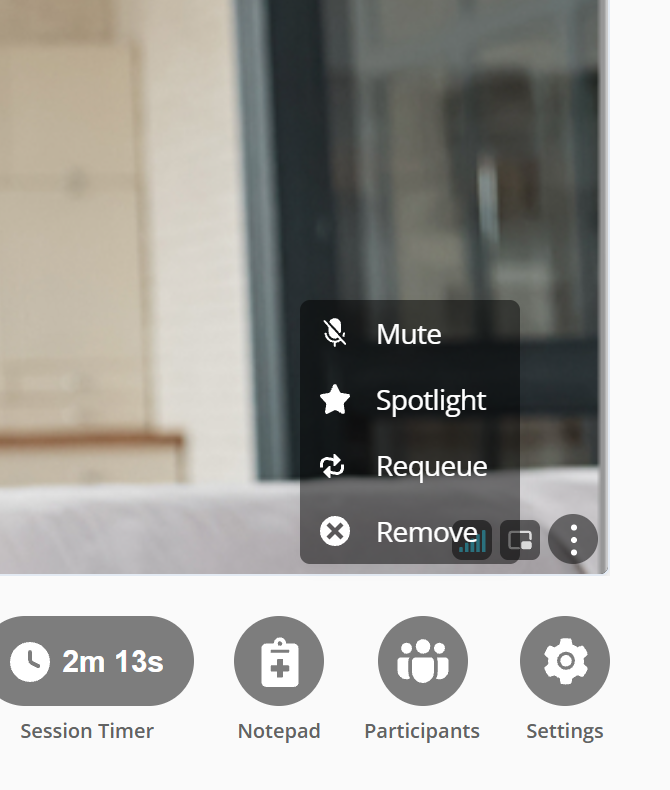
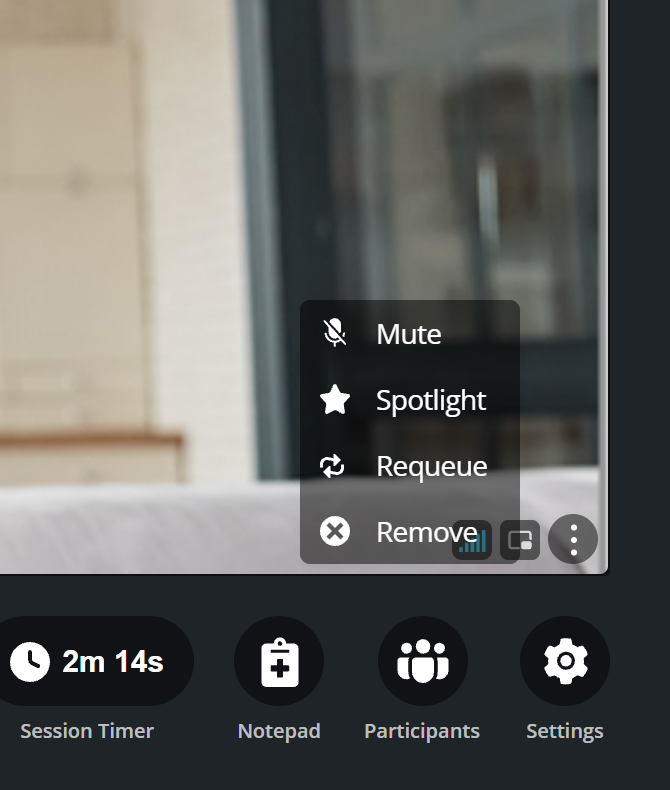
- Mute. Their microphone goes off at once and stays off: they are told, and turning it back on themselves does not work while they are muted. The entry reads Unmute, and selecting it releases them. Their microphone does not come back on by itself, so they still have to turn it on.
- Spotlight. Makes that person the main picture for everyone, rather than letting the layout decide. Unspotlight puts it back.
- Requeue. Sends a participant back to the waiting room, which keeps them available instead of ending their visit. See Send a client back to the waiting room.
- Remove. Takes them out of the call. They see a message saying so, and that they should contact you if it was a mistake.
What to know
- Muting a participant does not mute their camera.
- Removing is immediate and has no confirmation step on every surface, so read the name first.
- In a group call everyone can see the participant list, but only you can act on it.