
Change how you see your client
Full screen, hiding your own picture, and what the client sees when you do.
- Who can use it
- All staff
Choose how the tiles are arranged
Settings holds a View setting with three arrangements: Speaker, Grid and Overlay.
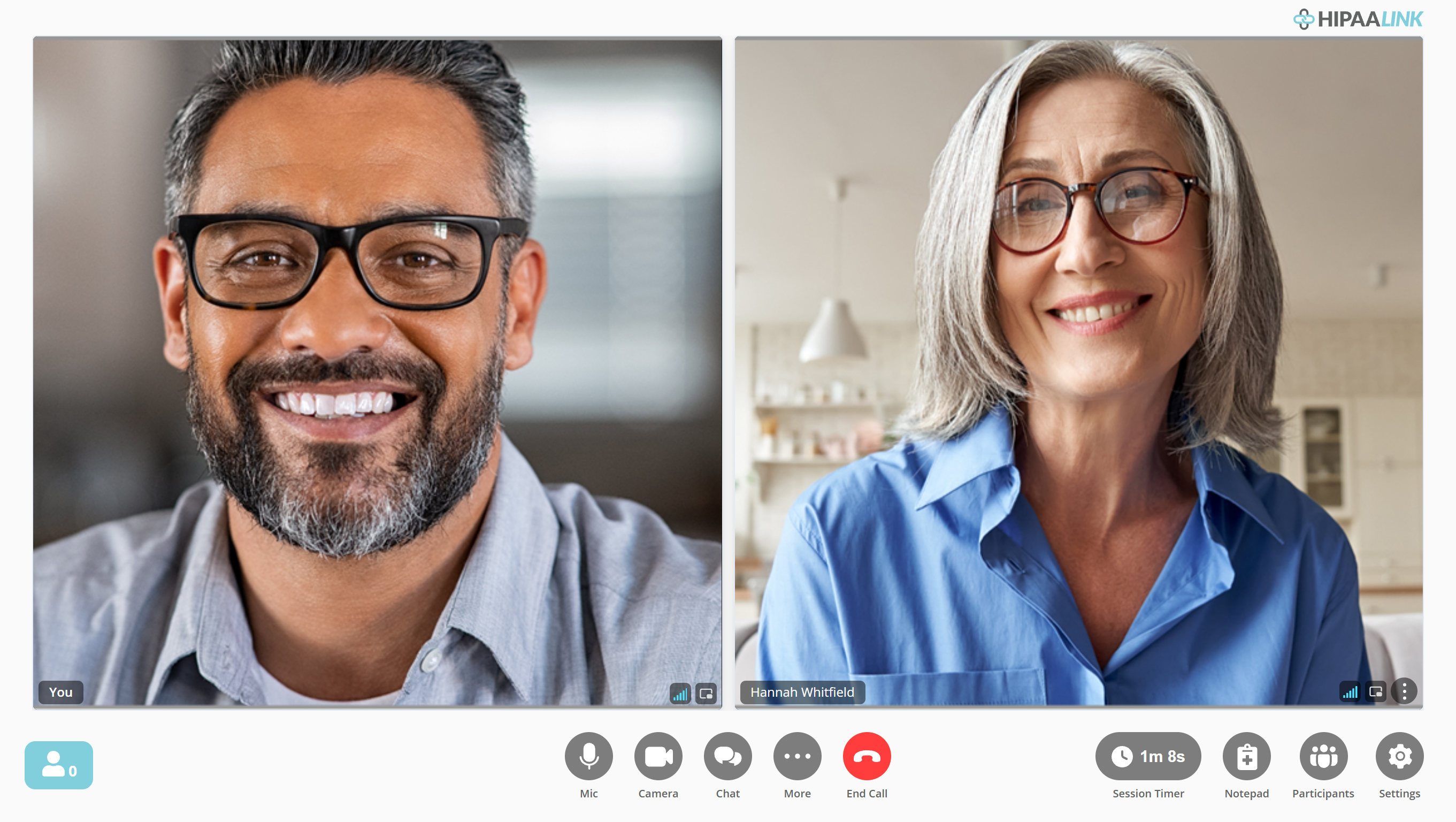
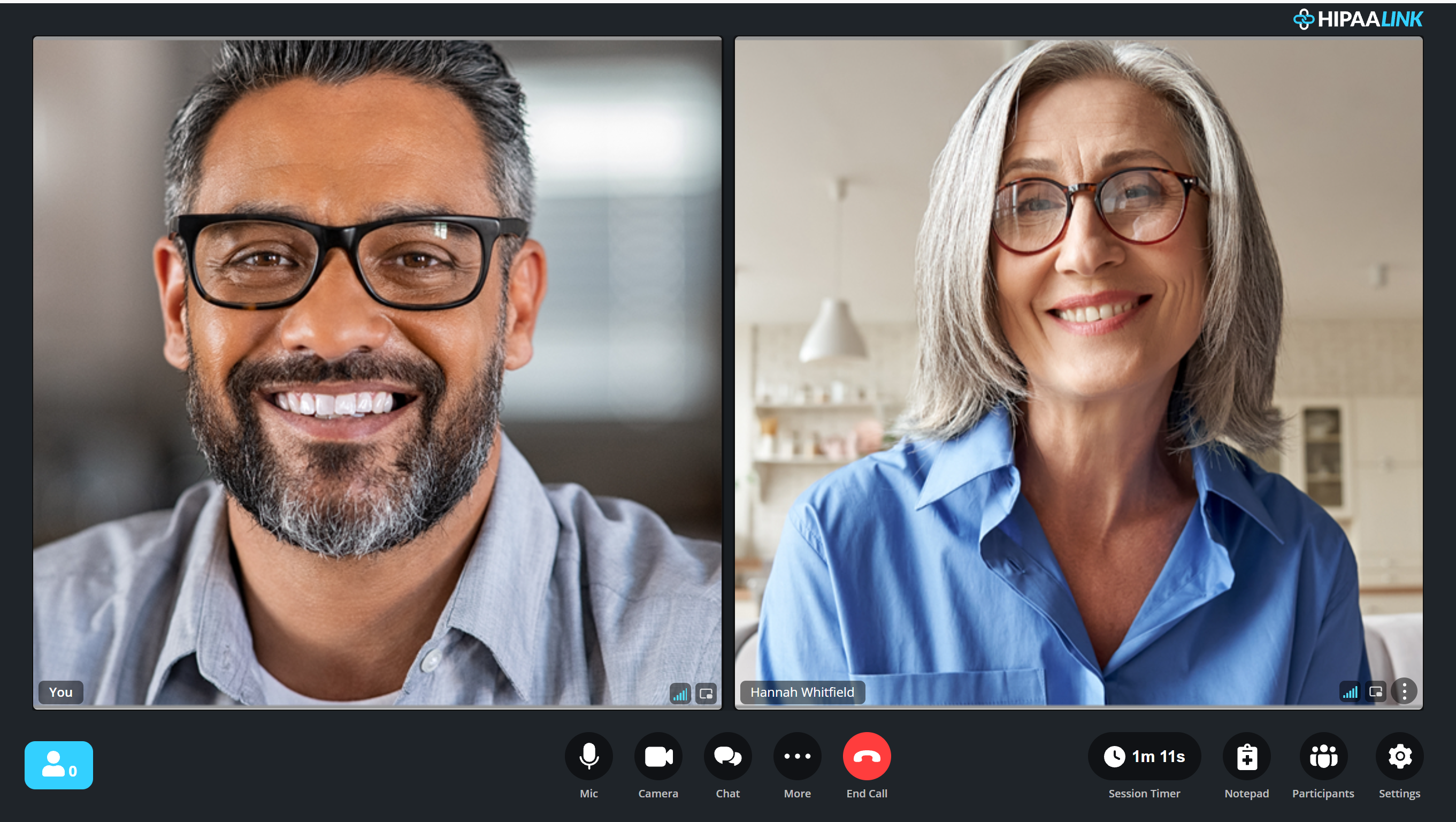
Grid gives everyone a tile of the same size. It is the one to pick when you want to watch the client without your own picture sitting small in a corner, and the only one that does not decide for you who matters most on screen.
Speaker makes the person talking the large picture. Overlay puts your own picture over the client’s rather than beside it.
The arrangement is yours alone. The client’s screen is unchanged by it.
Make the client fill the screen
Open More and select Full Screen. The browser’s own furniture goes away and the call fills the display.
Exit Full Screen puts it back, and so does the Escape key.
Float the client over your other windows
Each video tile has a small button in its lower corner showing two overlapping rectangles. It pops that person’s video out of the page into a floating window that stays above whatever else you are working in, so you can keep seeing the client while you type in another program.
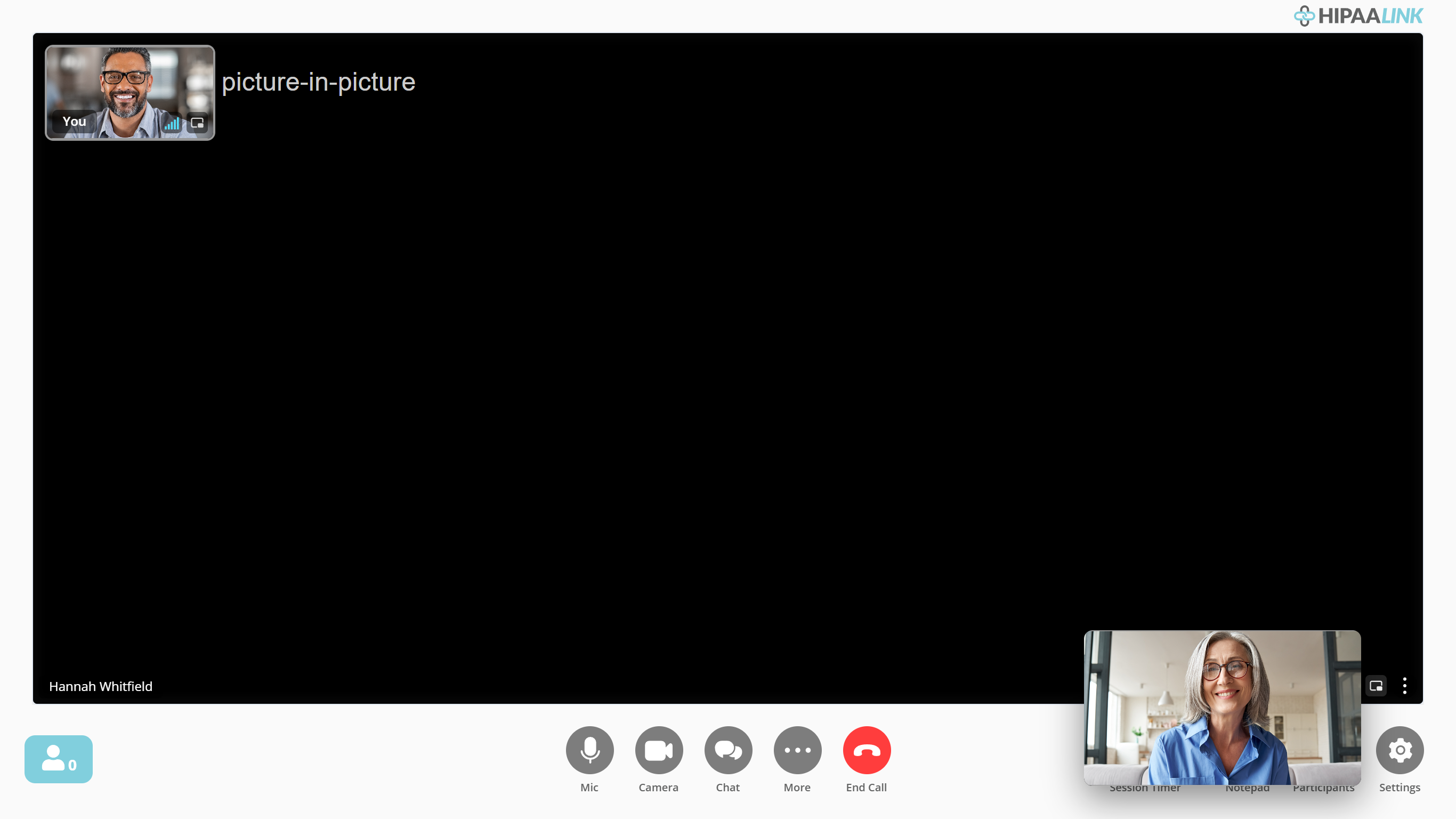
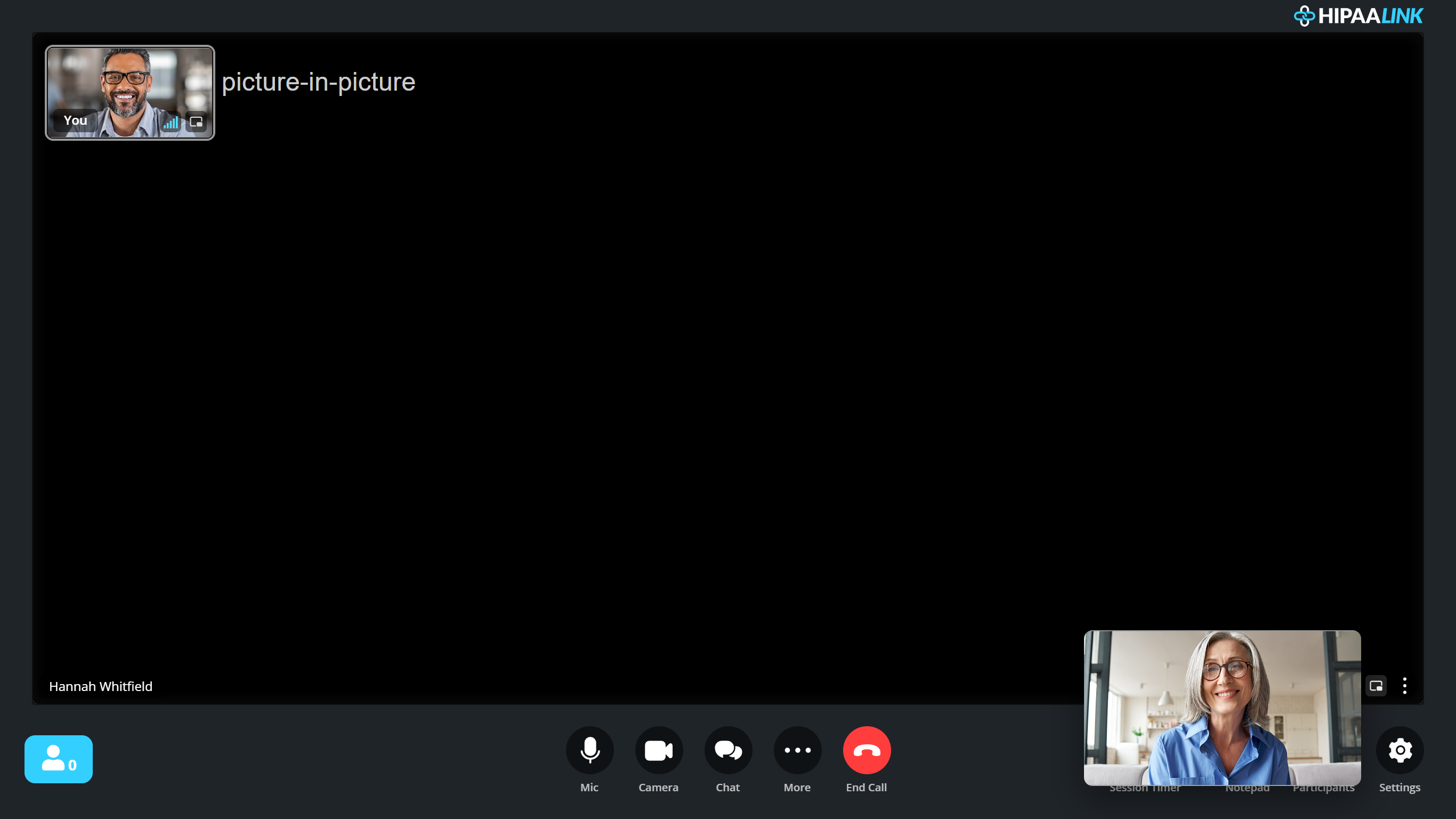
The black rectangle is not a fault. The video has left the page for a window of its own, and the space it came from says so until you put it back.
The floating window stays on top of whatever you do next, including other programs, and you can drag it anywhere on your screen or resize it.
Press the same button again to return it. Closing the floating window does the same thing.
Hide your own picture
- Point at your own picture. A button appears in its upper corner.
- Select Hide self view.

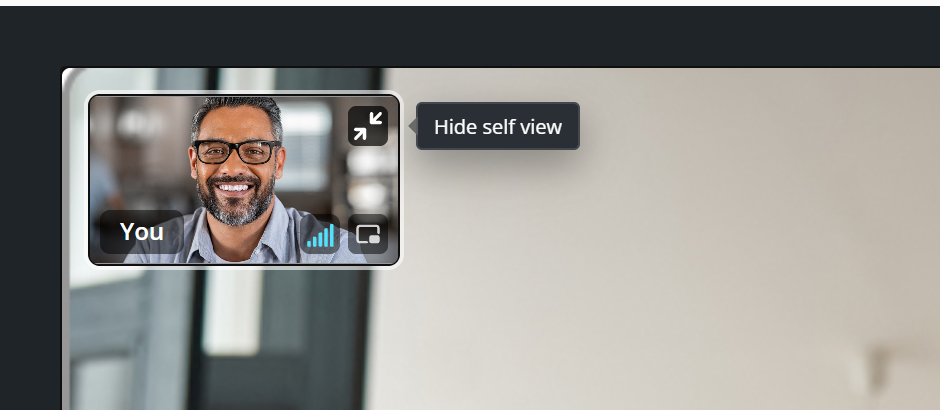
The button is on your own picture whichever arrangement you chose above.
Your picture is not removed. It collapses to a slim bar carrying your name, and the space it held goes to the client.
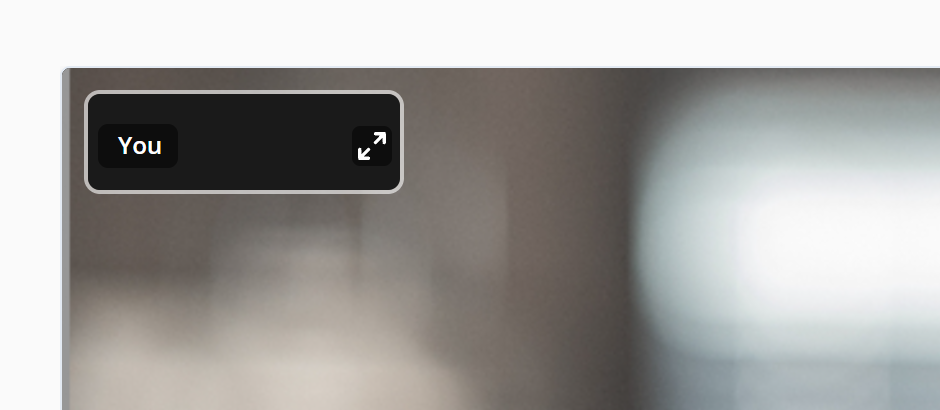
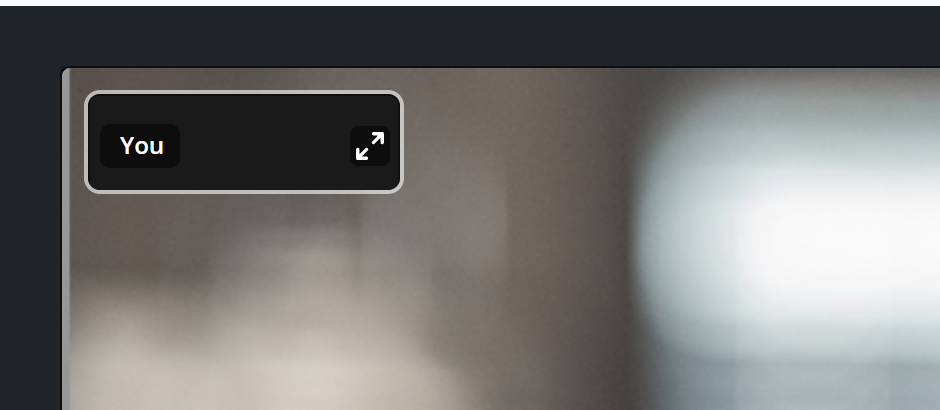
Select that button, Show self view, to bring your picture back.
Worth doing if watching yourself is distracting, which is a common and reasonable complaint in a long session.
The choice is remembered on this computer. If you hide your picture it stays hidden in your next call, until you bring it back.
What to know
- Both settings are yours alone. The client’s screen is unaffected.
- Full screen does not change the picture quality, only its size.