
The call screen
Where the controls are, why they disappear, and what sits behind More.
- Who can use it
- All staff
The client fills the screen. Your own picture sits in a small framed tile in the top left corner, and the controls run along the bottom, underneath the video rather than over it, so nothing covers the person you are talking to.
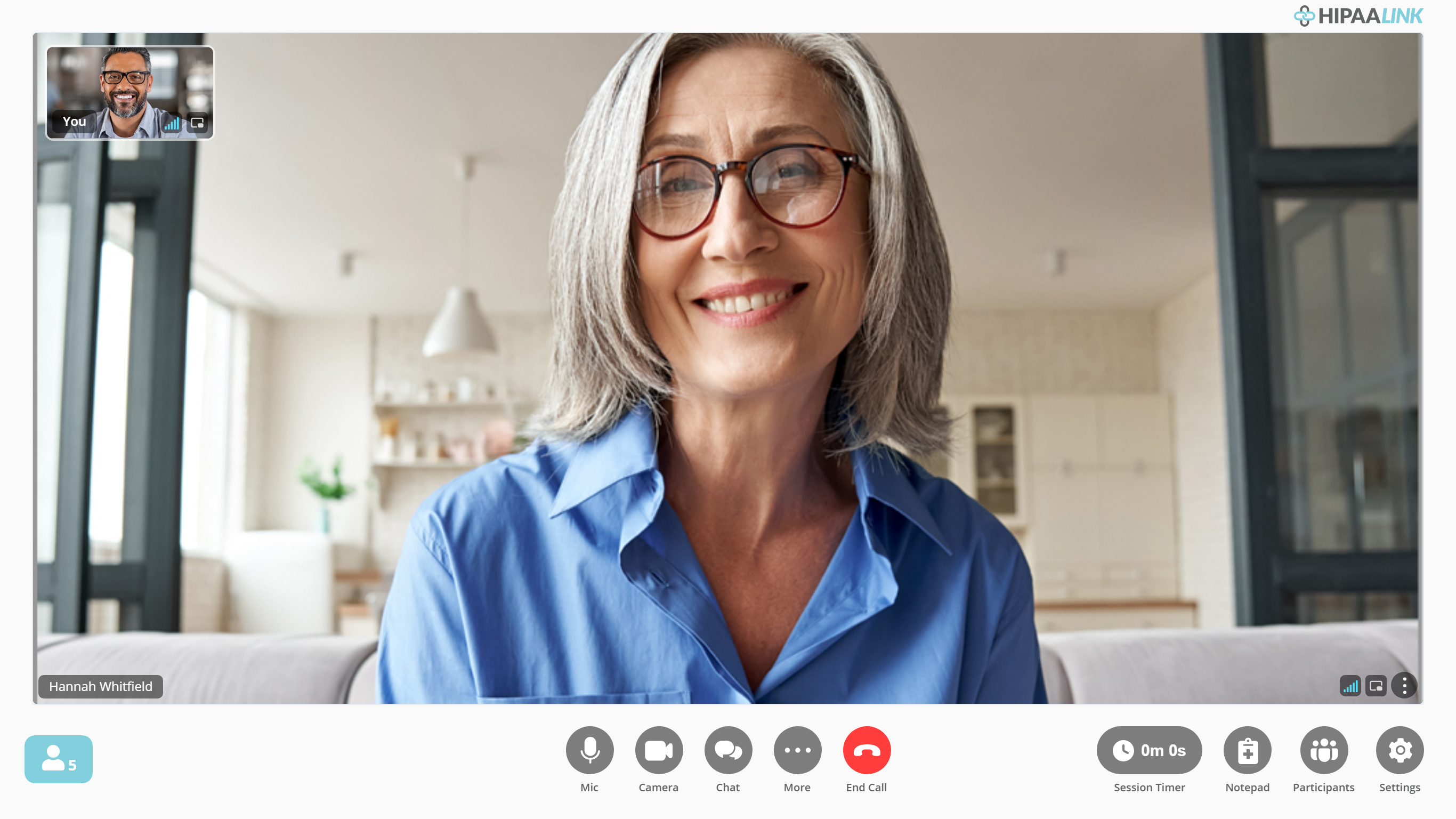
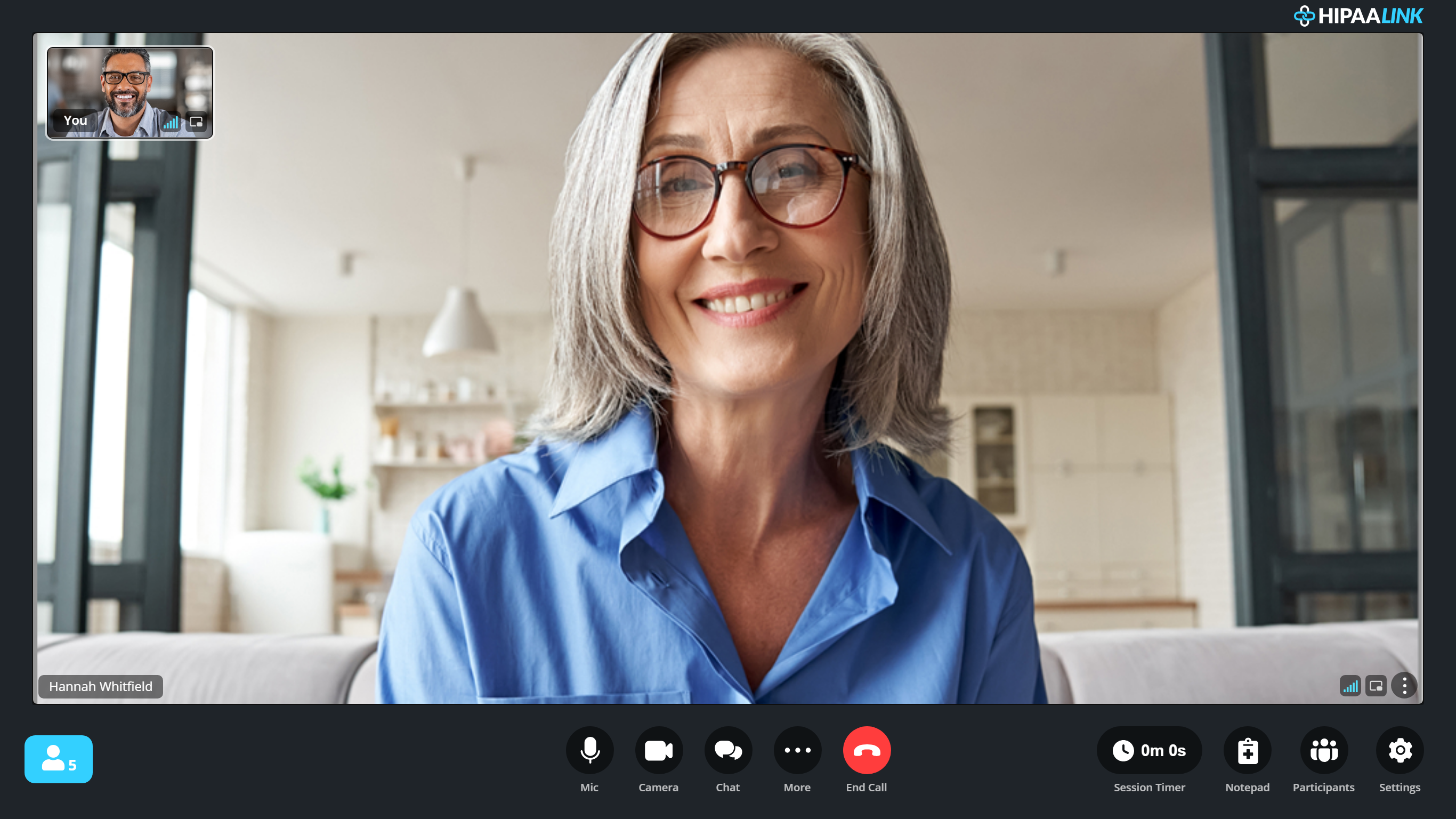
The controls fall into two groups on the same row. In the middle: Mic, Camera, Chat, More and End call. Over to the right: the session timer, Notepad, Participants and Settings.
The count at the far left is how many clients are waiting in your queue, so you can see somebody arrive without leaving the call.
End call is red whatever else is happening, so it is hard to press by accident. More opens everything that is not on the row.
The controls stay put
They do not fade out or hide themselves. The row is there for the whole session, and the only thing that changes it is Full Screen, which hides the browser’s own furniture rather than anything of ours.
What is behind More
More holds everything that is not mic, camera, chat or hanging up. It opens upward, over the video.
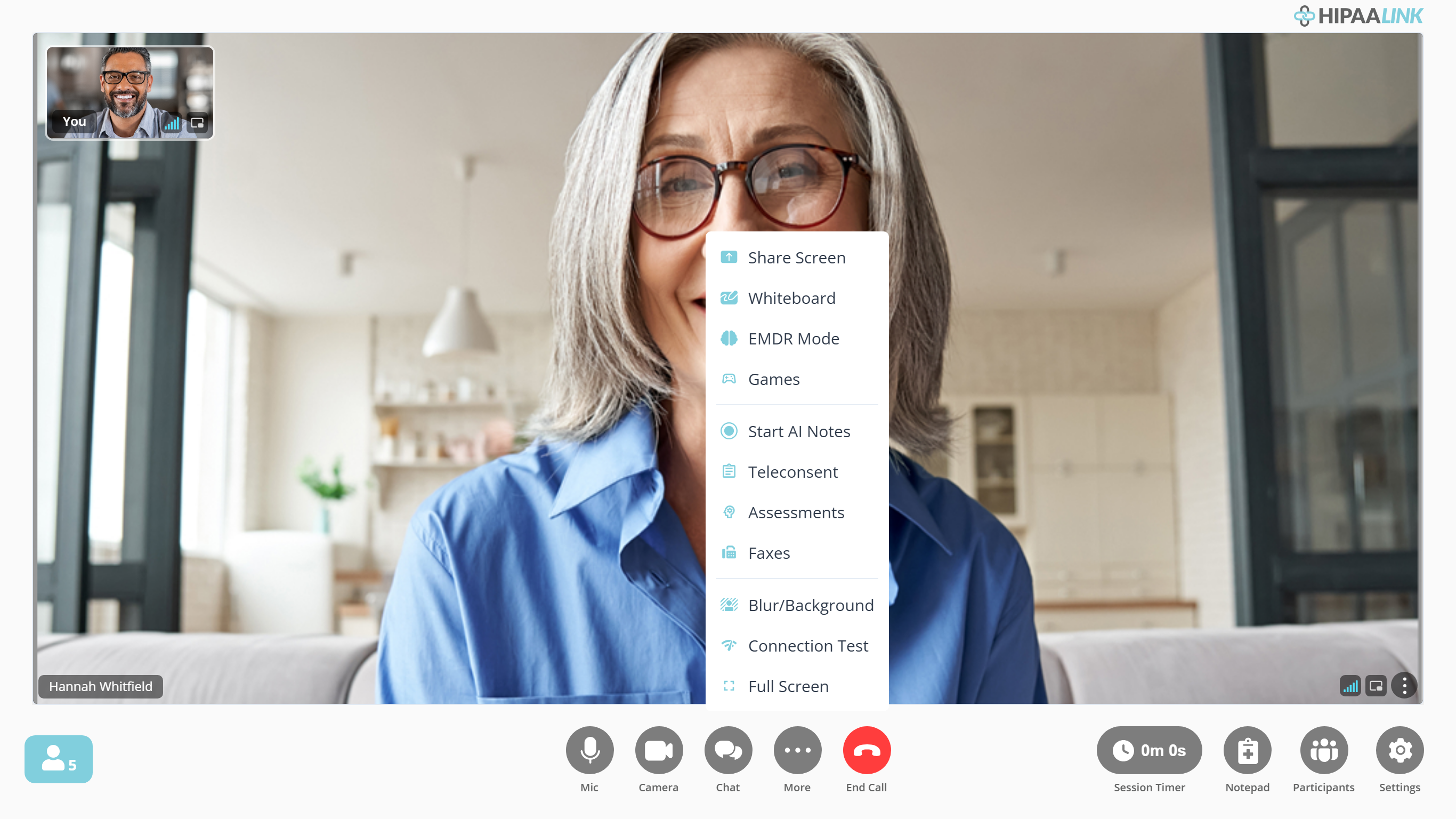
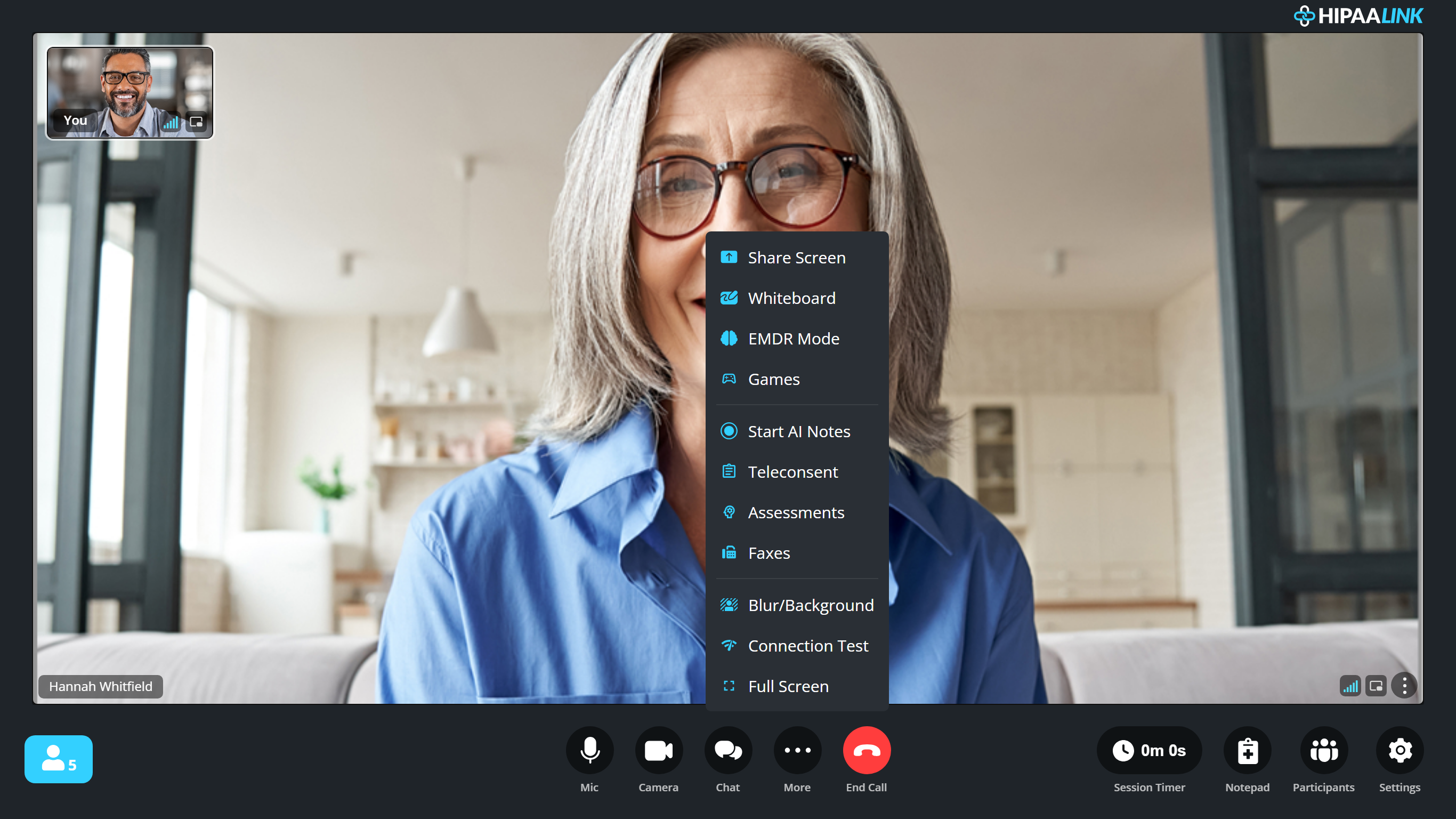
The groups are what makes it readable:
- Things the client sees too: Share Screen, Whiteboard, EMDR Mode and Games
- Clinical tools: Start AI Notes, Teleconsent, Assessments and Faxes
- Your own screen: Blur/Background, Connection Test and Full Screen
Several of these appear only when a clinic admin has turned the feature on, or only on a paid plan, so your menu may be shorter than the one above. The groups and their order stay the same.
The side panels
Four buttons open a panel rather than doing something: Chat in the middle group, and Notepad, Participants and Settings in the group to the right.
A panel opens beside the video rather than over it, so you can keep talking while you use one.