
Share your screen
Show a document, a worksheet or a website to the client, and the two things that block it.
- Who can use it
- All staff
- Plans
- Paid plans
- Open More and select Share Screen.
- Choose a whole screen, a window, or a single browser tab.
- Select Stop Sharing when you are done.
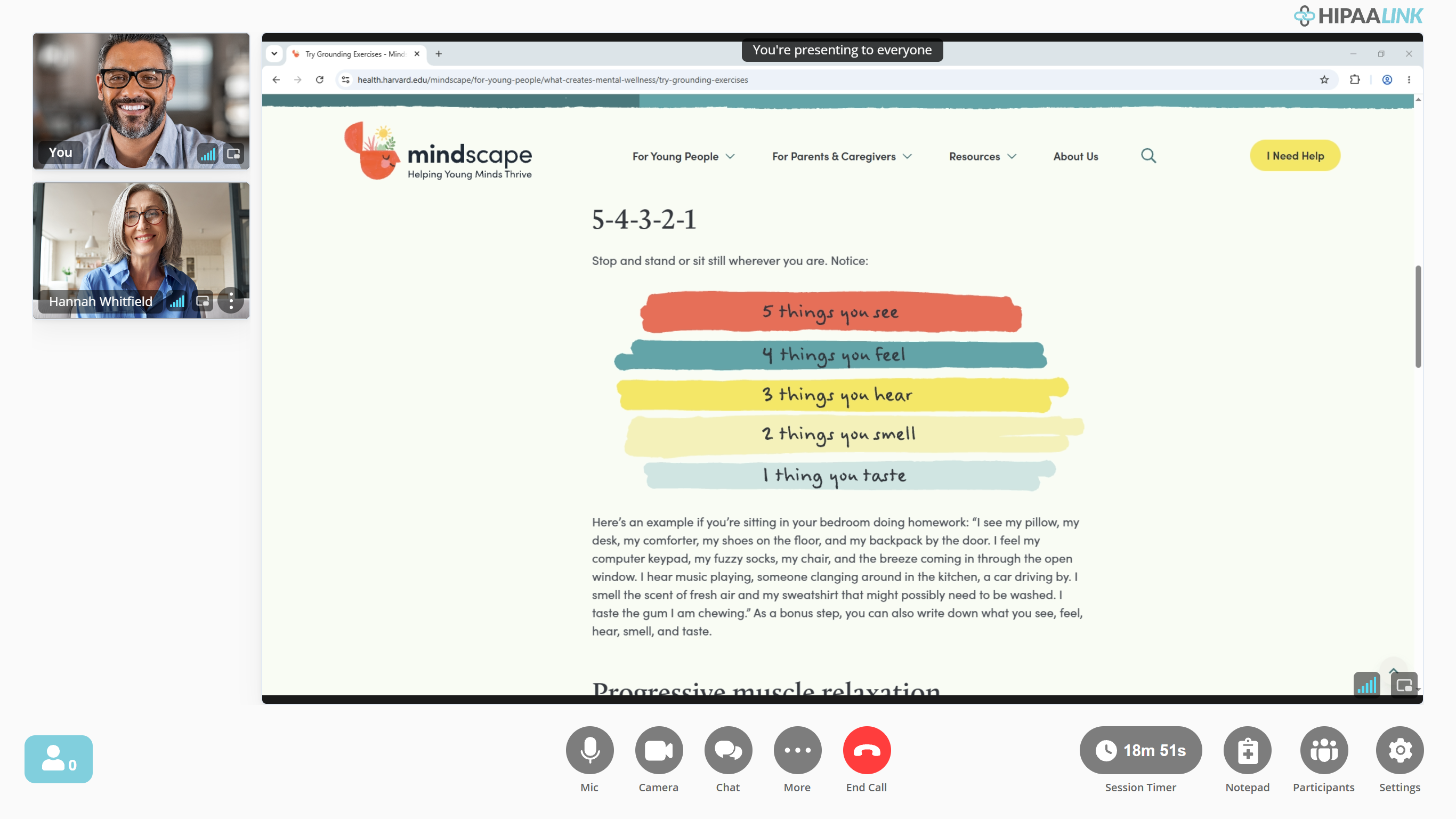
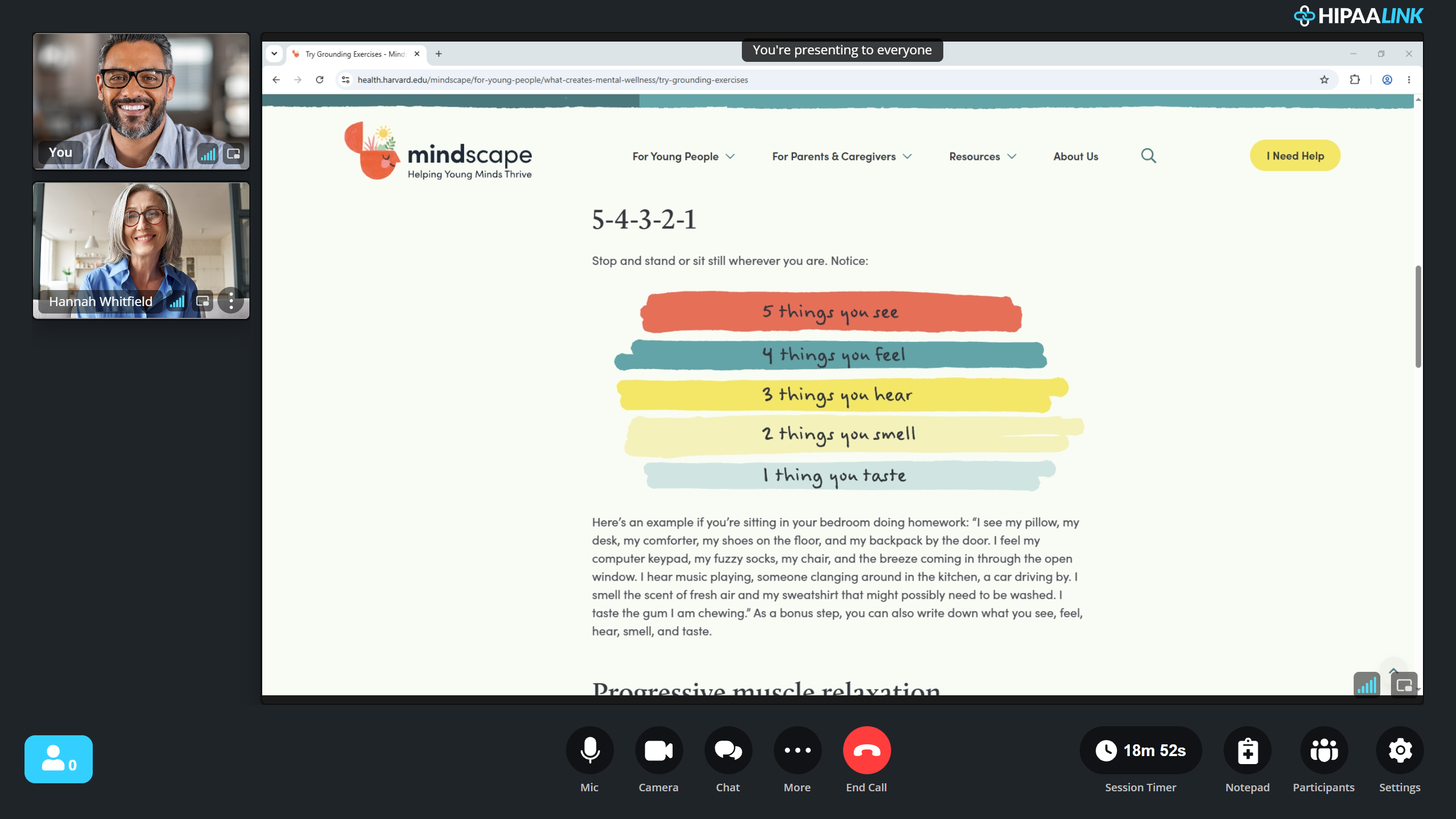
What you share takes over the large pane for both of you. The video tiles move to the side, so you can still watch the client’s face while they read.
Share a single window or tab rather than your whole screen. A notification arriving mid session is visible to the client if you share everything.
Your browser puts a banner on whatever you are sharing to say that you are presenting. It is on the shared surface, so the client sees it too.
Two things block it
Whiteboard and EMDR Mode both take the same space, so sharing is unavailable while either is open. The app says so: “In order to share screen please exit whiteboard”, or “In order to start share screen please exit EMDR”.
Close the one you are in, then share.
What to know
- The client sees what you share, not your call controls. Those sit outside the shared area, as in the figure above.
- Audio from the shared tab goes with it if your browser offers to include it. Check that box before sharing a video.
- Sharing is a paid plan feature.