
Move a client to another room
Send a waiting client to a different shared room or to a member's personal room, without asking them to check in again.
- Who can use it
- Room members
- Plans
- Paid plans
Moving a client says where they belong, not who is helping them. Reception to Triage, or Triage to the provider who will see them.
The client does not reload anything and does not check in again. They keep their place in line, their camera and microphone stay as they were, and any messages stay with them.
You can move a client who is unclaimed, or one you have claimed yourself.
There are two ways to do it, and they go to different places. Dragging moves a client onto any room card you can see, which is the rooms you are a member of and your own queue. Transfer reaches everything else, including other members’ personal rooms, which have no card to drop onto.
Move a client by dragging
- Take hold of the card by the six dots at its leading edge.
- Drag it onto another room’s card, or onto your own Client Queue card.
- Release it.
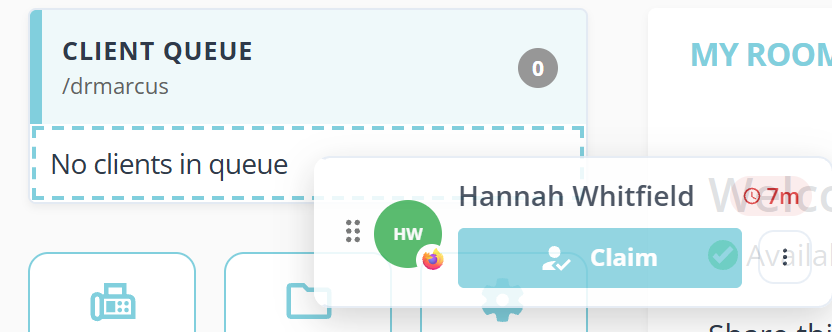
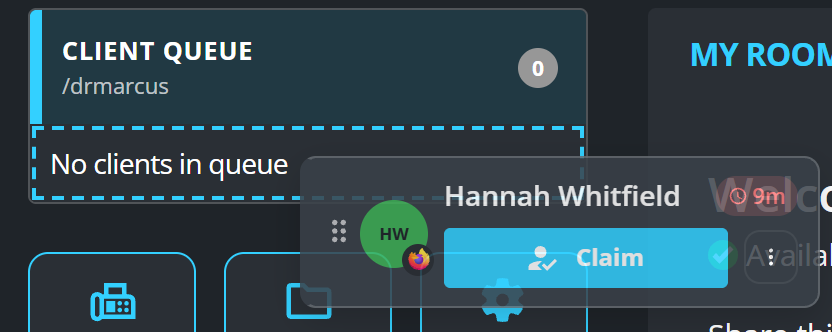
The dashed outline shows where the card will land, and it follows the pointer from one room card to another. Release outside any of them and nothing moves.
From the keyboard, select the handle, then press Space to lift the card, the arrow keys to choose a room, and Space again to drop it. Escape cancels.
Move a client with Transfer
Transfer is the other way, and it reaches further than dragging does. Use it to send a client to another member’s personal room, which has no card on your screen to drop onto.
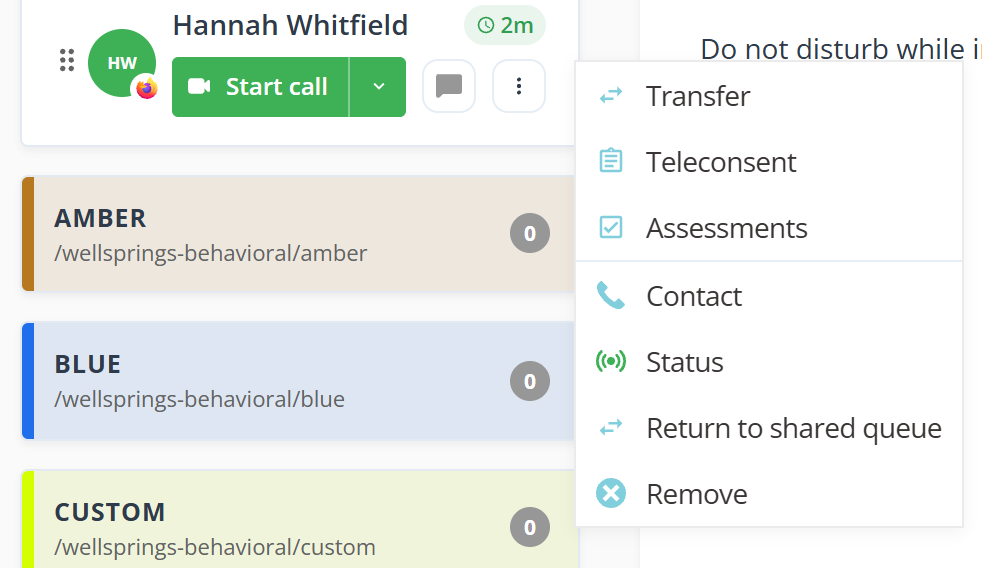
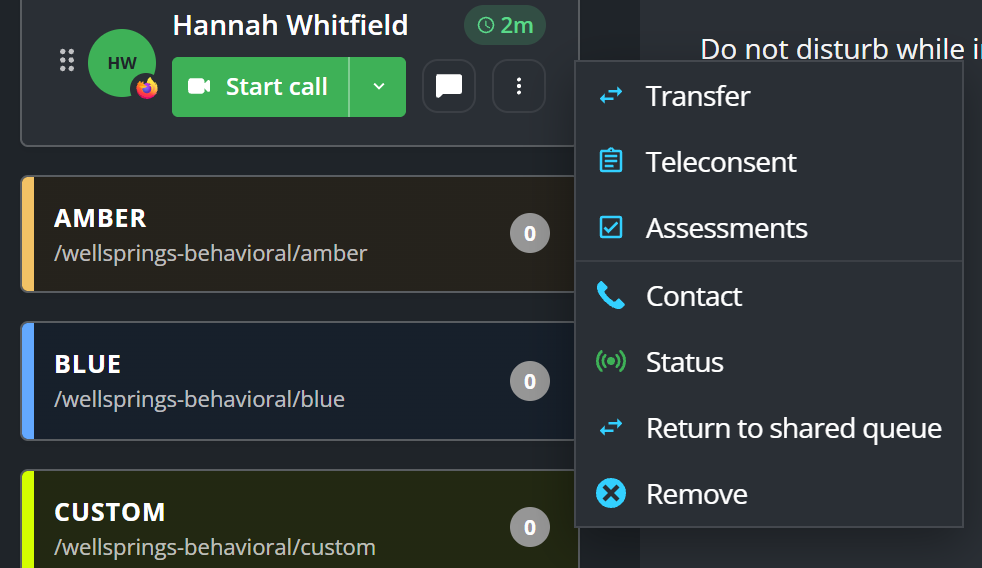
The same menu carries everything else you can do to a waiting client: Teleconsent and Assessments send them a form, Contact and Status tell you how to reach them and whether their device is working, and Remove takes them out of the queue.
- Select the dot menu on the client’s card, then select Transfer.
- Open the list and choose a destination. Staff lists members of your clinic, including your own personal room. Shared Rooms lists shared rooms.
- Select Transfer.
The list is the only thing to fill in, and Transfer stays unavailable until you choose a destination. Cancel closes the dialog and moves nobody.
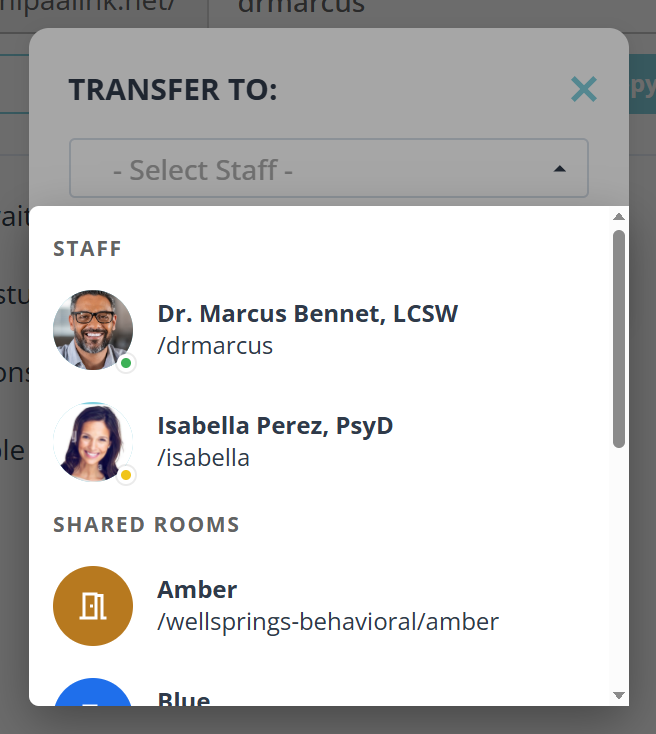
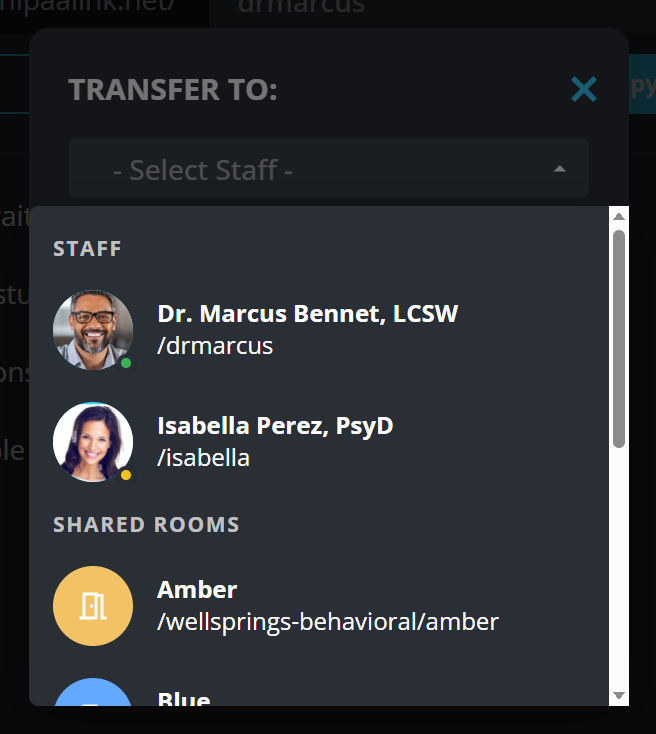
The list comes in two groups. Staff is people, each with their own room, shown with their picture or their initials. Shared Rooms is shared rooms, shown with a door in the room’s own color, the same color the room has on your dashboard.
The dot on a person says whether they are there: green when they are signed in with their queue open and have not marked themselves unavailable, amber otherwise. Only people get one. A room is staffed by several people or by none, so a dot on a room would claim something the dialog cannot know.
Scroll the shared rooms and two more marks appear. Paused means the room is not taking check-ins. A padlock means you are not a member of that room, so you will lose sight of the client once they arrive. A room can carry both at once.
Undo a move
When you move a client into a room you are not a member of, a notice appears at the corner of the screen offering to undo the move. It counts down from eight seconds. Select it to bring the client back.
There is no notice when you can still see the client, because dragging them back is the undo.
What to know
- A client another member has claimed cannot be moved. Release them first, which names who has them and makes it deliberate.
- Moving a client to a paused room asks you to confirm first. The move is allowed, since staff may be working a room that is closed to new check-ins, but nobody may be watching it.
- The claim does not travel. A client you had claimed arrives unclaimed, and whoever is in the new room decides who takes them.