
How a client joins a visit
What your client sees at each step, so you can talk them through it on the phone.
- Who can use it
- All staff
Nothing in your dashboard shows you the client’s side. This is it, so you can picture what they are looking at when they call the practice confused.
1. They open your link

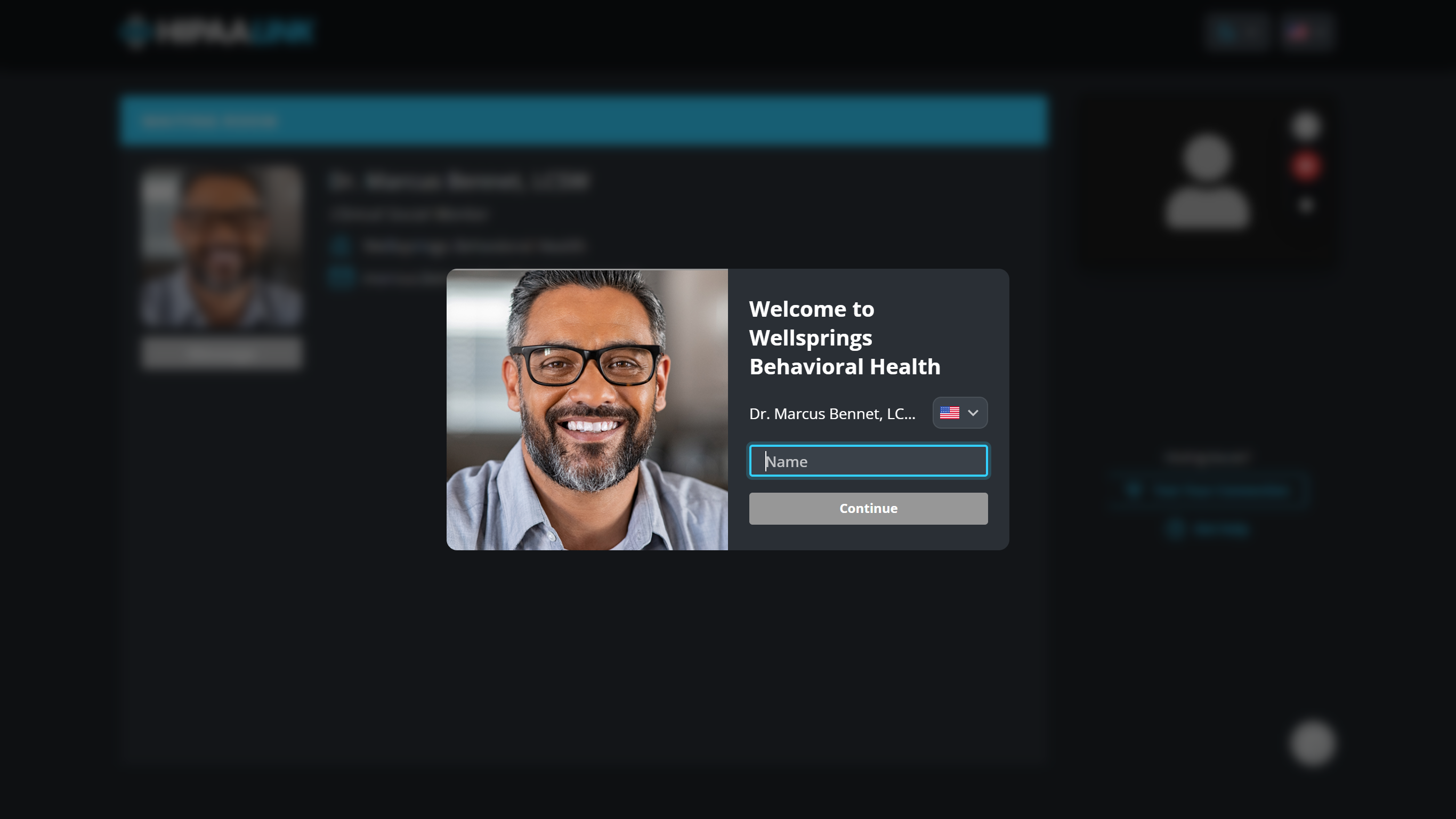
Your organization name is at the top, your display name under it, and a box for their name. The name they type is the one you see in your queue, so ask them to use the name you booked them under.
If you have turned on Require phone number during check-in, a phone box appears too and they cannot continue without it.
A shared room link opens a full page with a live camera preview instead, and asks for a name the same way.
2. Their browser asks for the camera and microphone
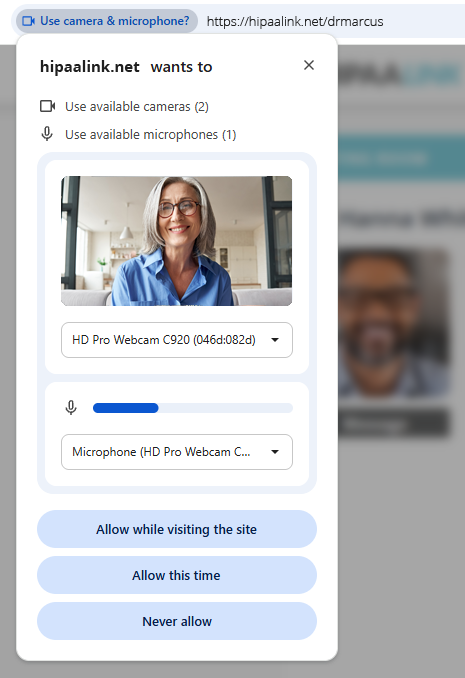
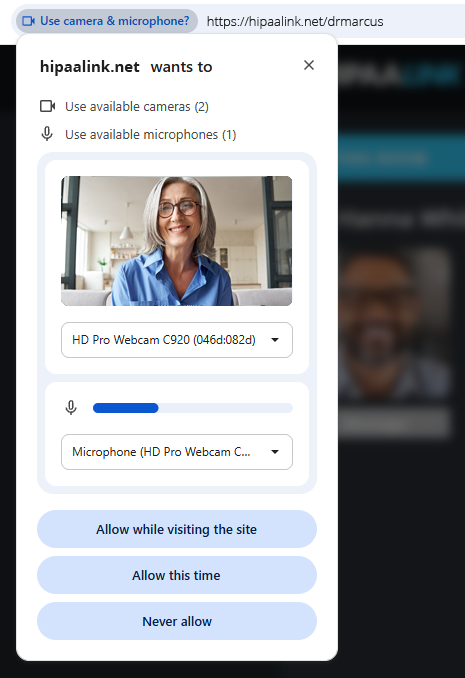
This is where first visits go wrong. The browser asks once, and a client who declines is never asked again.
They do not need to accept to check in, but they will arrive in the call with no camera or microphone. You can see that before you call them. See Check a client’s status before you call.
3. They check their equipment
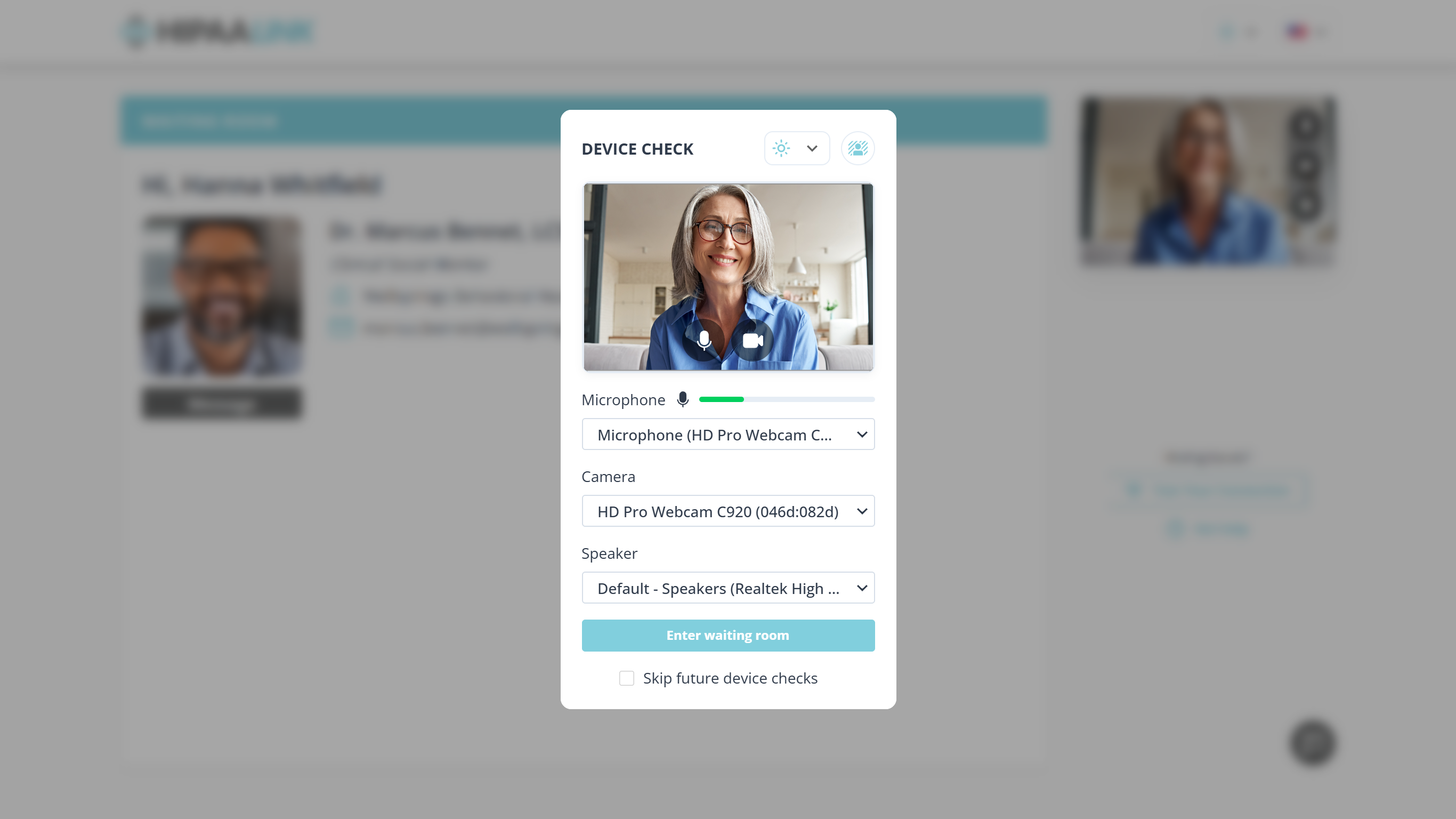
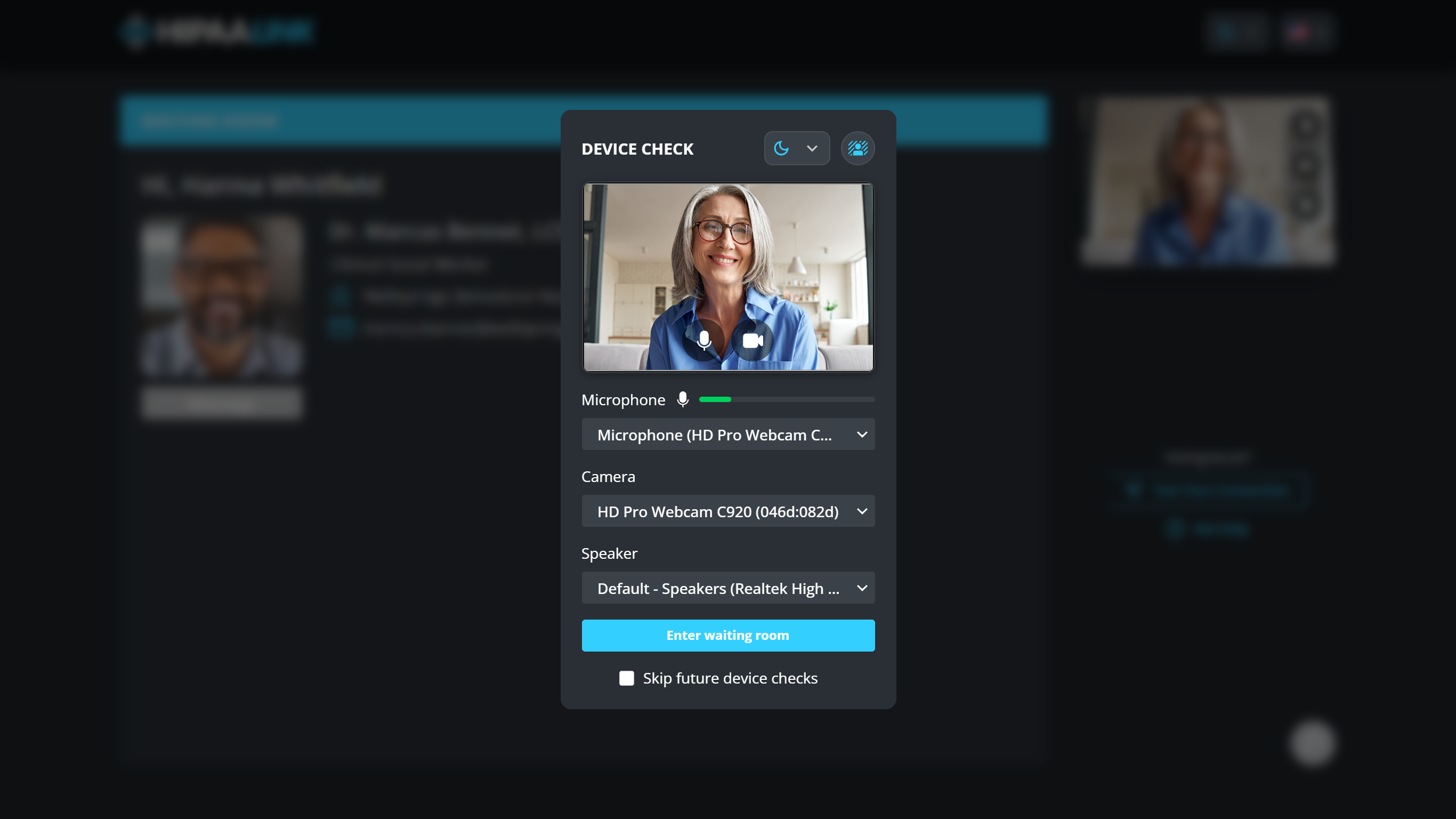
Each dropdown lists the equipment on their computer, so this is where a client moves from a laptop microphone to a headset. The bar beside Microphone moves when they speak, which is the quickest check to talk someone through on the phone.
They select Enter waiting room to finish. Skip future device checks jumps past this screen next time on the same device.
4. They wait
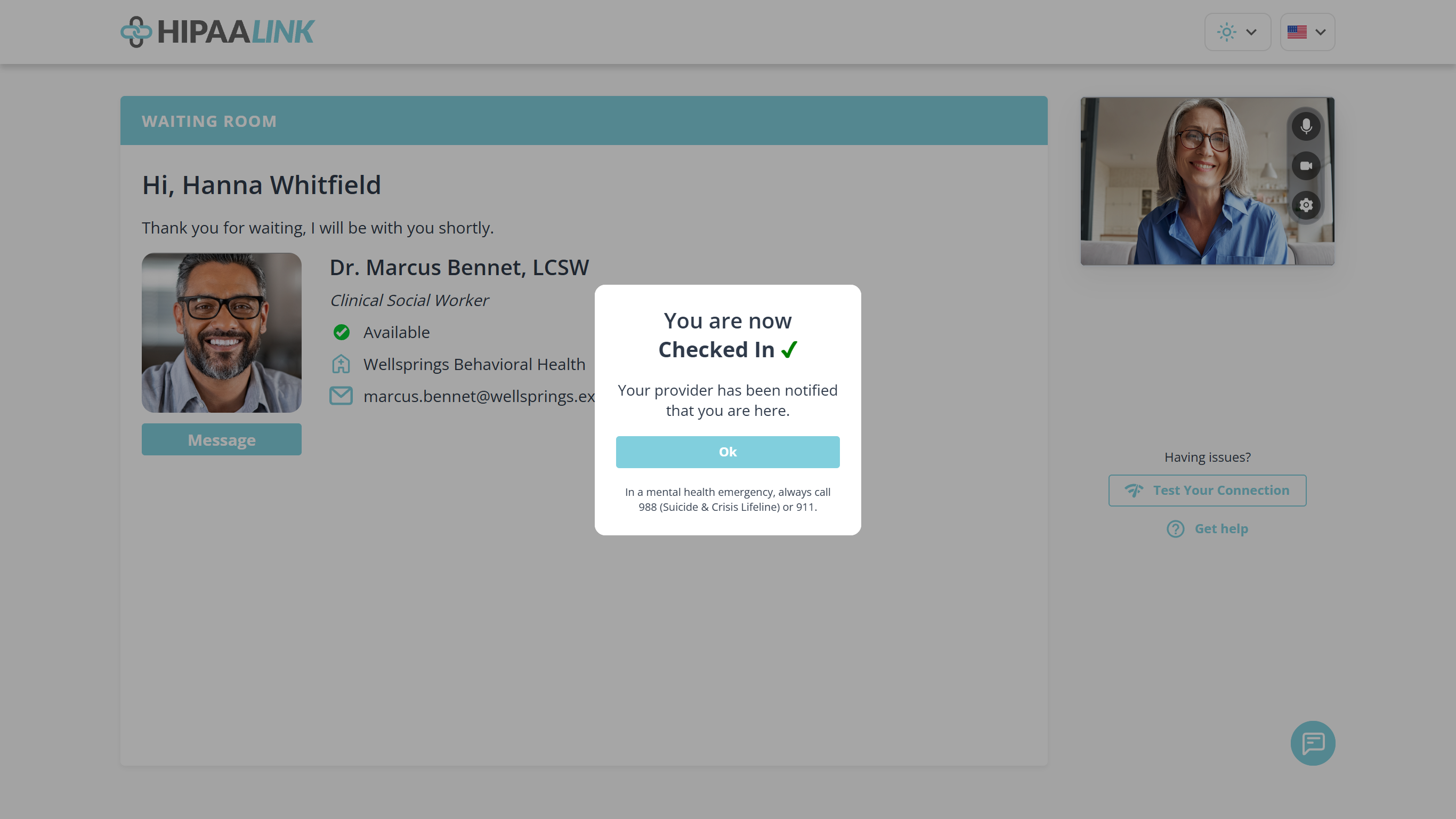
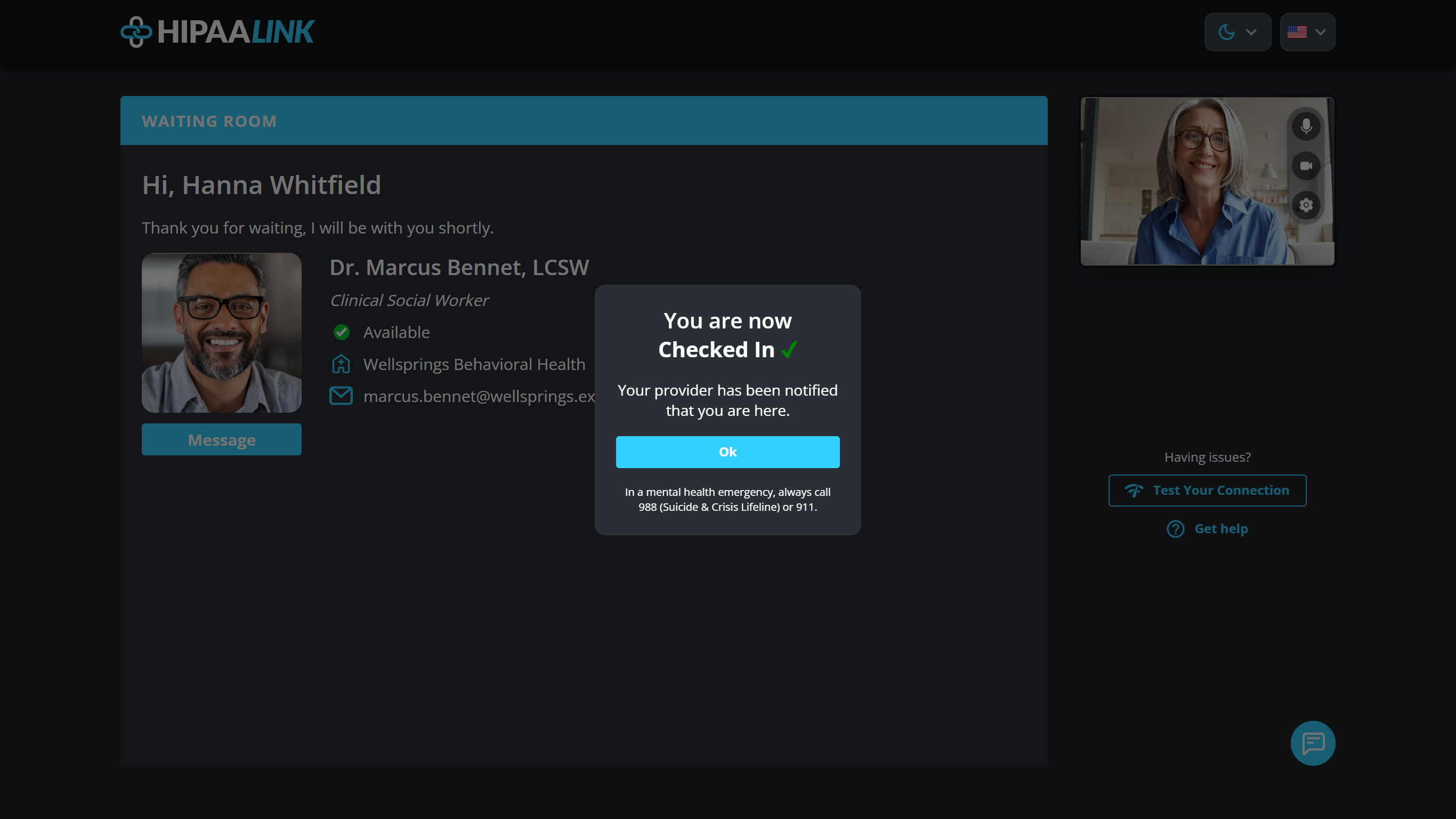
They see Checked In and are told you have been notified.
The page shows Available while you are signed in and Unavailable when you are not, which is the single most common reason a client phones the practice early.
They can select Message to write to you while they wait.
5. You start the call
They are brought in. They accept nothing and press nothing, even if the confirmation box is still open on their screen.
Send them the instructions
Join your appointment is written for them rather than for you. It is the link to put in an appointment reminder.