
Check a client's status before you call
What device they are on, whether their camera and microphone work, and how long they have waited.
- Who can use it
- All staff
There are two ways to see it, and the quicker one needs no clicking at all.
- Point at the small badge on the client’s picture. The panel opens under their card.
- Or open the dot menu on their row and select Status.
Worth doing whenever the badge shows a warning, and worth doing before any first appointment.
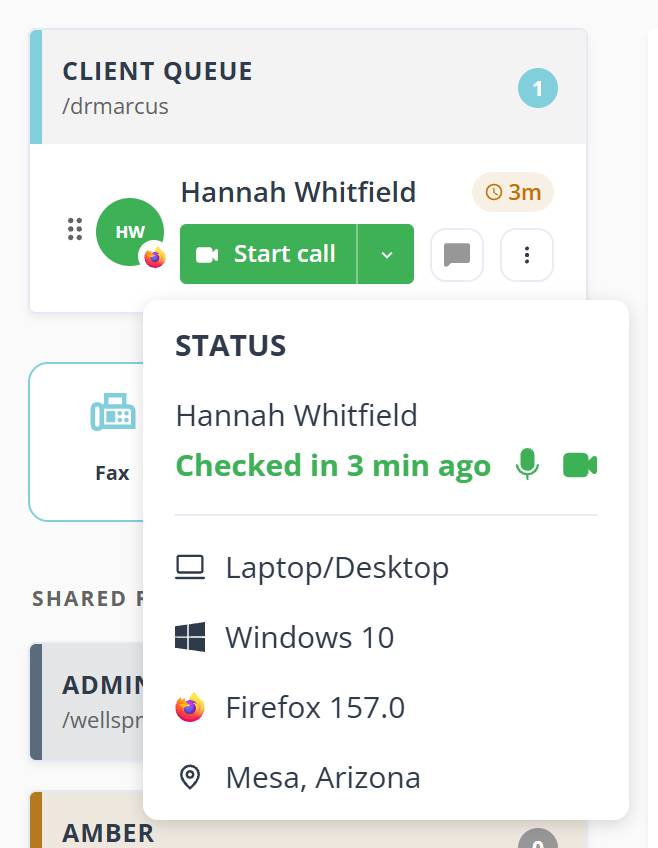
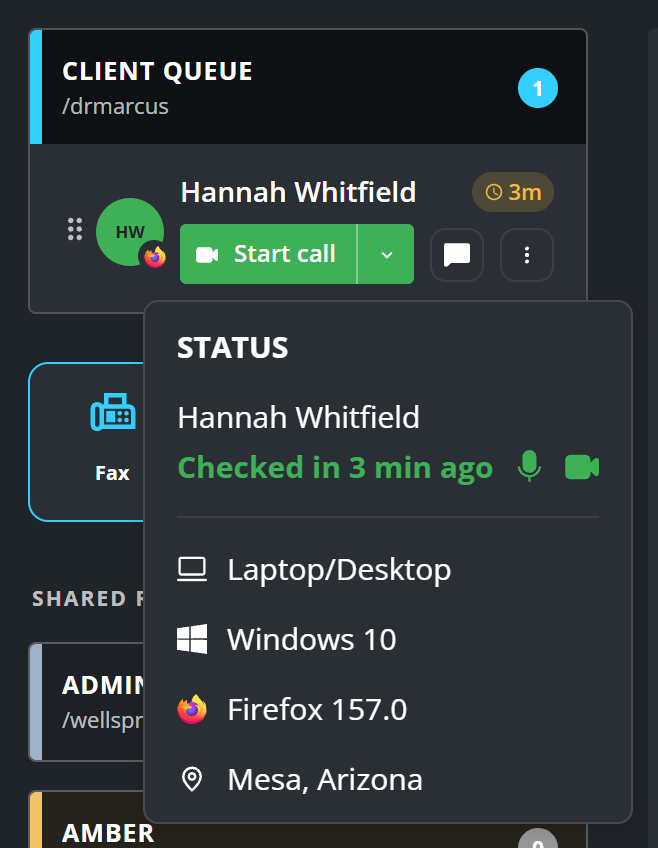
The badge itself is the first thing it tells you: it shows the browser they are using, or a warning mark instead when something is wrong with their camera or microphone.
What it tells you
- Device. Laptop/Desktop, Tablet or Mobile, with the operating system and browser.
- Camera and microphone. Whether this page can reach them. A blocked microphone is the single commonest reason a call goes wrong, and this is where you see it before it does.
- How long they have waited, counted from check-in, which is the total rather than the number on the row.
- Roughly where they are, as a city and state.
About the location
The city and state are worked out from the network address their connection arrives on, not from their phone or their record. Treat it as a rough indication and nothing more: a client on a mobile network, a work connection or a VPN can show a city they are nowhere near.
It is also not always there. If the address cannot be matched to a city, the line is simply left out rather than guessed at.
It is still useful for two things. A client in a different state may be one you are not licensed to see, and a location nowhere near the one you expect is worth a question before you begin.
Acting on it
A blocked camera or microphone is the client’s browser, not your account, and only they can change it. Send them Allow your camera and microphone, or message them the short version.
An old browser or operating system is worth mentioning for next time rather than fixing now.