
Join your appointment
Open the link your provider sent, type your name, and wait. There is nothing to download and no account to create.
Your provider sends you a link. Opening it puts you in their waiting room, and they come and get you when they are ready.
There is nothing to install and no password to remember. Here is every screen you will see, in the order you will see them.
-
Open the link your provider sent you. Use the same link every time. It does not expire.
-
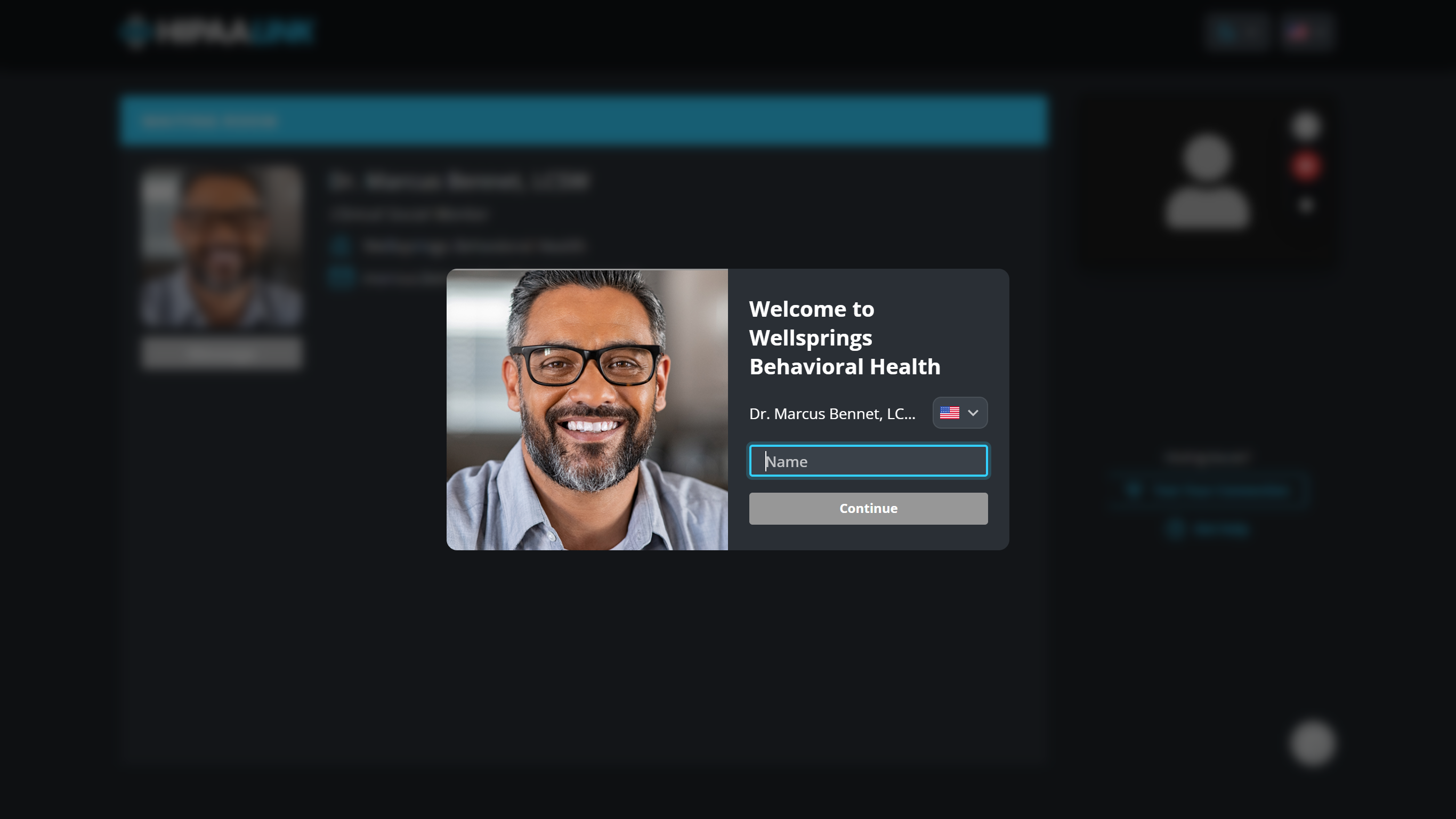
Type your name, then select Continue or Check in, whichever your screen shows.
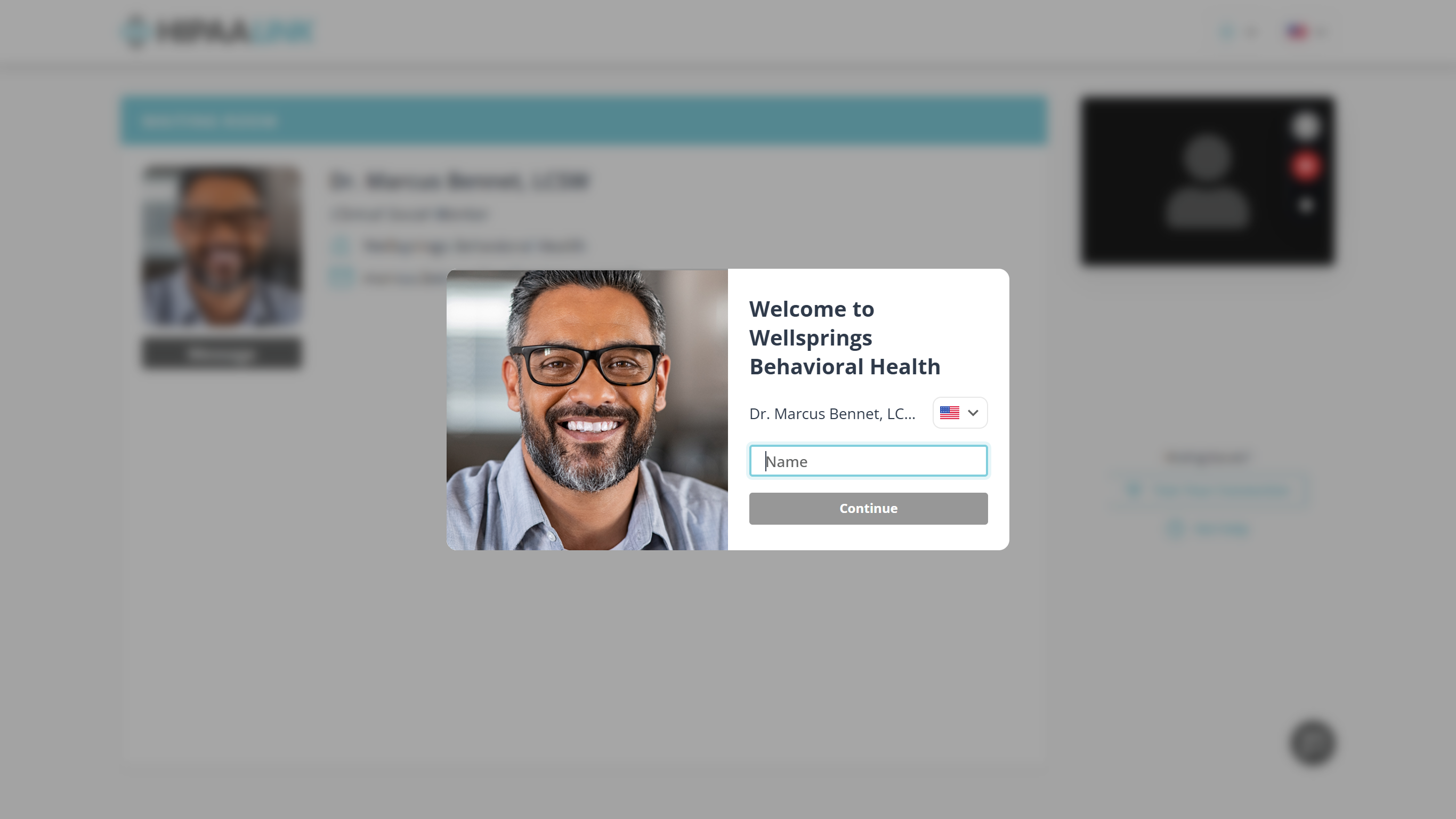
The first screen. The flag changes the language before you type anything. This is the name your provider sees in their list, so use the one they booked you under. The flag beside their name changes the language of this page and the ones after it.
-
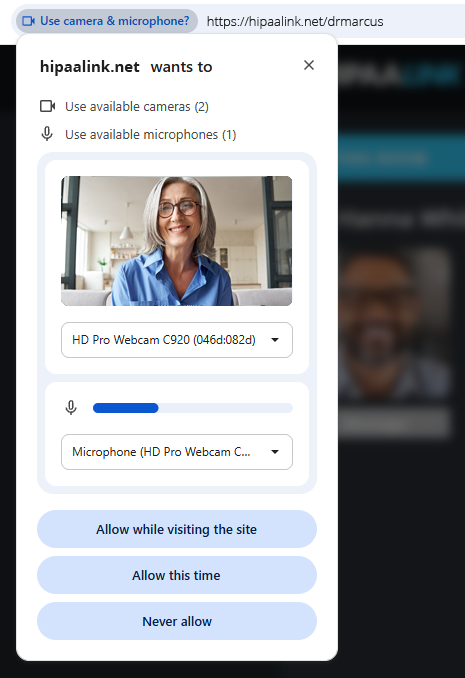
Allow your camera and microphone when your browser asks.
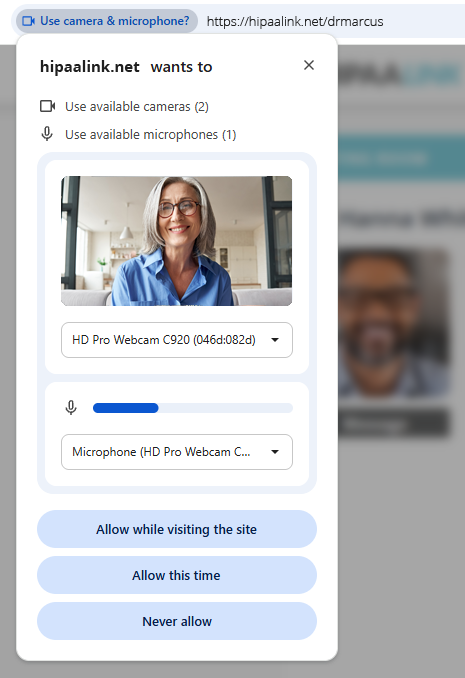
Your browser asking, not the practice. The preview shows what your camera can see, so you can check it before anyone else does. Either allow option works. Allow while visiting the site means you will not be asked again, which is easier if you have appointments regularly.
-
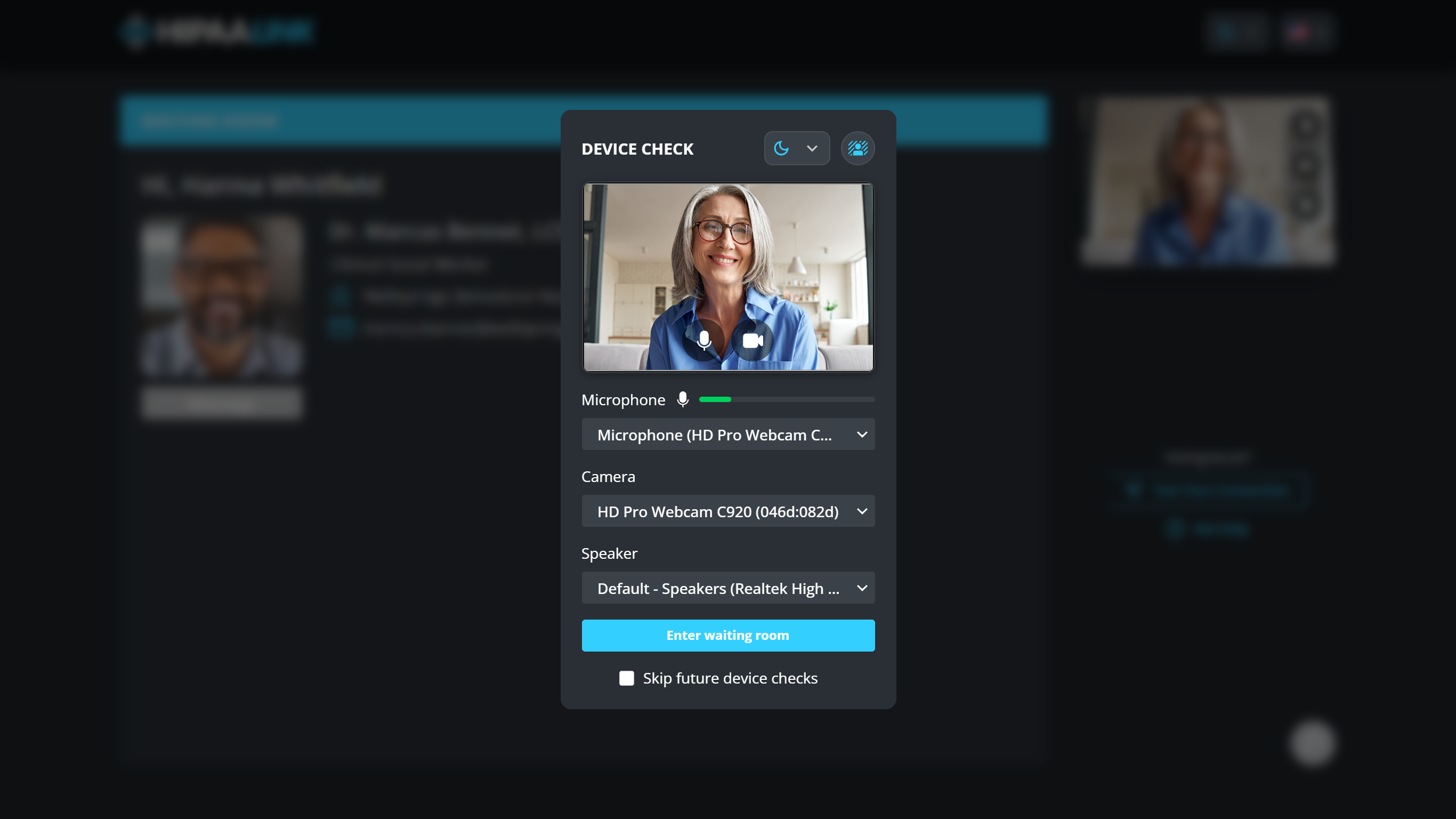
Check your equipment, then select Enter waiting room.
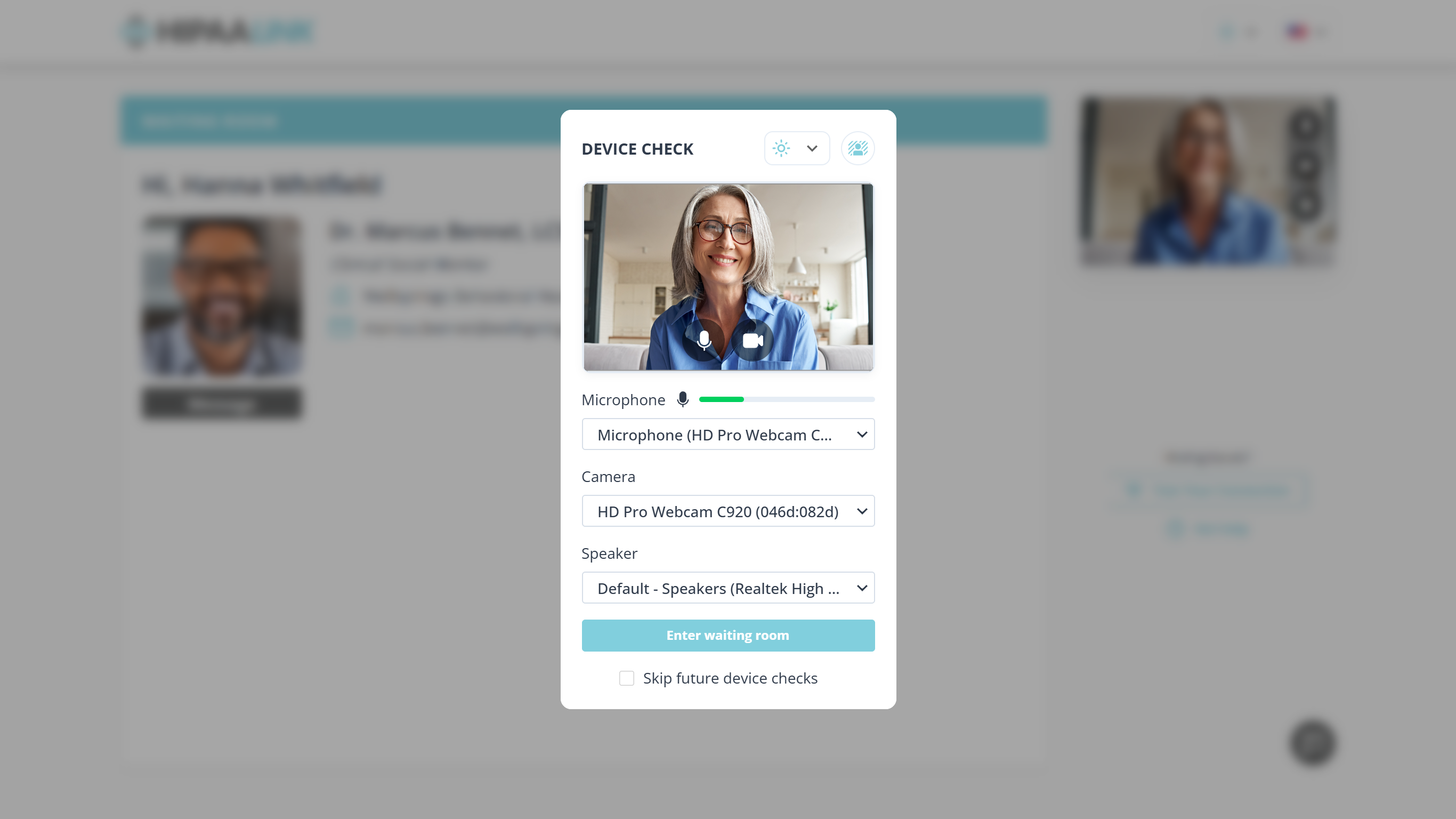
The last screen before the waiting room. The green bar beside Microphone moves when you speak. Each dropdown lists the equipment your computer has, so this is where you switch from a laptop microphone to a headset. Speak and watch the bar beside Microphone: if it does not move, choose a different one and try again.
-
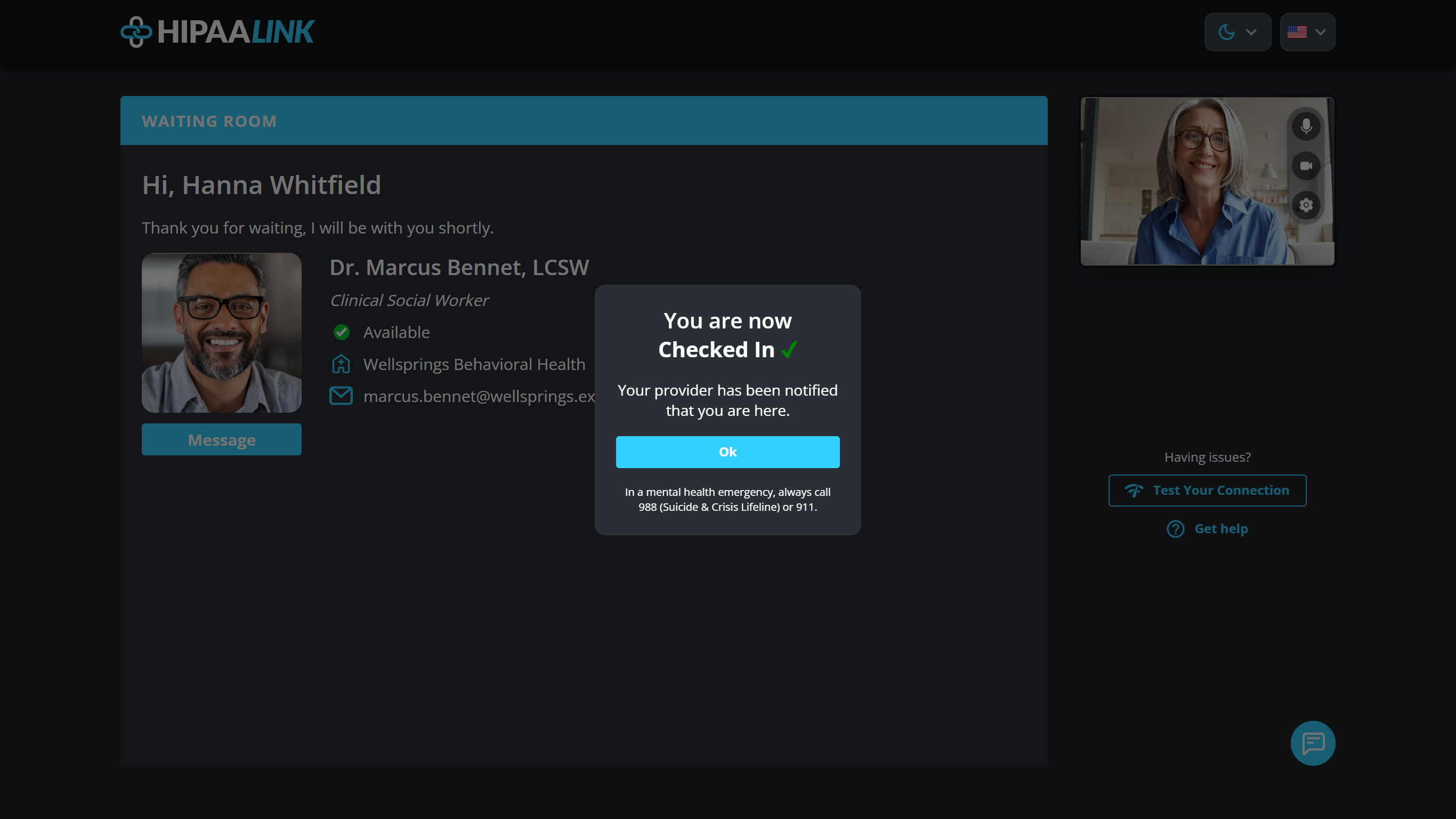
Wait on the page that follows. Your provider can see that you have arrived, and will come and get you.
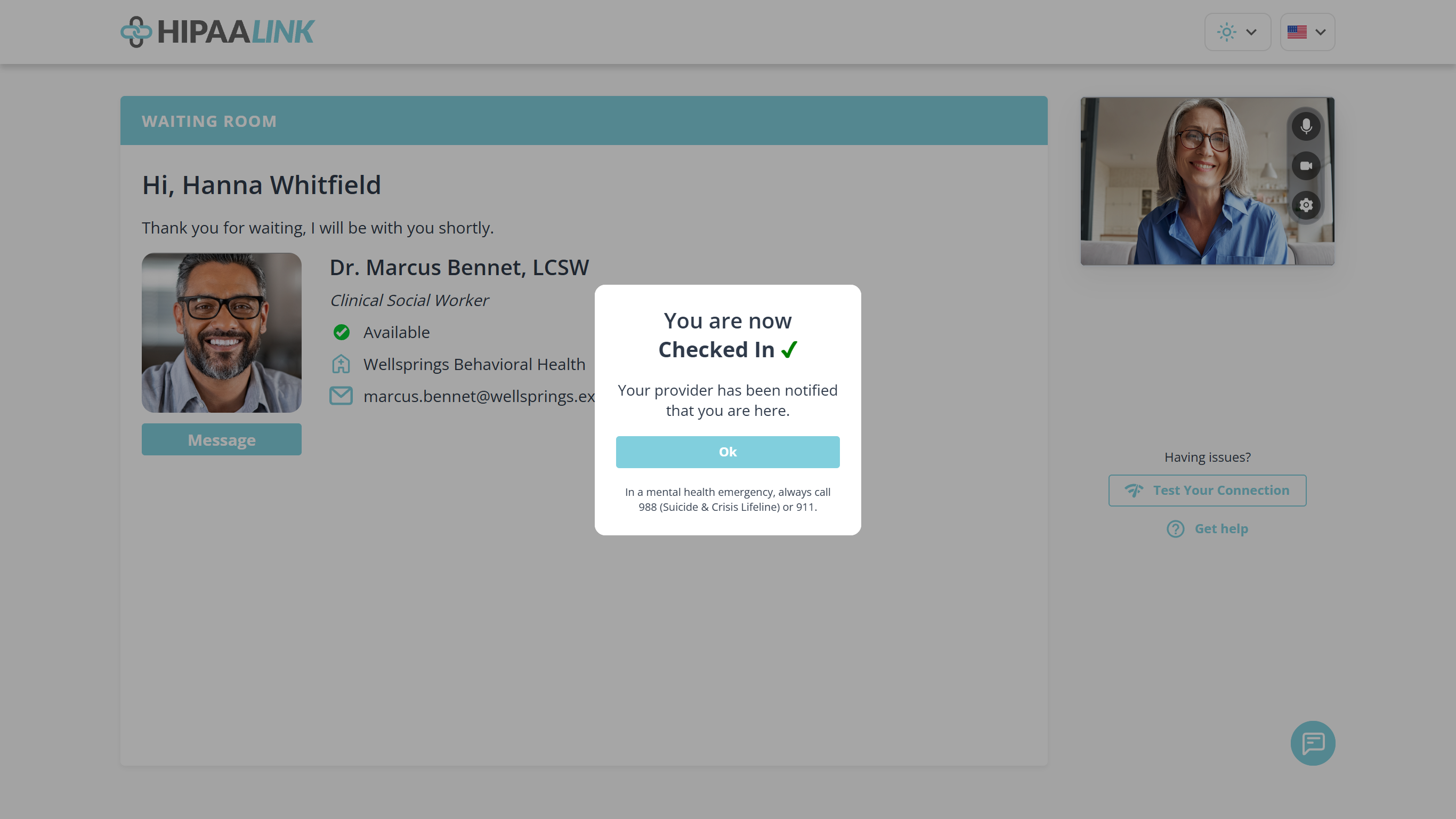
The waiting room, with the confirmation over it. Your provider can start the call while this box is still open. Select Ok to close the box, or leave it. Your provider can start the call while it is open and you will be taken straight in. The page behind greets you by name, shows whether your provider is available, puts your own camera in the corner, and offers Message if you need to tell them something before you are seen.
If your screen looks different
Some links open a full page with a preview of your camera instead of a small welcome box. The name works the same way, and so does everything after it.
A few providers also ask for your phone number. If yours does, the box appears under your name and you cannot check in without it. If you do not see it, it was not asked for.
Skip future device checks on the device screen jumps straight past it next time. Leave it alone if you ever join from more than one device, because that screen is where a wrong microphone gets caught before the appointment rather than during it.
If you blocked the camera by mistake
What to know
- Use the link each time. It does not expire, and you can use the same one for your next appointment unless your provider tells you otherwise.
- Do not close the page while you wait. Closing it takes you out of the queue.
- If you have to leave, select Leave. You can check in again at any time.