
The fax address book
Save the numbers you use often so you stop retyping them.
- Who can use it
- All staff
- Plans
- Paid plans
- Where
- Account SettingsFax
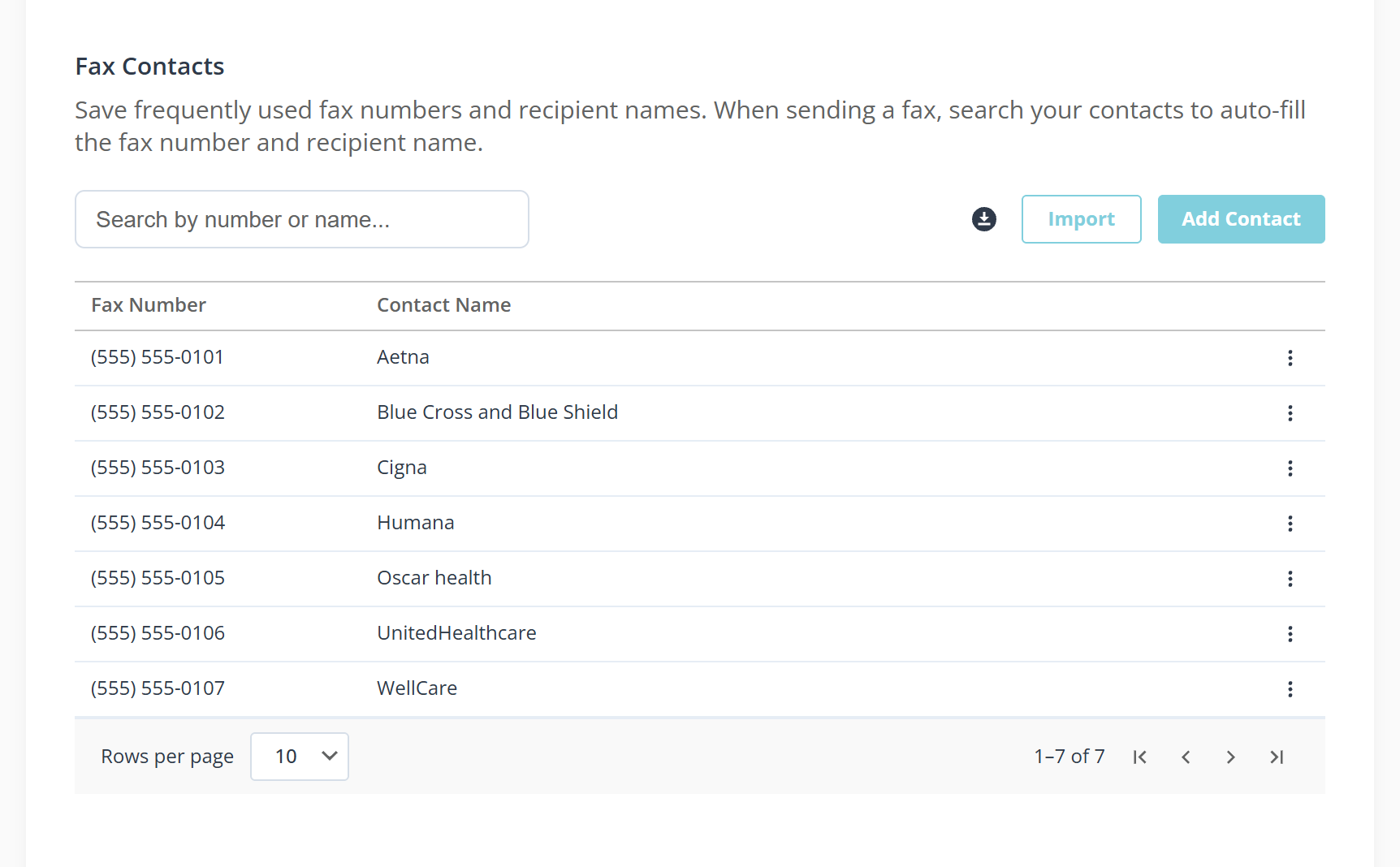
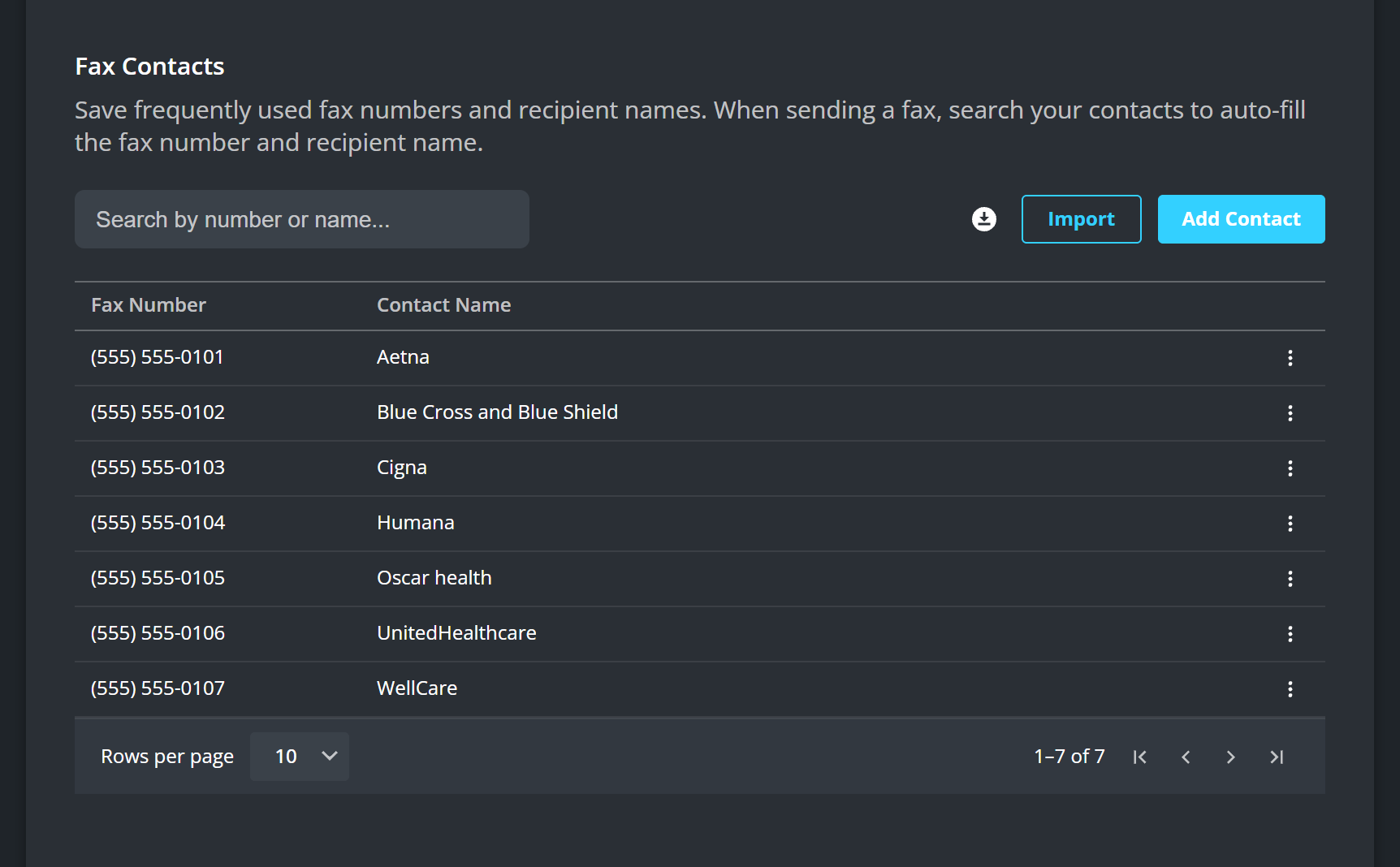
Save frequently used fax numbers and recipient names. When sending a fax, search your contacts to auto-fill the fax number and recipient name.
Add one at a time
- Open Add Contact.
- Fill in Contact Name and Fax Number.
- Select Save.
Edit Contact and Delete Contact change one later. Deleting asks first: Delete this contact?
Until you add one it says No contacts saved yet. Add one to speed up sending.
A number has to be a real one before it will save: Please enter a valid 10-digit fax number.
Bring a list in
Import takes a spreadsheet, which is the way to move an existing list rather than retyping it. The download icon beside it gives you Download CSV template to fill in, so the columns are right first time.
Duplicates are skipped rather than added twice, and you are told how many of each: “12 imported, 3 skipped (duplicates)”
Find one
Search by number or name... searches both columns at once, which matters once the list is longer than a page. The same search runs when you are sending a fax, so a contact saved here fills in the number and the name for you.
Subject presets
The subject list staff pick from is set on the same tab, and is covered in Fax settings.
A wrong fax number sends records to a stranger, which is the whole argument for typing each one once and picking it thereafter.