
Send a fax
Attach a document, pick a number and a subject, and send it.
- Who can use it
- All staff
- Plans
- All plans
- Where
- Account SettingsFax
- Open Send Fax.
- Add files with Select files, or Drag and drop files here. Add more files adds another, and Remove takes one back off.
- Type the Fax Number, or pick a saved contact.
- Fill in To and From, and choose a Subject.
- Send.
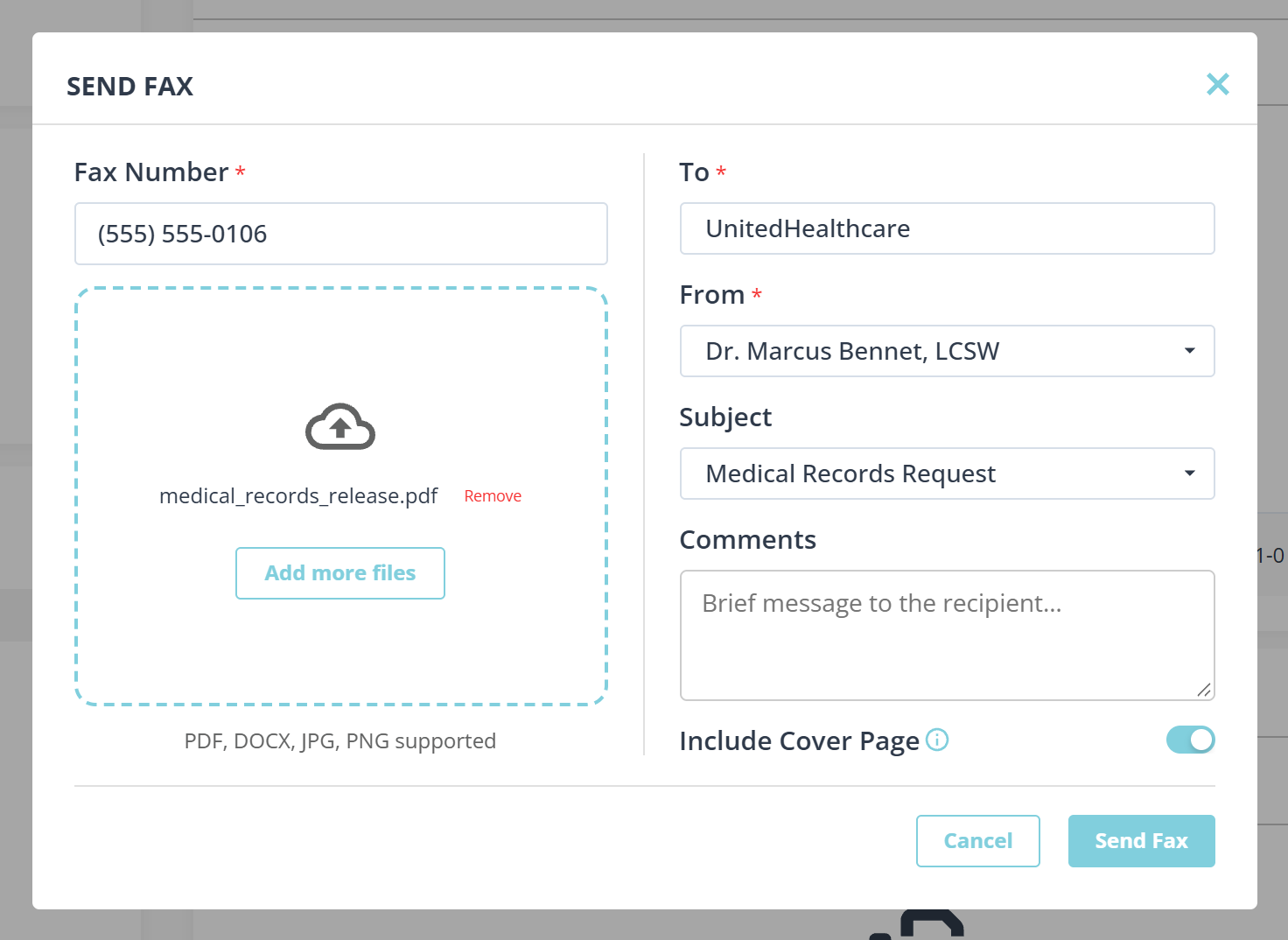
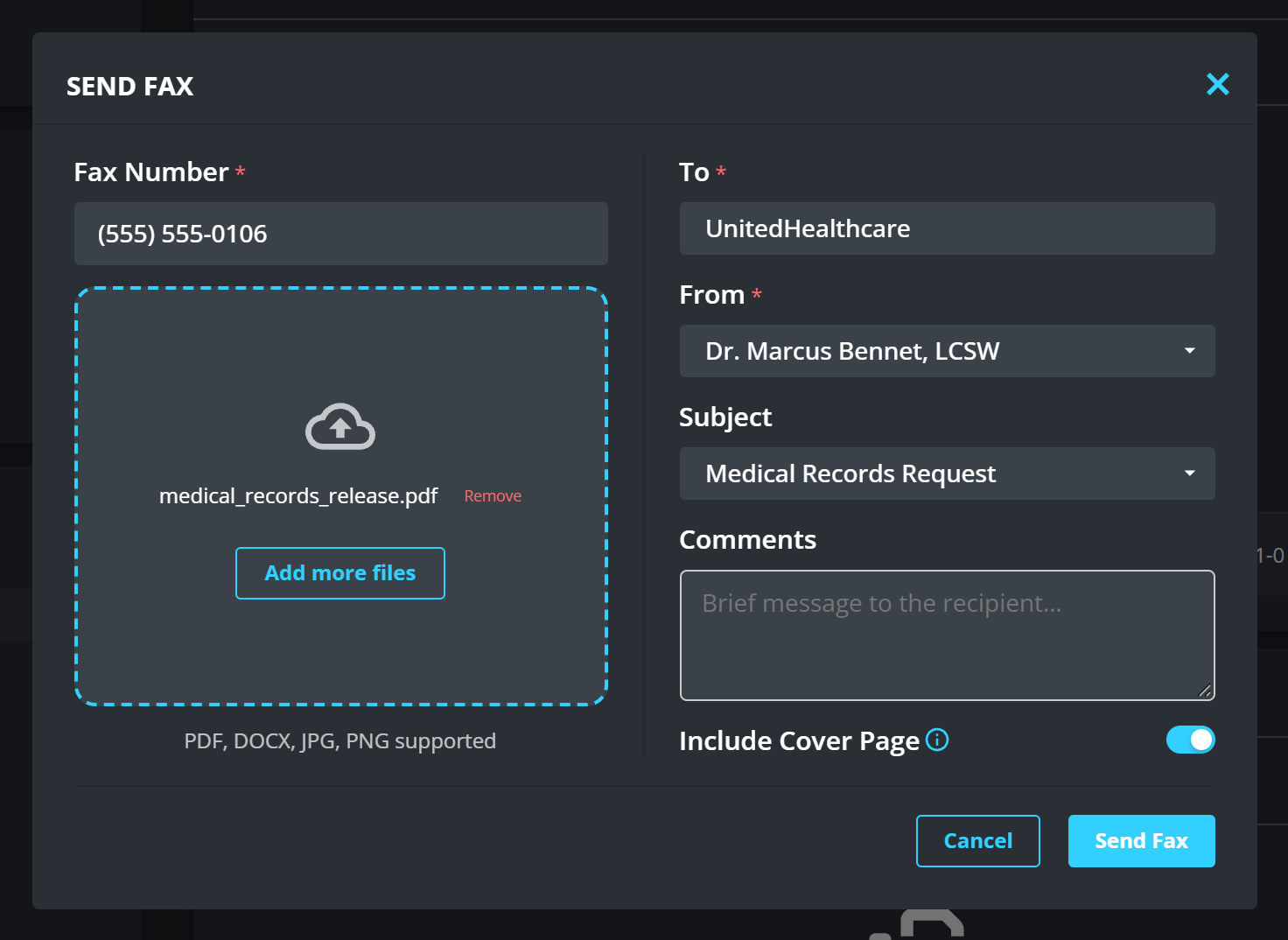
The fields marked with a red asterisk are the ones it will not send without: Fax Number, To and From.
The number field searches your contacts
Type a name or number to search your saved contacts, or type a fax number straight in. Picking a contact fills in the name as well as the number, which is the argument for keeping the address book up to date.
With nothing saved it says No contacts saved. Enter a fax number directly.
Files
PDF, DOCX, JPG, PNG supported, and Max 50MB total file size across everything you attach, not per file.
The cover page
Include Cover Page is per fax, and it is on by default once cover pages are enabled. A cover page is added before your document. Pages count toward your monthly limit.
That last part is the one to remember: a cover page is a page, so a two page document sent with one costs three. What the cover page says is set once in Fax settings.
Watching it go
SENT shows every fax with its Status: Queued, Sending, Sent or Failed.
The row appears the moment you send, and it is not finished yet.
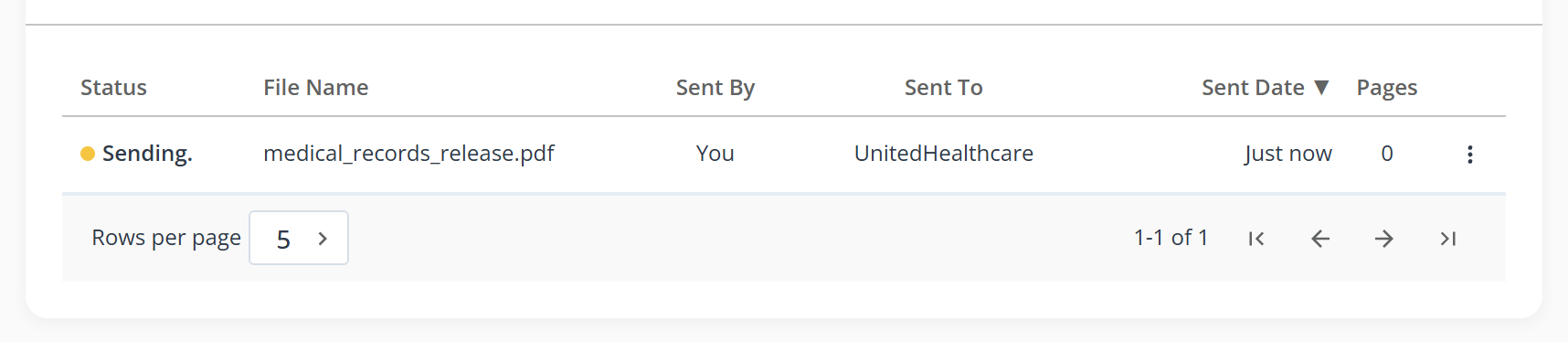
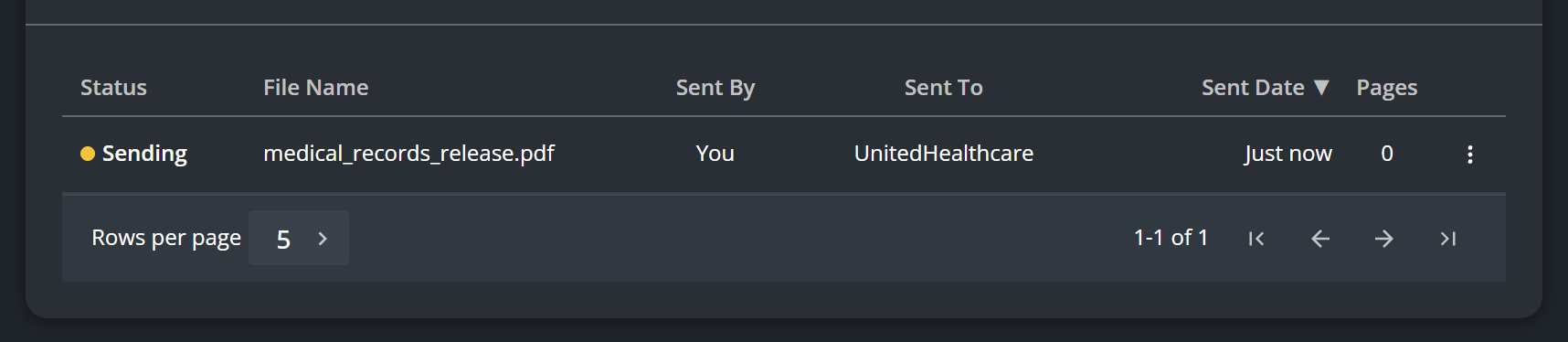
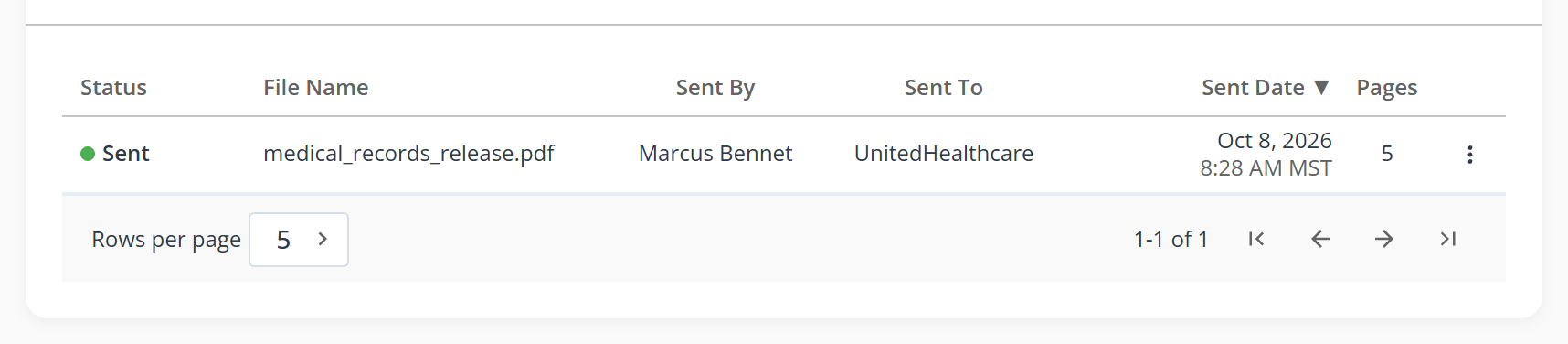
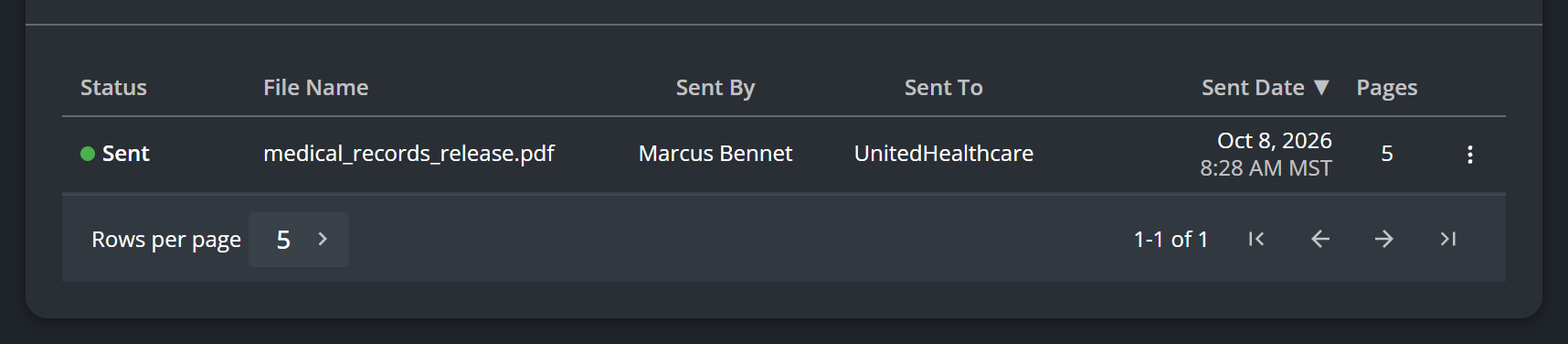
Three things change when it lands, and the middle one is the one worth knowing:
- The dot turns from amber to green and the word changes to Sent.
- The page count fills in. It reads zero while the fax is going, because the count is not known until the fax has been rendered and sent. Zero mid-send is not a failure.
- Status aside, the row stops describing what you did and starts describing what happened: Sending shows your fax as “You” and “Just now”, while the finished row names the sender and gives the time it actually went, with a timezone.
A fax is not delivered until it says Sent. Queued means it is waiting its turn, which is normal.
What to know
- Page count is what your plan is measured in, and it is shown per fax under Pages.
- Going over your monthly allowance does not stop you immediately: a paid plan carries a buffer past it. Once that is used up the fax is refused before it goes, and the dialog says how short you are: “This fax requires 4 page(s), but you only have 2 page(s) remaining this month.”
- A failed fax is usually a wrong number or a receiving machine that is off. Check the number before resending.