
Fax settings
Email notifications, retries, the subject list staff pick from, and what goes on your cover page.
- Who can use it
- Clinic admins
- Plans
- Paid plans
- Where
- Account SettingsFaxSETTINGS
The SETTINGS tab holds three blocks: how faxes are sent, the subjects staff can pick from, and the cover page that goes in front of them.
Save settings at the foot saves all three together.
Fax sending
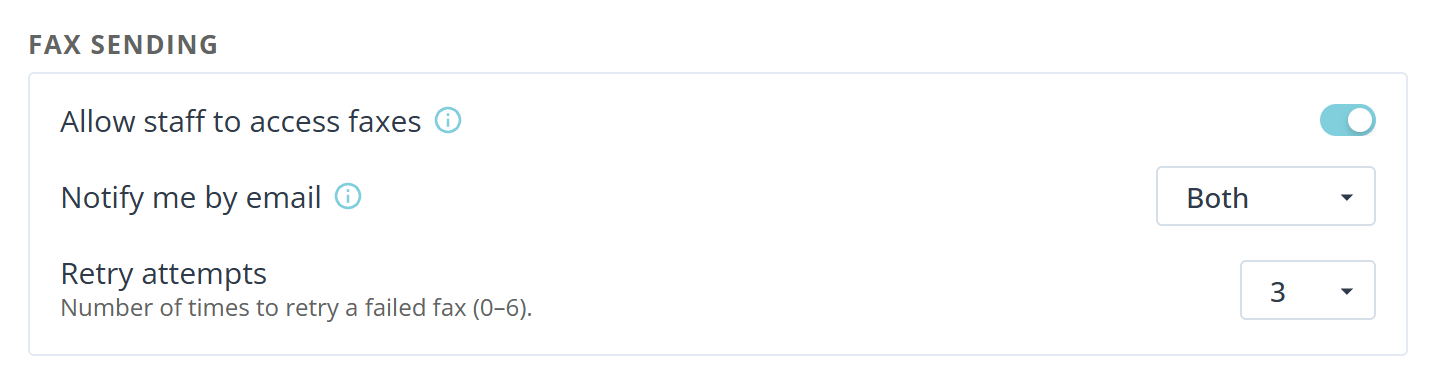
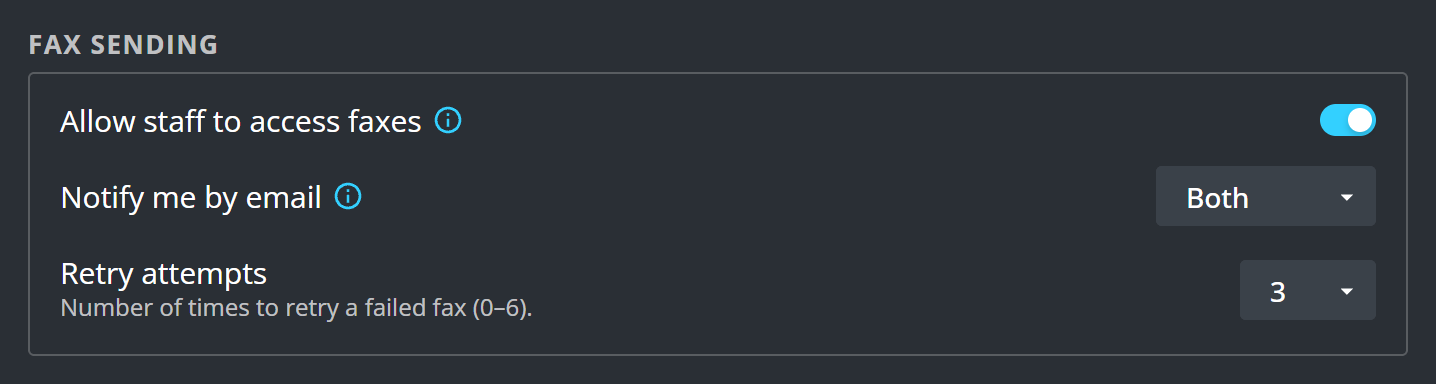
Notify me by email decides when you hear about a fax without opening the page: None, Sent, Received or Both.
Notifications go to the organization’s registered email address. That is not the address of whoever sent the fax, so a clinic where several people fax still has every notice landing in one inbox.
Retry attempts is how many times a failed fax is tried again, up to six. A busy or engaged line is the usual reason a fax fails, so retries are worth having; set it to zero only if you would rather know immediately and deal with it yourself.
Allow staff to access faxes is covered separately in Let staff use fax, because it decides who sees the inbox rather than how a fax is sent.
Subject presets
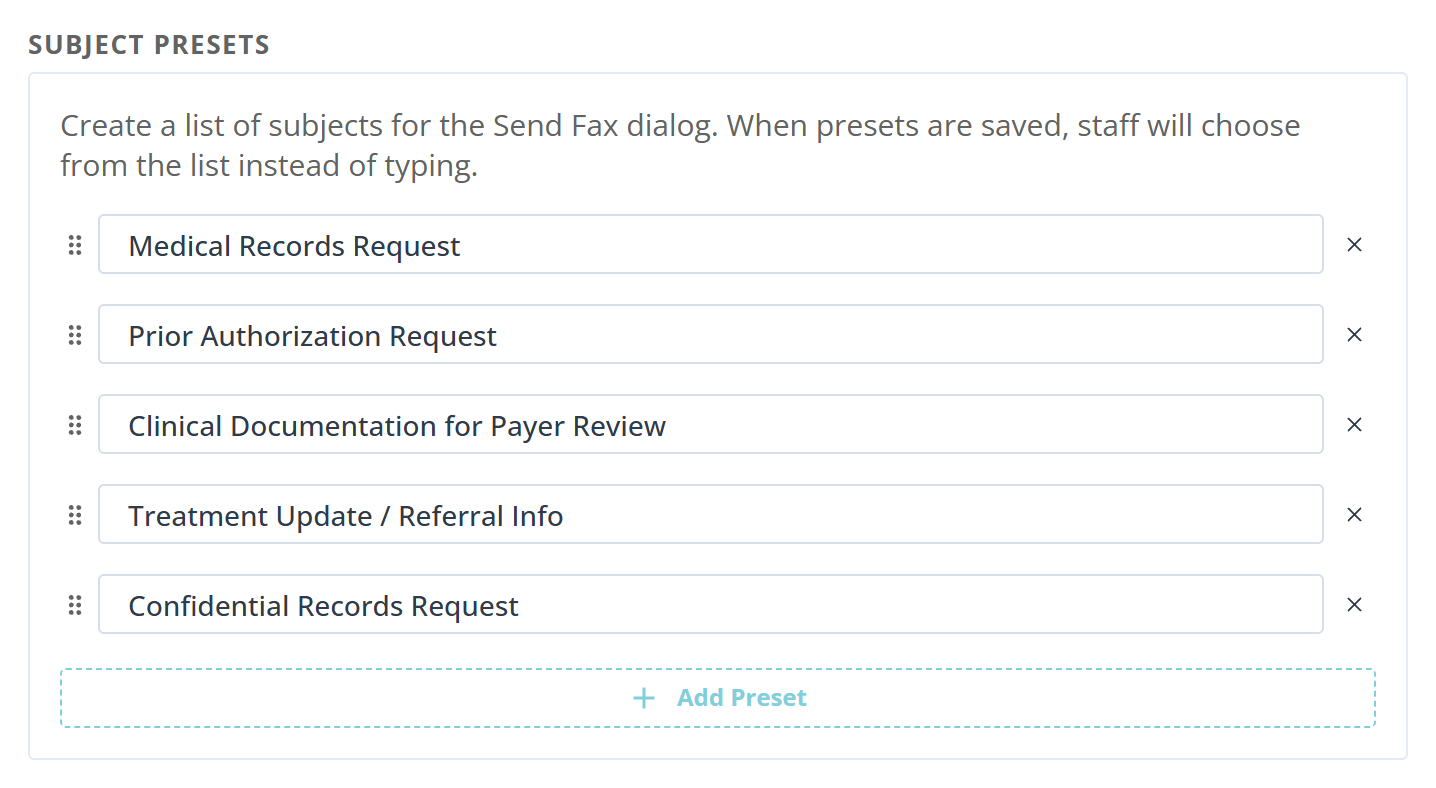
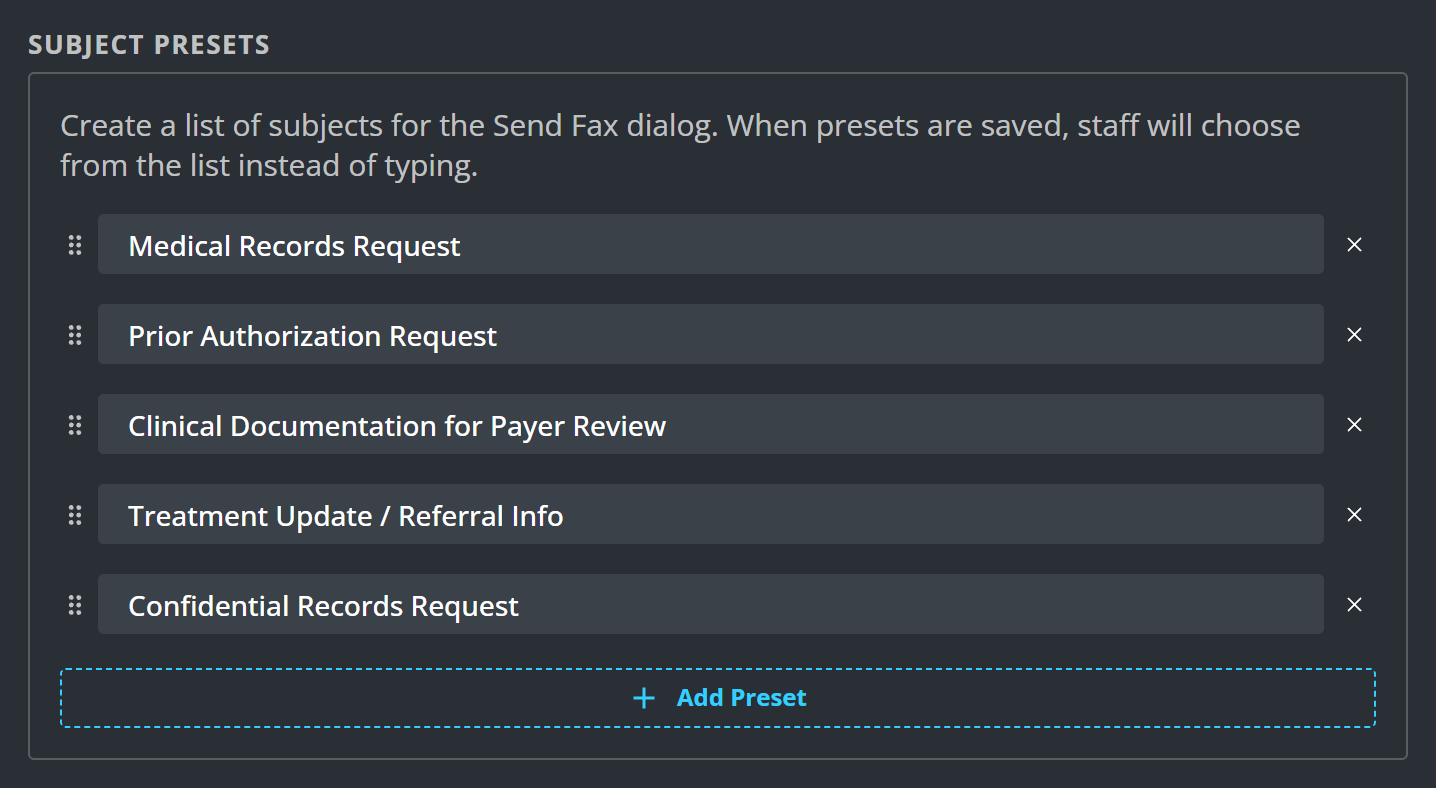
Create a list of subjects for the Send Fax dialog. When presets are saved, staff will choose from the list instead of typing.
That is the point of them: a subject typed fresh each time is a subject that is sometimes wrong, and a wrong subject on a fax of clinical records is a disclosure problem rather than a tidiness one. Writing the list once makes the common cases unambiguous.
Add Preset adds a line. Drag the handle to reorder, which is worth doing because the order here is the order staff see.
Other and — No Subject — remain available whatever you save, so a one-off fax is never blocked by your own list.
With nothing saved it says No subject presets saved. and staff type their own.
Cover page
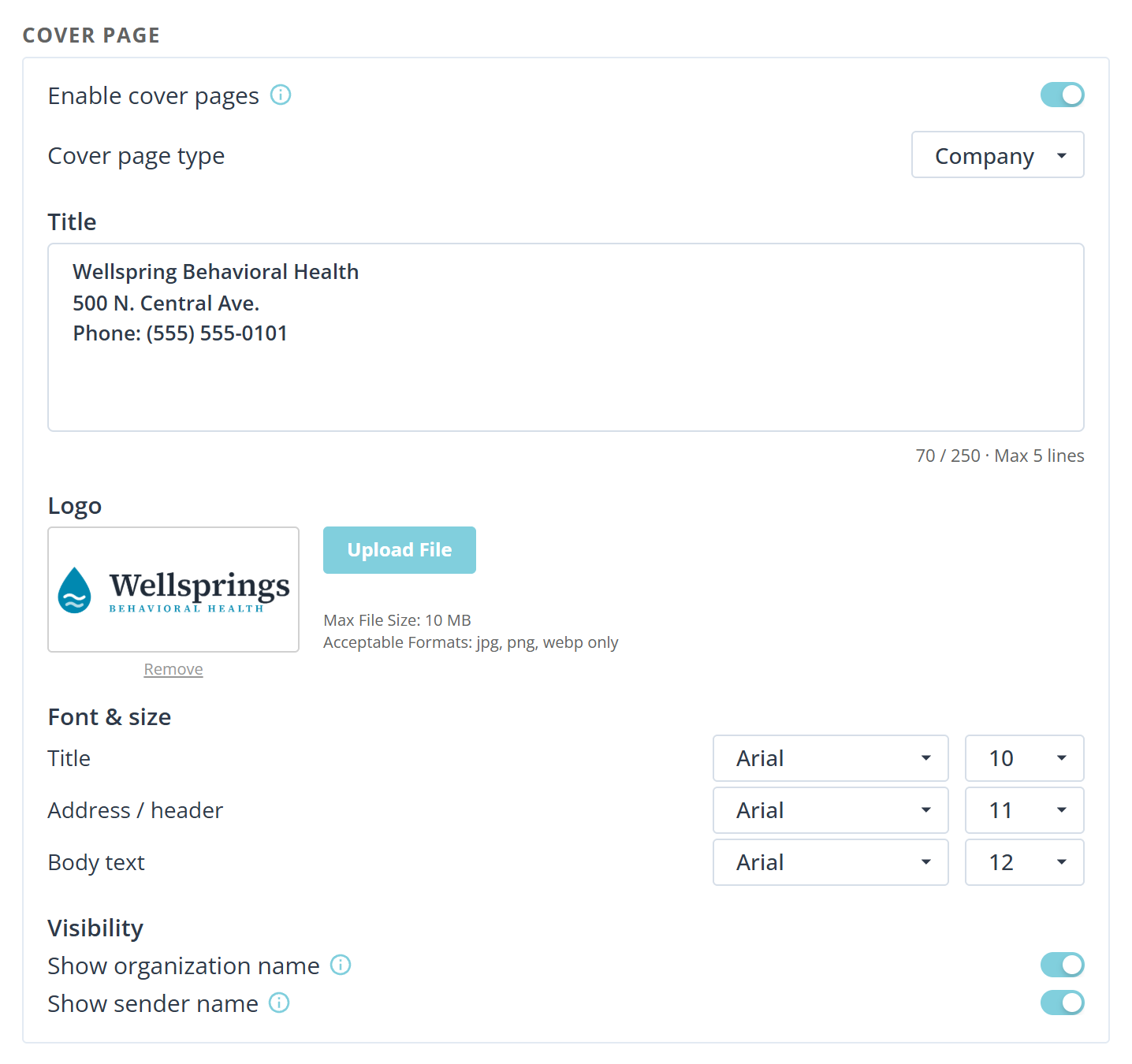
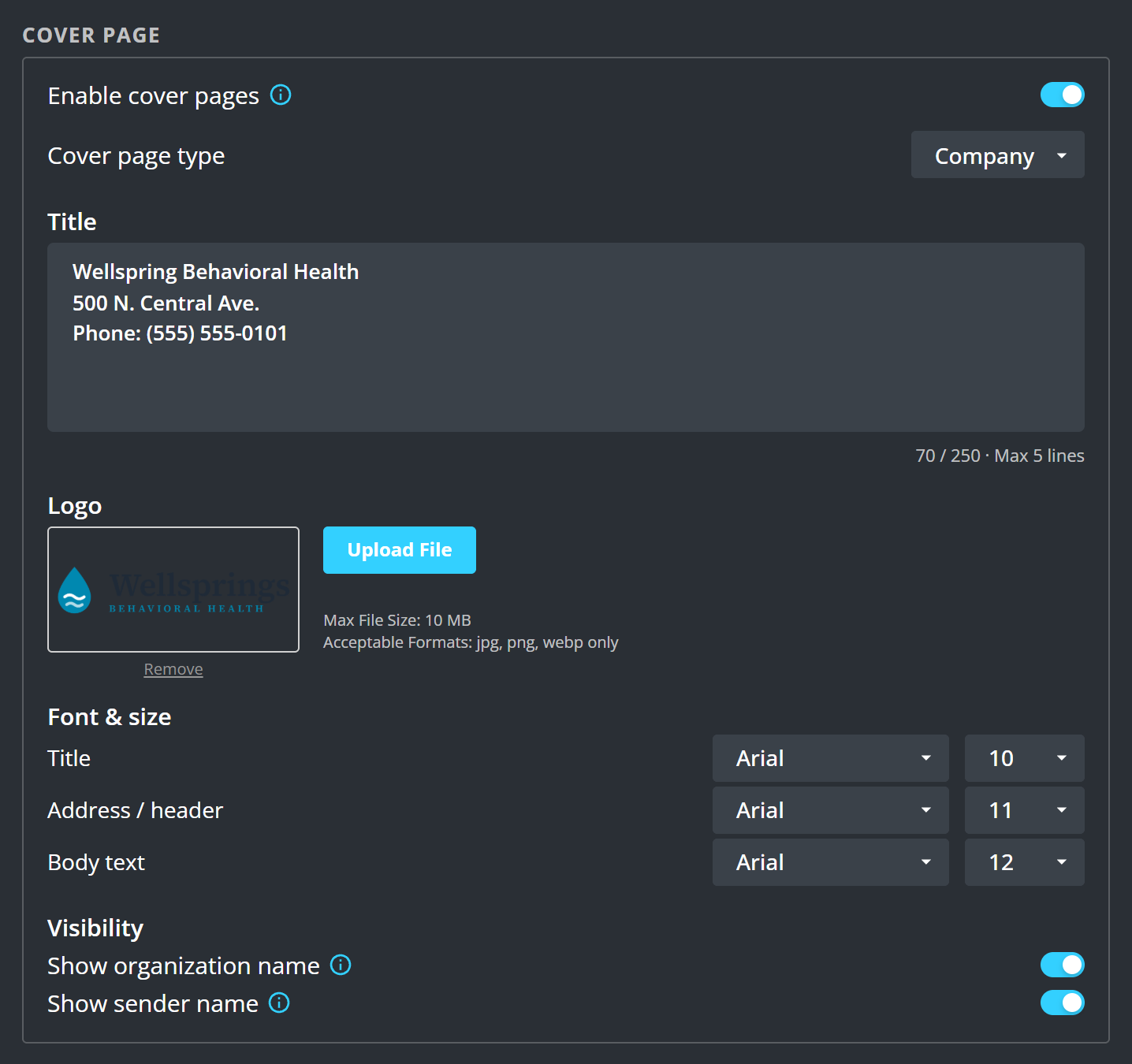
When enabled, you may choose to include a cover page when sending a fax.
Cover page type is either Standard or Company. Company is the one that uses the title block and logo below.
Title is your letterhead: clinic name, address, telephone. It takes 250 characters and Max 5 lines, and the counter under the box tells you where you are against both.
Logo accepts jpg, png or webp up to 10 MB.
Font & size sets the typeface and size of Title, Address / header and Body text separately.
Visibility is two switches. Displays your clinic or organization name on the cover page. Displays the sending provider's name on the cover page.
Preview cover page shows the result before you commit to it. It draws the last saved version, not what is on screen: You have unsaved changes. Preview reflects the last saved state.
What to know
- All three blocks save together with Save settings.
- Changing the cover page does not alter faxes already sent.