
Call a client's phone
Reach somebody by telephone when they cannot get the video visit to work.
- Who can use it
- All staff
- Plans
- Paid plans
Let hosts place outbound phone calls to clients right from their dashboard, so you can reach someone who cannot join a video visit.
It is the fallback when a client cannot get their camera or microphone working and the appointment cannot wait.
Place a call
- Open the dot menu on the client’s row and select Contact to see the number they gave.
- Select Call beside Copy link on your dashboard.
- Type the number and select the green call button.
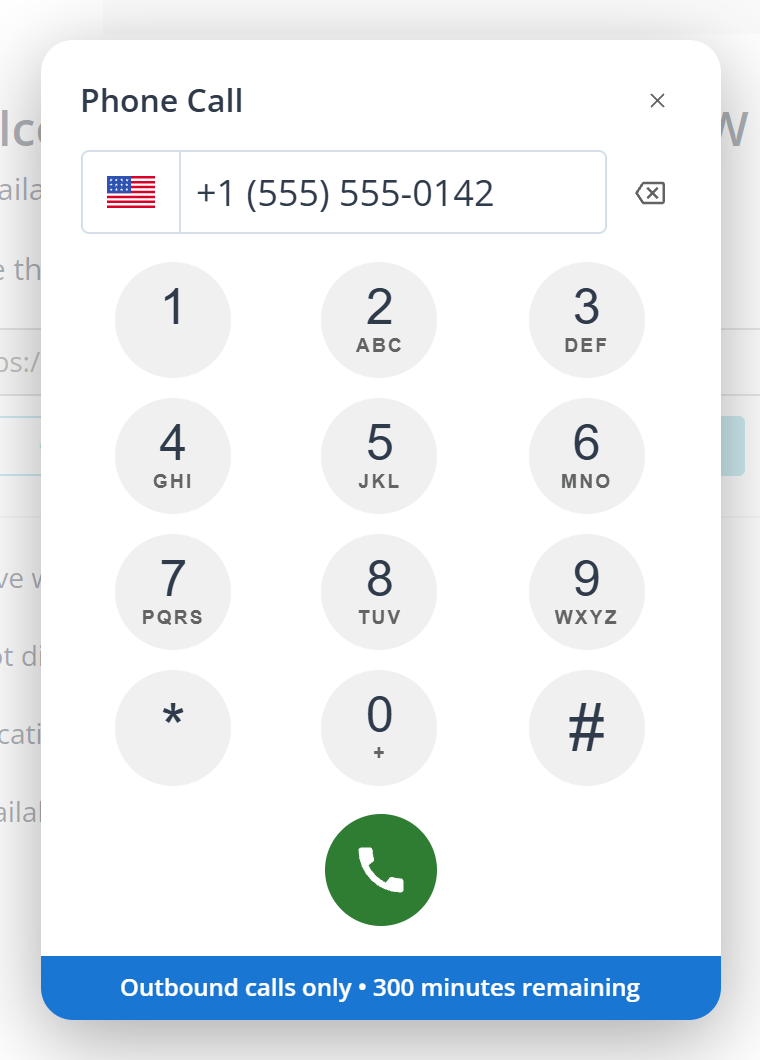
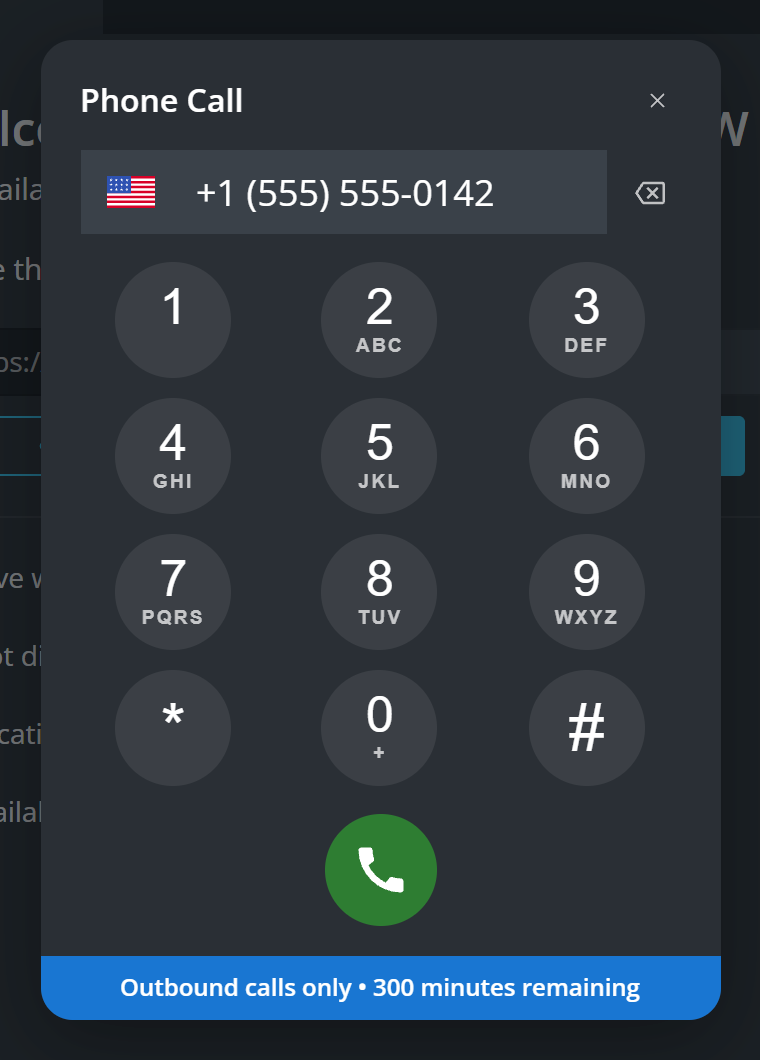
The bar at the foot says the calls are outbound only, and that is the part worth knowing before you rely on it: a client cannot ring this number back. If they need to reach you, they use their room link or you call them again. It also counts down the phone minutes your clinic has left in this billing period.
While the call runs
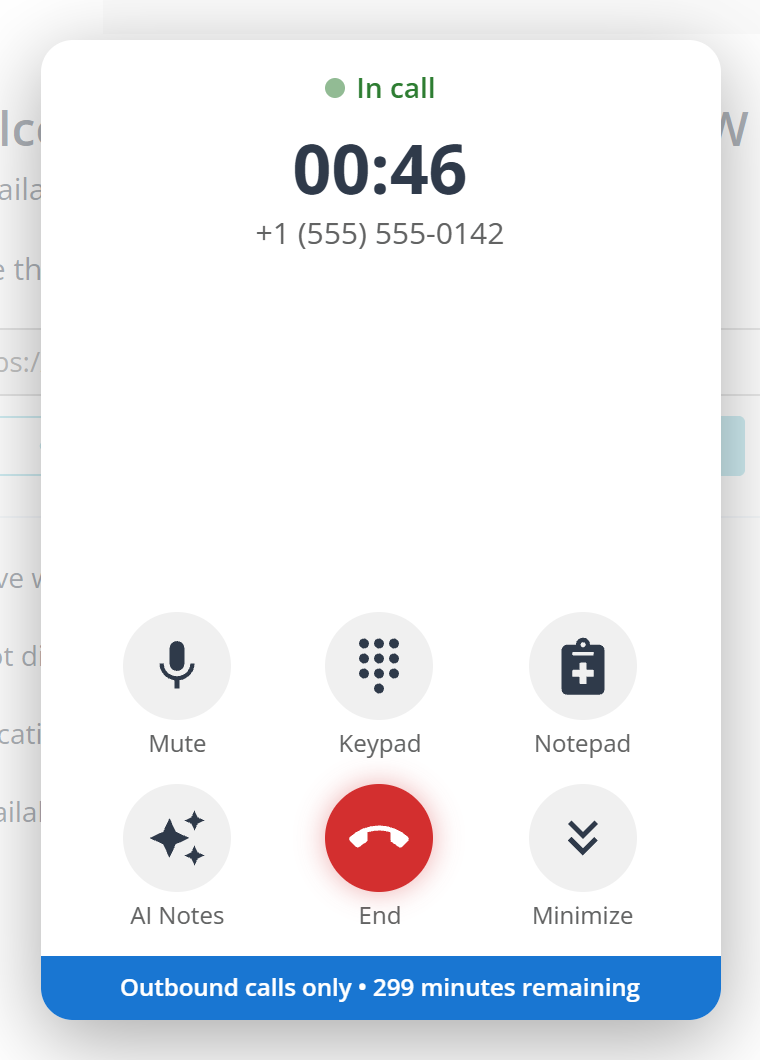
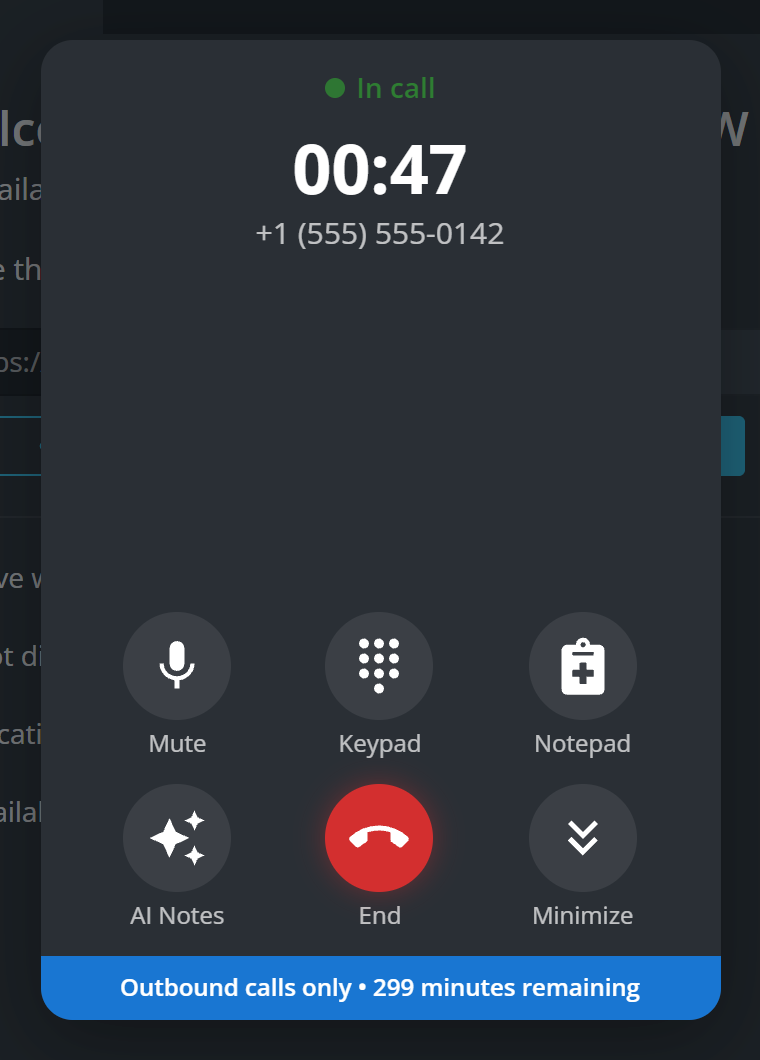
The panel becomes a timer and six controls.
- Mute silences your microphone.
- Keypad brings the digits back, for the menus an answering system asks you to key through.
- Notepad opens a notepad beside the call.
- AI Notes transcribes the call and writes a note from it, the same as on a video visit. See Generate a progress note.
- End, the red one, hangs up.
- Minimize tucks the panel away so you can keep working. The call carries on.
The third button
Turning the feature on adds a button to your dashboard that is not there otherwise.
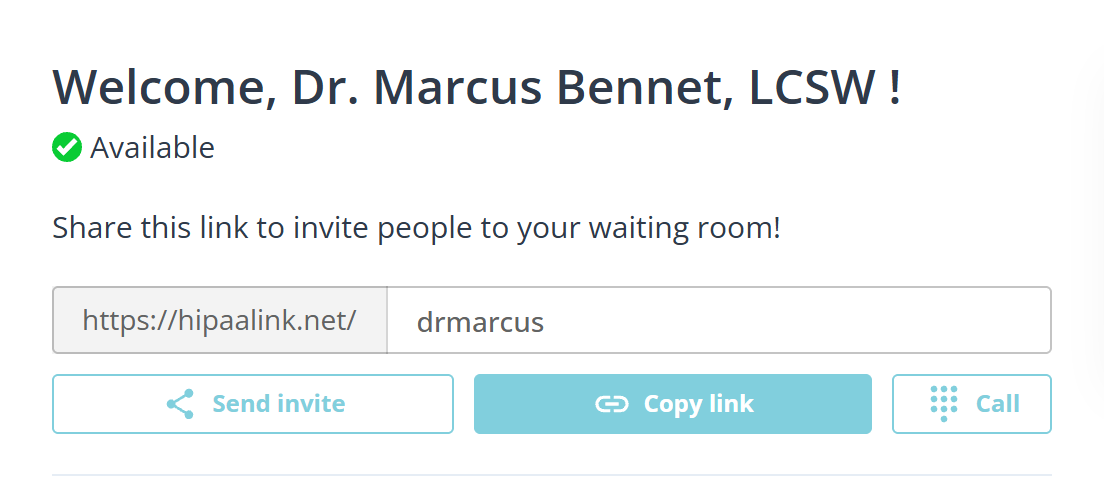
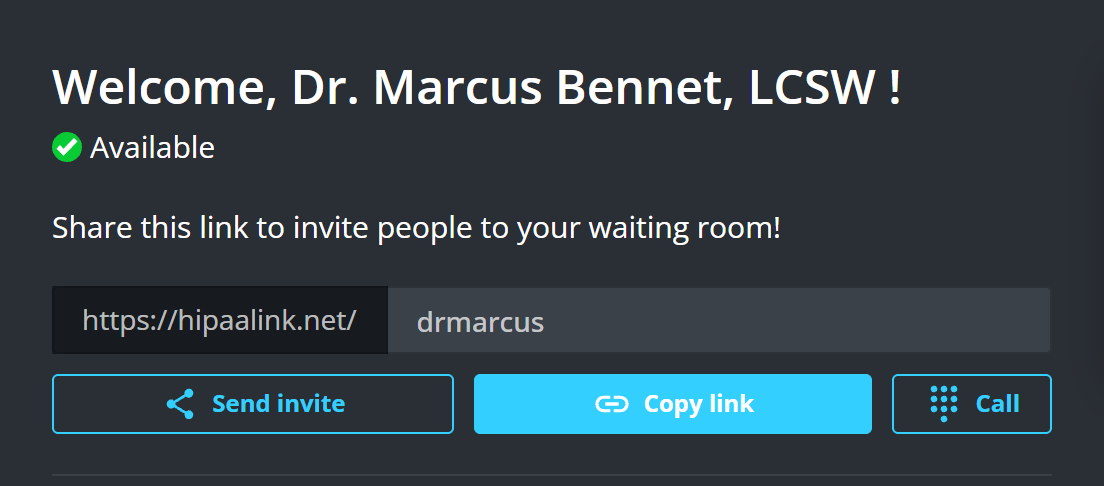
Most clinics never turn it on, so most dashboards show only Send invite and Copy link. Call appears beside them only once an admin has enabled it.
If you cannot find it
Enable Phone Call is an organization setting, off unless a clinic admin has turned it on. If your dashboard has no phone panel, that is why.
What to know
- A phone call is audio only, so nothing you would share on screen is available during it.
- A call running past 90 minutes asks whether you are still there, and ends itself if nobody answers. This call has been active for over 90 minutes. It will end automatically soon unless you confirm you are still on the line.
- Running out of minutes ends the call in progress. Your outbound minutes ran out, so the call was ended.
- You only have a number if the client gave one. See Set up your waiting room for how to ask for one at check-in.