
Start a call with a waiting client
Video or audio only, and what the client sees when you do.
- Who can use it
- All staff
Select Start call on a client’s row. They are brought in without having to do anything.
Start an audio-only call
- Select the arrow beside Start call.
- Choose Audio-only call, which is Microphone only · no camera.
Video call is the other option and the default: Camera + microphone.
Audio only is worth choosing when a client’s connection is poor. Dropping the video is usually enough to keep a call that would otherwise break up.
What the client sees
They see a message that the call is starting, then they are in it. They do not accept or answer anything.
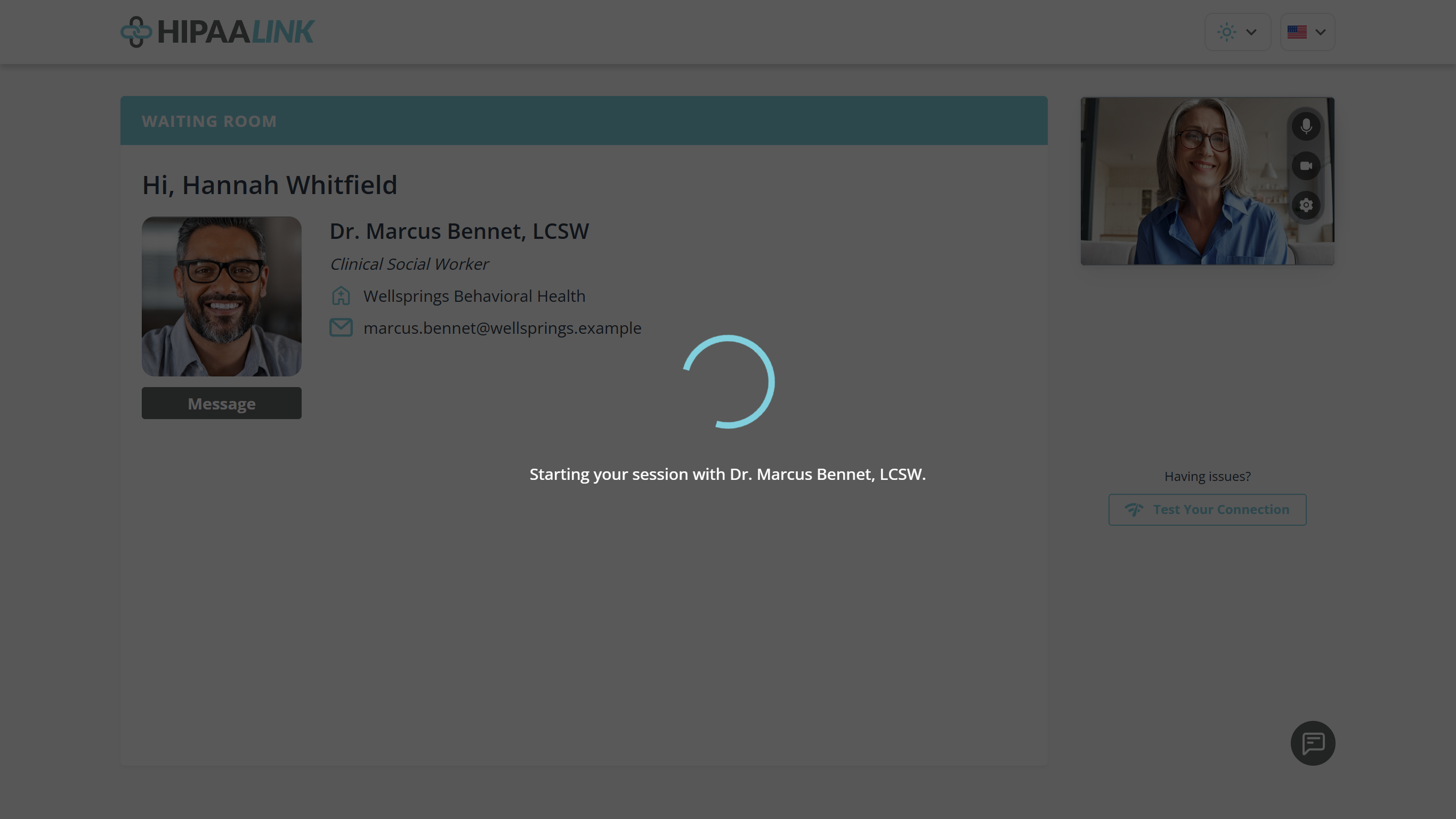
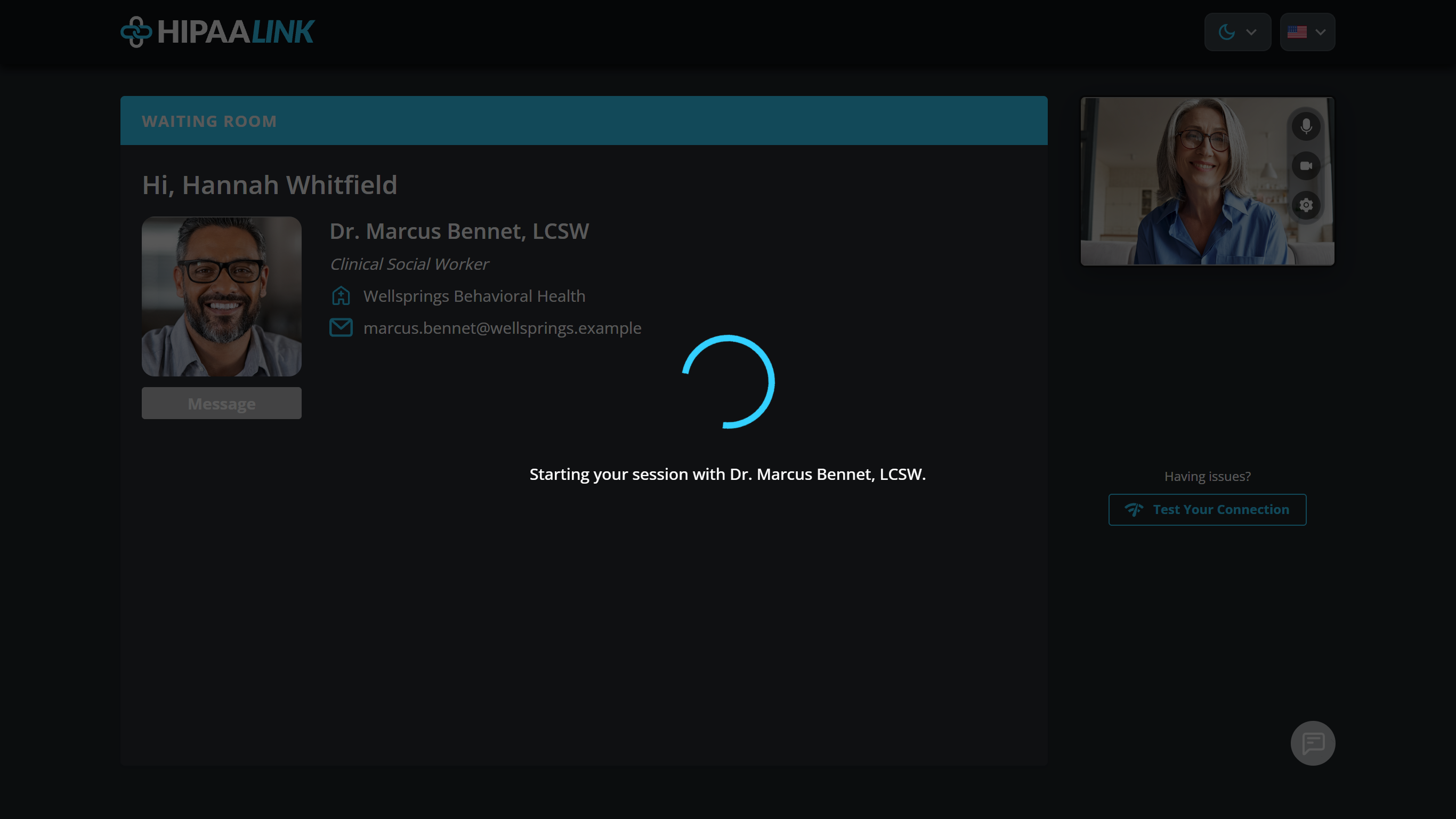
The overlay names you, so a client waiting in a busy clinic knows who is about to appear. It lasts a few seconds and then the call replaces it.
If their camera or microphone is blocked, they arrive with it off and the call still connects. You will see it on their tile.
What to know
- Starting a call takes the client out of the queue. In a shared room they leave it for every member, not just you.
- You can start a call with somebody whose device has a warning on it. The warning tells you what to expect, it does not stop you.