
Take consent during a visit
Send a consent form to the client mid call and have them read and sign it there.
- Who can use it
- All staff
Open More and select Teleconsent. A short wizard walks you through it.
The wizard
- Choose Participant. Select the participant you want to send the consent form to.
- Choose Consent Form. Select the consent form you want the client to review and sign.
- Pre-fill Information, when the form needs details filled in before the client sees it.
- Select Begin.
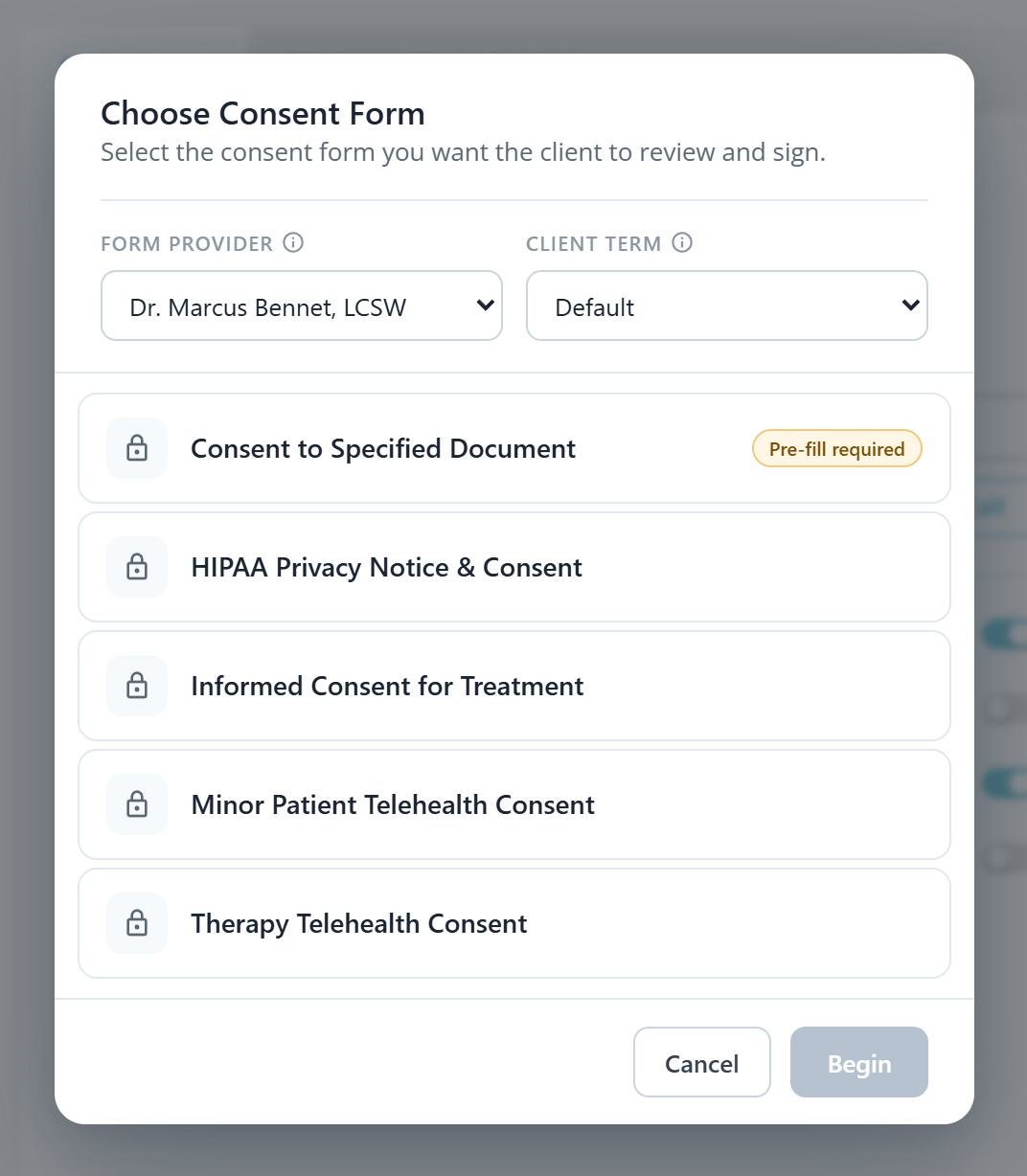
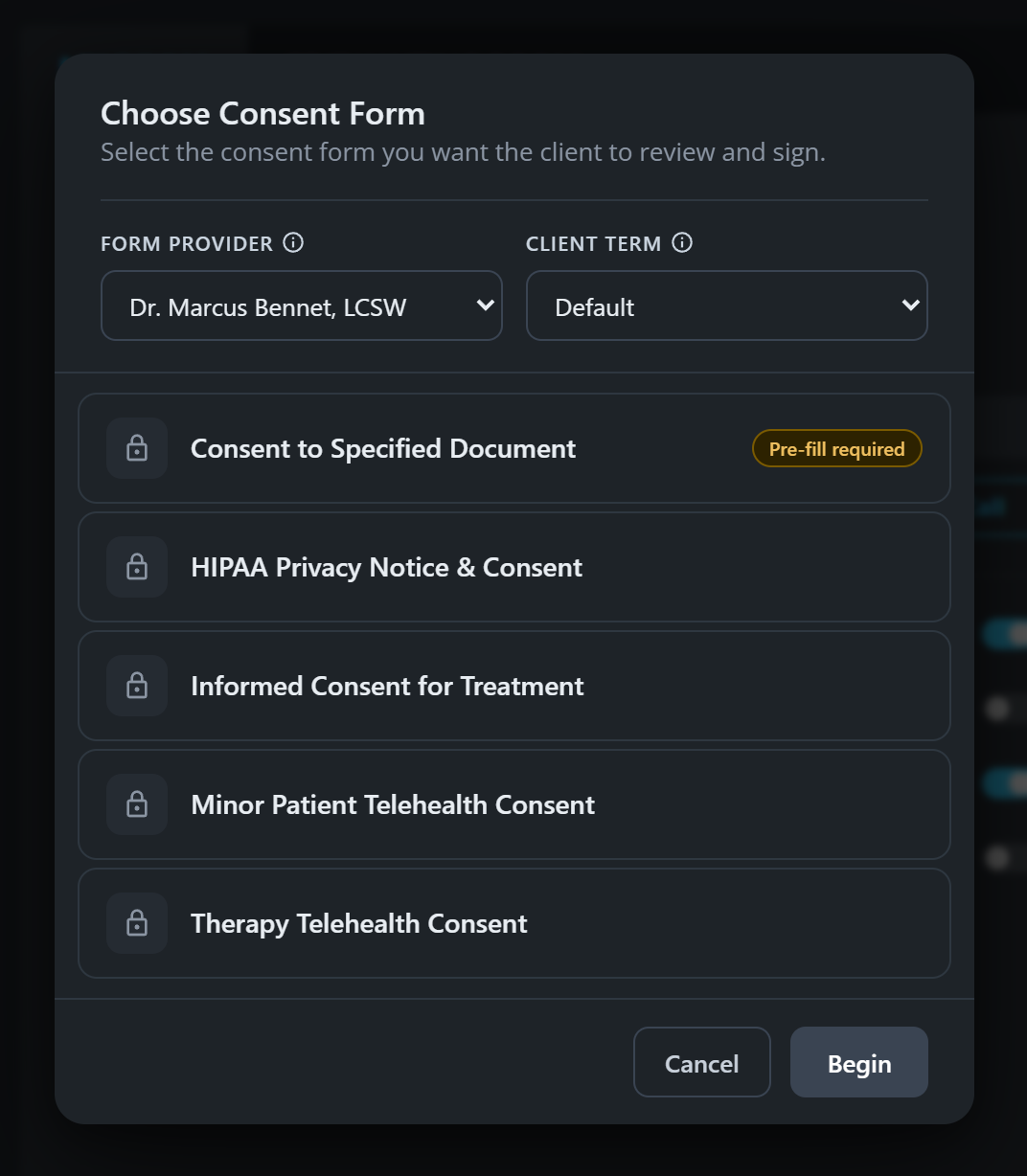
One form in that list carries an amber mark. That is the one needing your details filled in before the client sees it, which is step 3 above; the rest go straight to the client.
Filling it in and signing
The form opens as numbered sections. Each turns to a tick as it is completed, and the badge at the top right counts down the sections still to do before it reads that all fields are complete.
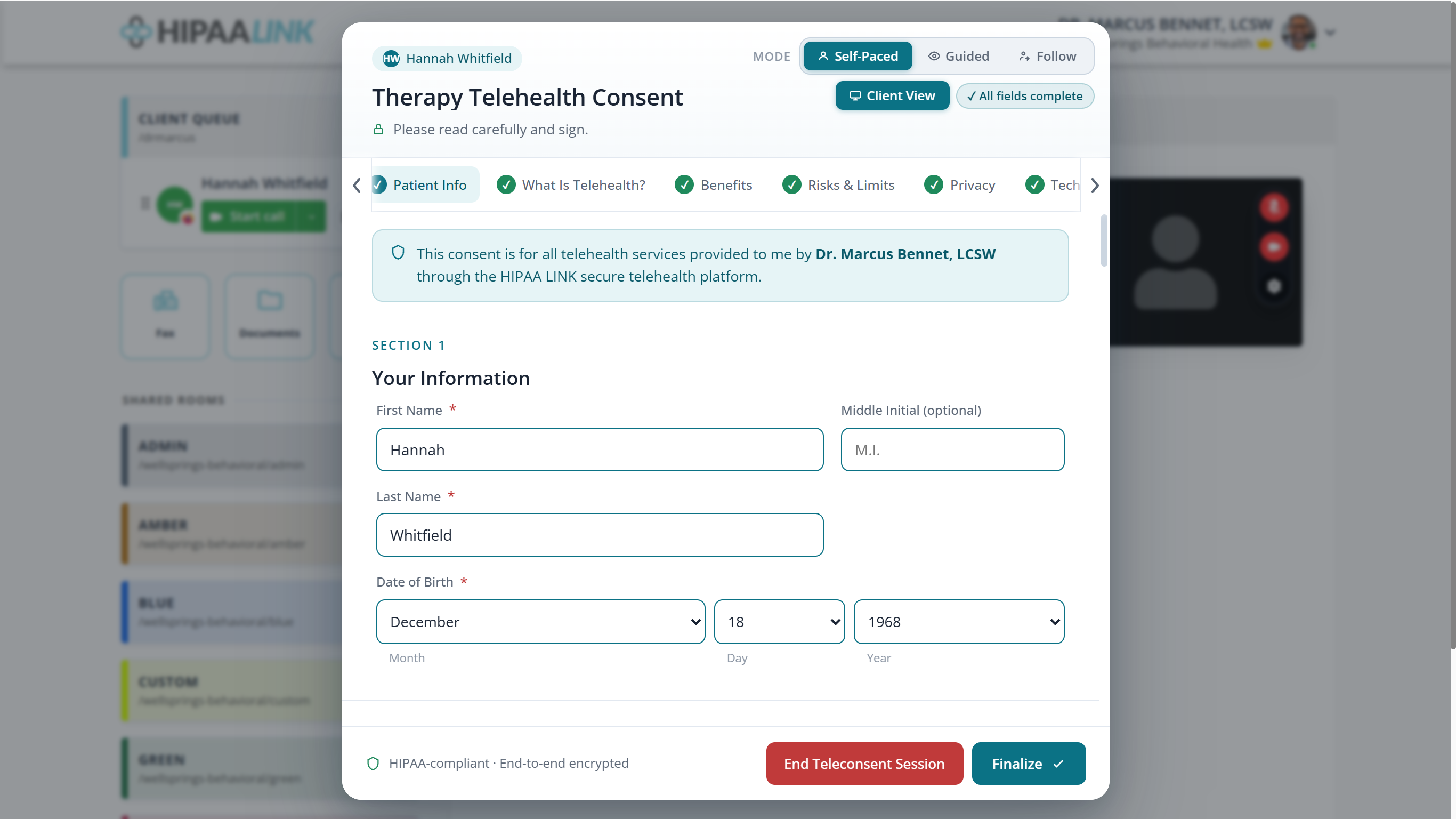
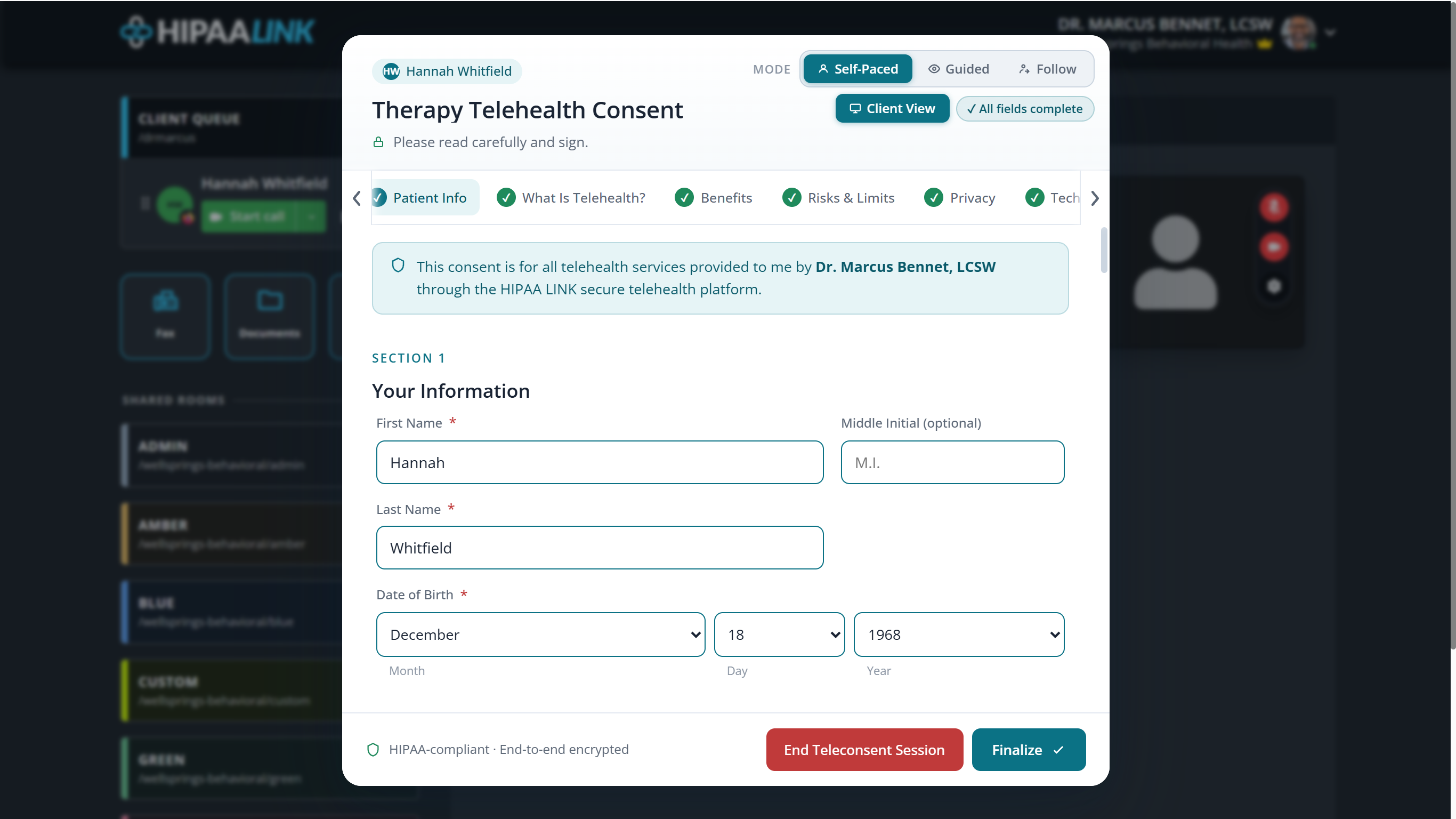
The three buttons at the top set who drives. Self-paced leaves the client to work through it alone, guided lets you lead them section by section, and follow mirrors their screen so you can see where they are. The client view button shows you the form as the client sees it.
The last section is the signature.
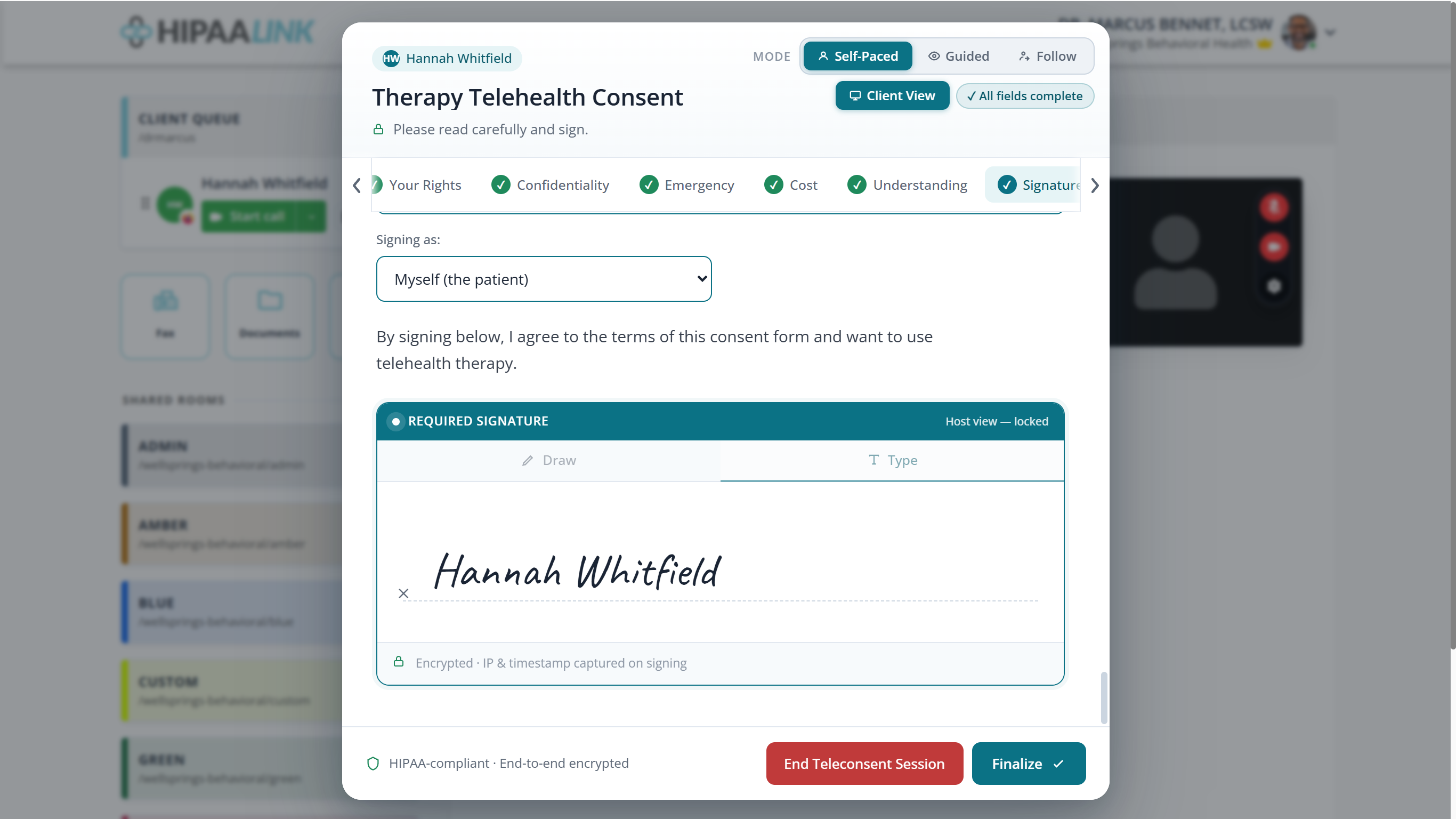
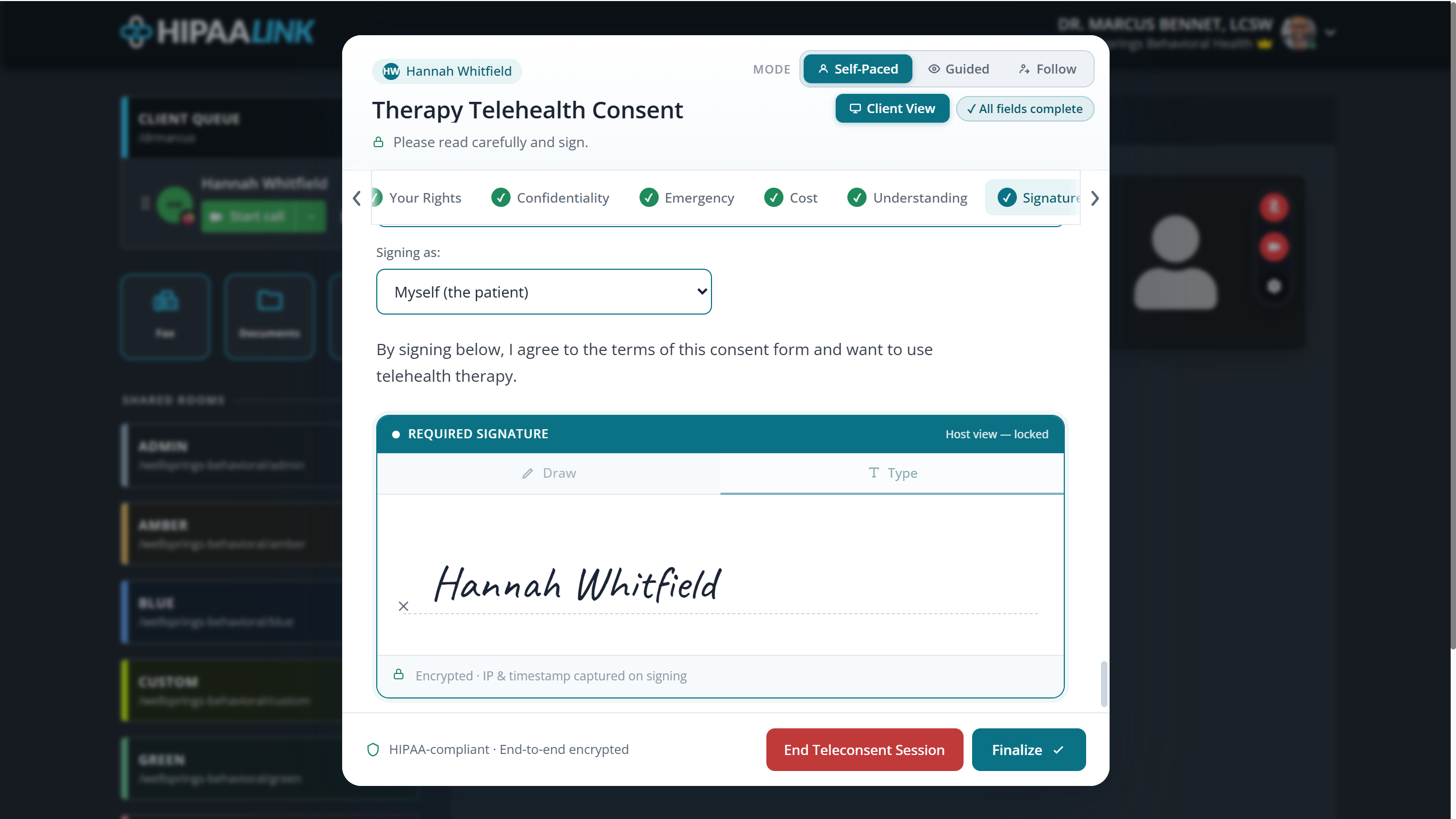
Two things on that panel matter. The client can sign by drawing or by typing their name, and either counts. And you cannot sign it for them: your copy of the panel is marked as the host’s view and stays locked, because the person signing has to be the person consenting.
Where a parent or guardian signs instead, the dropdown above the panel records who is signing.
Save the form, or it is gone
Finalizing shows the confirmation, with the signing time and the address it was signed from.
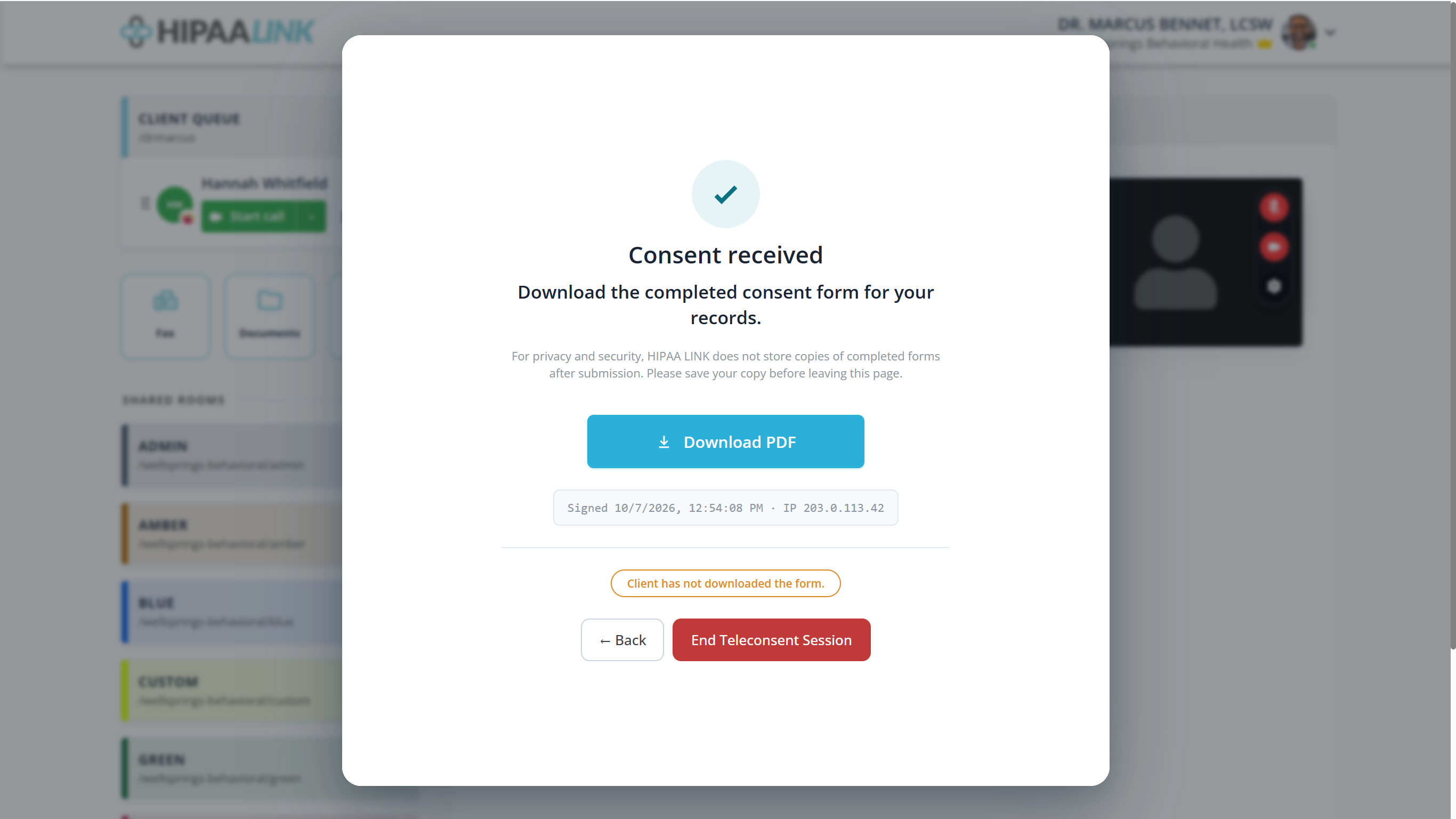
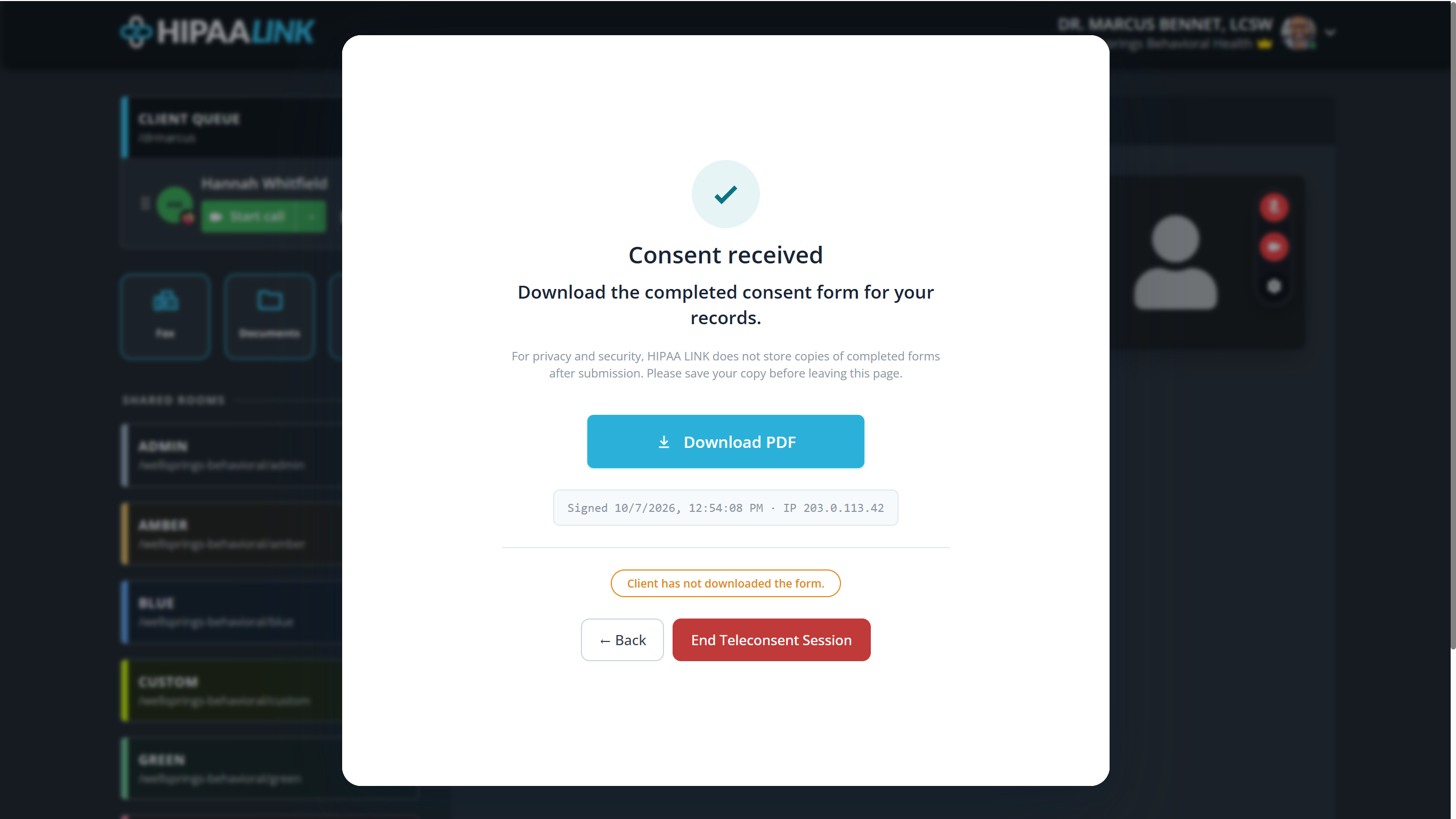
The badge underneath tells you whether the client has saved their own copy, so you can prompt them before ending the session.
Two settings worth knowing about
Form Provider. Select which provider name and details should appear in the form.
Client Term. It sets how the client is referred to throughout the form. The choices are Patient, Client or Other, so the form reads the way your practice speaks.
If you cannot find it
Teleconsent Forms is an organization setting, under Account Settings › Teleconsent, and a clinic admin sets it. There are two switches and they work in order:
- Activate feature turns teleconsent on for the clinic. Until it is on, nobody has it, and the second switch reads Activate first.
- Allow staff access decides who may use it. When enabled, all staff members can initiate teleconsent sessions. When disabled, only administrators can.
So a provider who cannot see it is usually looking at the second switch rather than at a fault.