
Run an EMDR set
Bilateral stimulation inside the call. How to open it, set the target, run a set, and choose what each of you sees.
- Who can use it
- All staff
- Plans
- Paid plans
EMDR therapy uses bilateral stimulation, and this is the tool that delivers it inside the video call: a target that moves across the screen, with an optional sound, which you control while the client watches. Nothing is installed at either end and the client does nothing but look at it.
The clinical work is yours. This article covers the controls.
Open the EMDR stage
- Close screen sharing if it is running. EMDR will not open over it: “In order to open EMDR please exit share screen”
- Open More and select EMDR Mode.
- Select Start at the foot of the controls.
Opening EMDR Mode brings up EMDR CONTROLS and the stage, but nothing moves until you select Start. Set the target up first if you want to, and start when the client is ready.
Run, pause and end a set
Two buttons sit at the foot of the controls and stay there.
- Play and Pause are one button that swaps as you use it. Pausing stops the movement and leaves everything else as it is, so you can talk, then select Play to carry on.
- Start becomes Close EMDR once the stage is up. Closing ends the set and takes the stage off both screens.
TIME and PASSES count up as the set runs. The Hide button beside Duration Type hides that counter if you would rather not watch it, and becomes Show to bring it back. It does not affect the set or the client’s screen.
Choose what each of you sees
VIEW SETTINGS is in two halves, and the two are set separately. What you choose for yourself does not change what the client sees.
Your screen
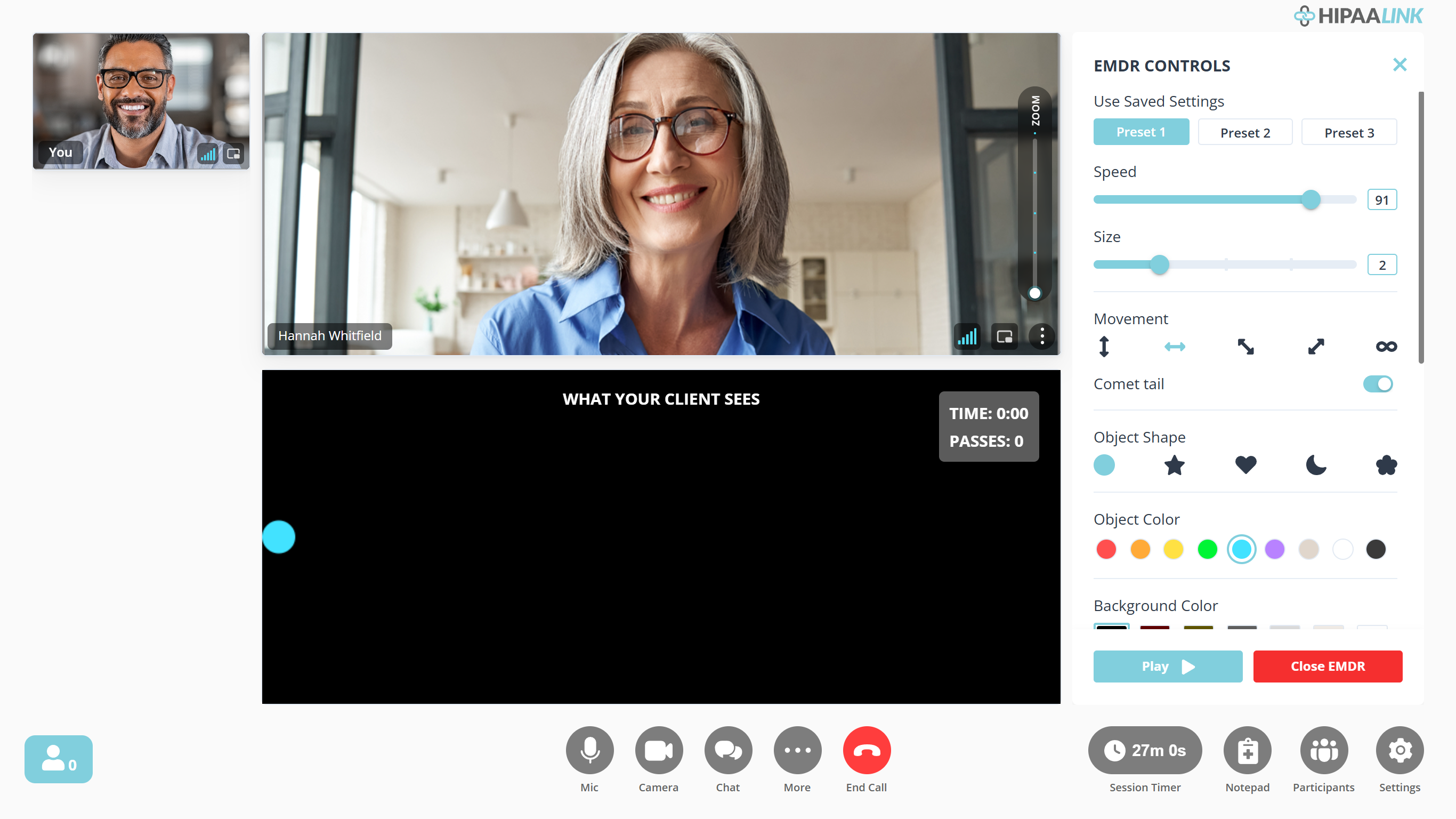
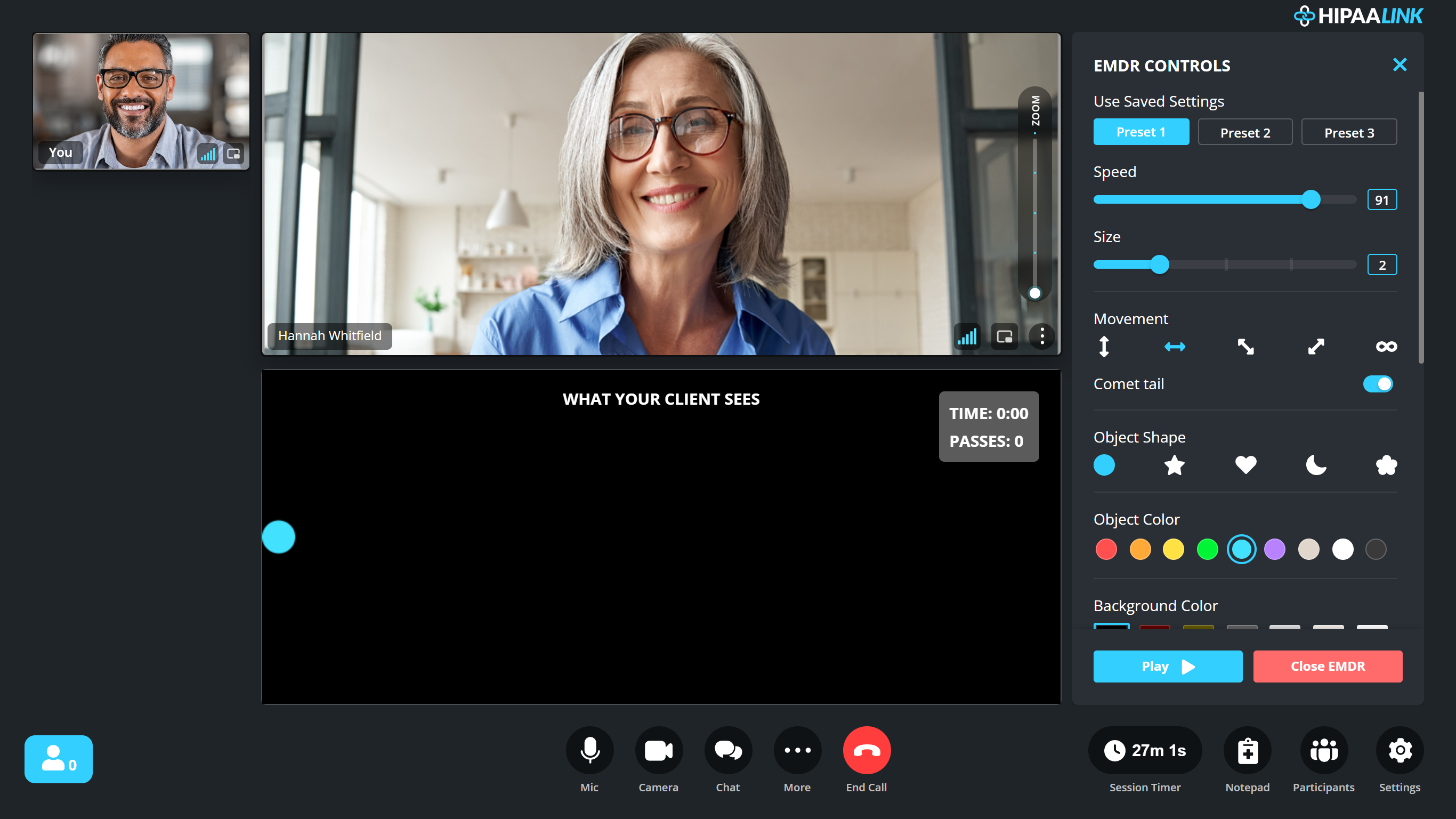
- Split view keeps the client’s face and the target apart, so you can watch her expression while the set runs. The panel below her is headed WHAT YOUR CLIENT SEES.
- Overlay view puts the target over the client’s own picture, so her face and the target are in one place. The counters move to the corner of the video.
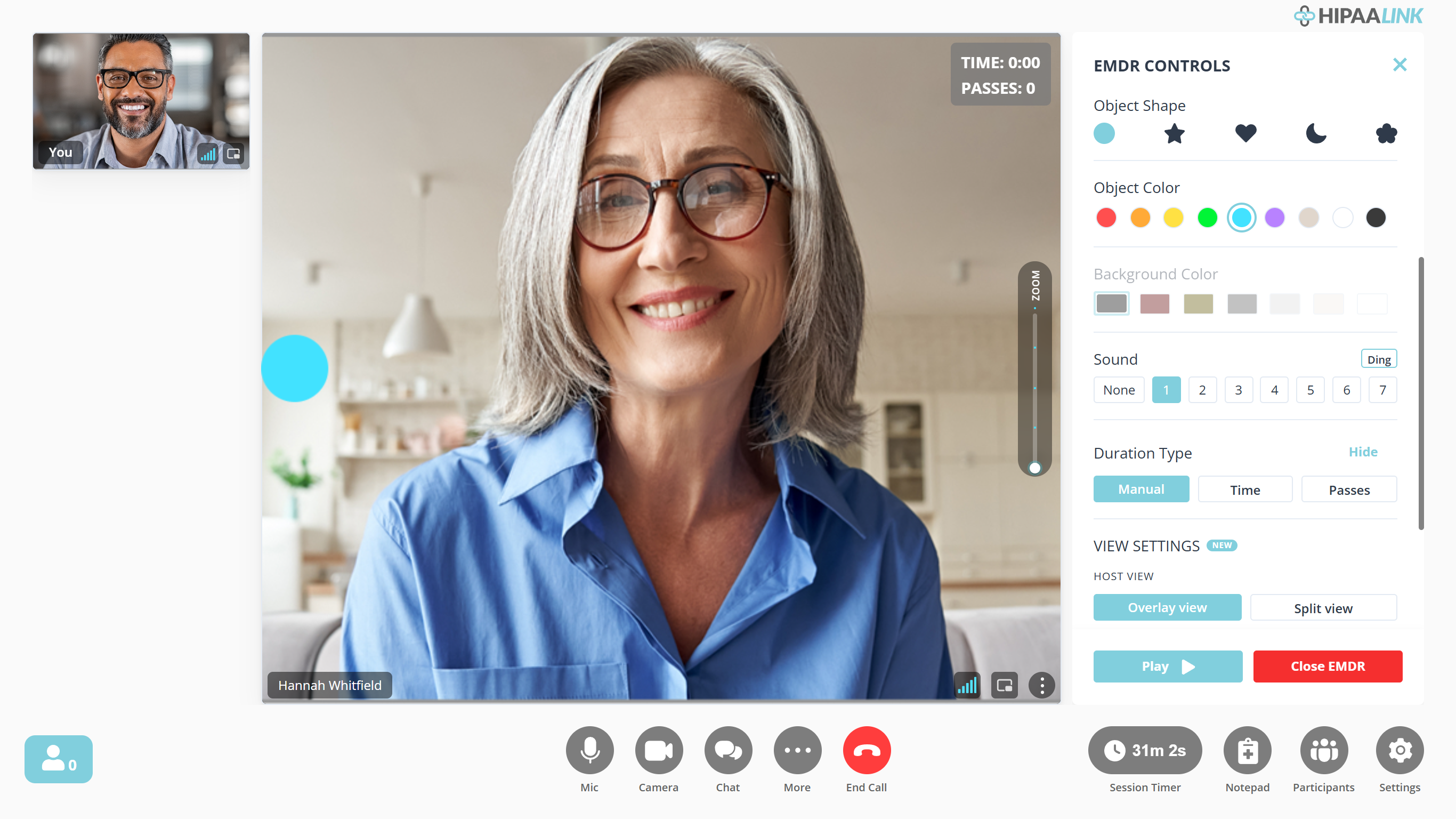
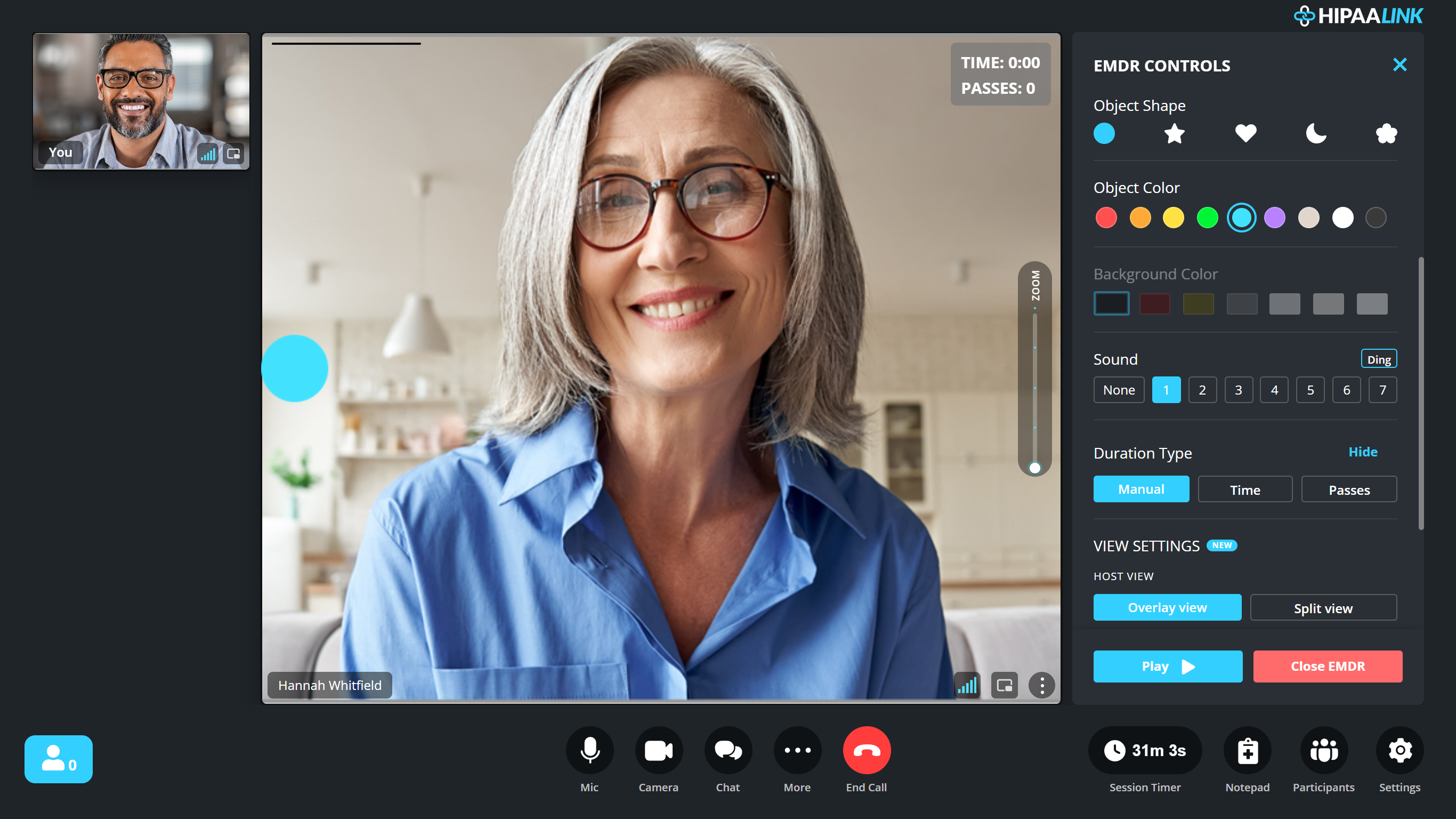
Split view is what most clinicians want while watching for distress. Overlay is closer to what the client is seeing.
The client’s screen
- View host mode. Blackout with the host's video in the top-left corner.
- Focus mode. Full blackout: the target and nothing else, with no video at all.
Either view can be changed while a set is running, and it takes effect at once.
Set the target
- Object Shape and Object Color decide what moves.
- Background Color is what it moves across.
- Size and Speed are the two you will change most, often during a set.
- Movement sets the path it travels.
- Comet tail leaves a trail behind the object. Some clients track it more easily; others find it busy.
Add a sound
Sound is a row of numbered buttons, with the name of the one you have chosen shown beside the heading. The seven are Ding, Light bell, Soft chime, Pop echo, Beep, Click and Sustained.
Decide how a set ends
Duration Type is the choice:
- Manual runs until you pause or close it.
- Time runs for a number of seconds.
- Passes runs for a number of sweeps.
Reuse your settings
Save current settings stores what you have set up, and Use Saved Settings brings it back in a later session. Three presets sit at the top of the controls, so a set-up you use every week is two selections away.
What to know
- Screen sharing and EMDR cannot both run. Close the share first.
- EMDR is a paid plan feature.