
Set your call preferences
What happens when a call ends, and how many people a call can hold.
- Who can use it
- All staff
- Where
- Account SettingsMy ProfileRoom Settings
Three switches, under Call preferences in Room Settings.
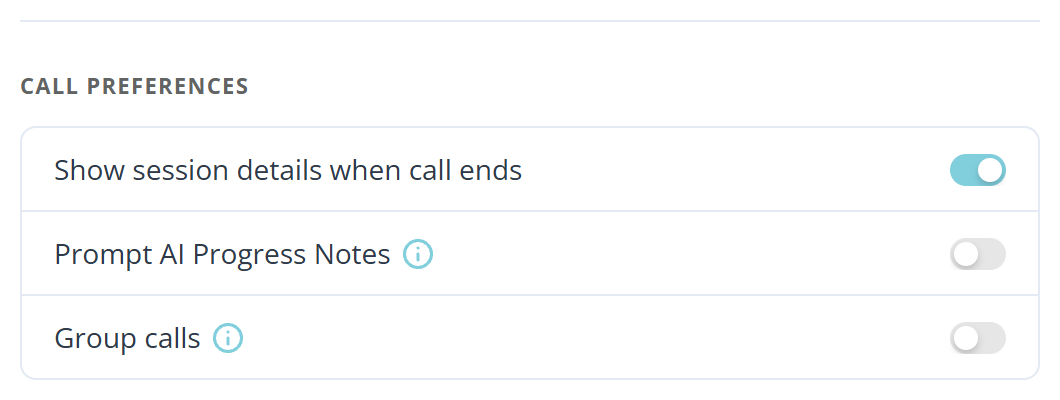
They are not all stored in the same place, which matters if you work from more than one computer. Show session details when call ends and Group calls are remembered by the browser you set them in, so set them again on each computer and expect them to reset if you clear your browsing data. Prompt AI Progress Notes is saved to your account and follows you everywhere.
Show session details when a call ends
Show session details when call ends opens a Call Summary as soon as you hang up, listing who was in the call, how long it lasted, and any notes taken. You can export it as a PDF from there.
Leave it on when you write notes between clients. Turn it off if you see clients back to back and want the queue straight away.
The dialog itself has a Don't show me again box, which turns off the same setting. If it stops appearing and you did not change it here, that box is why.
Prompt AI Progress Notes
Start every call asking if you want AI to transcribe and generate a progress note.
Turn it on if you write a note after most visits, so you are never asked to remember afterwards. Leave it off if notes are the exception, since the prompt appears at the start of every call.
Group calls
Group calls. When enabled, allows calls with up to 16 participants.
Turn it on for family sessions, an interpreter, or a colleague joining partway.