
Get notified when a client checks in
A text message or an email the moment somebody arrives, so you do not have to watch the queue.
- Who can use it
- All staff
- Where
- Account SettingsMy ProfileNotifications
Receive a notification when someone checks in to your waiting room.
Without it you have to keep the dashboard open and look at it.
Turn it on
- Open Account Settings › My Profile › Notifications.
- Turn on SMS Text Message, Email, or both.
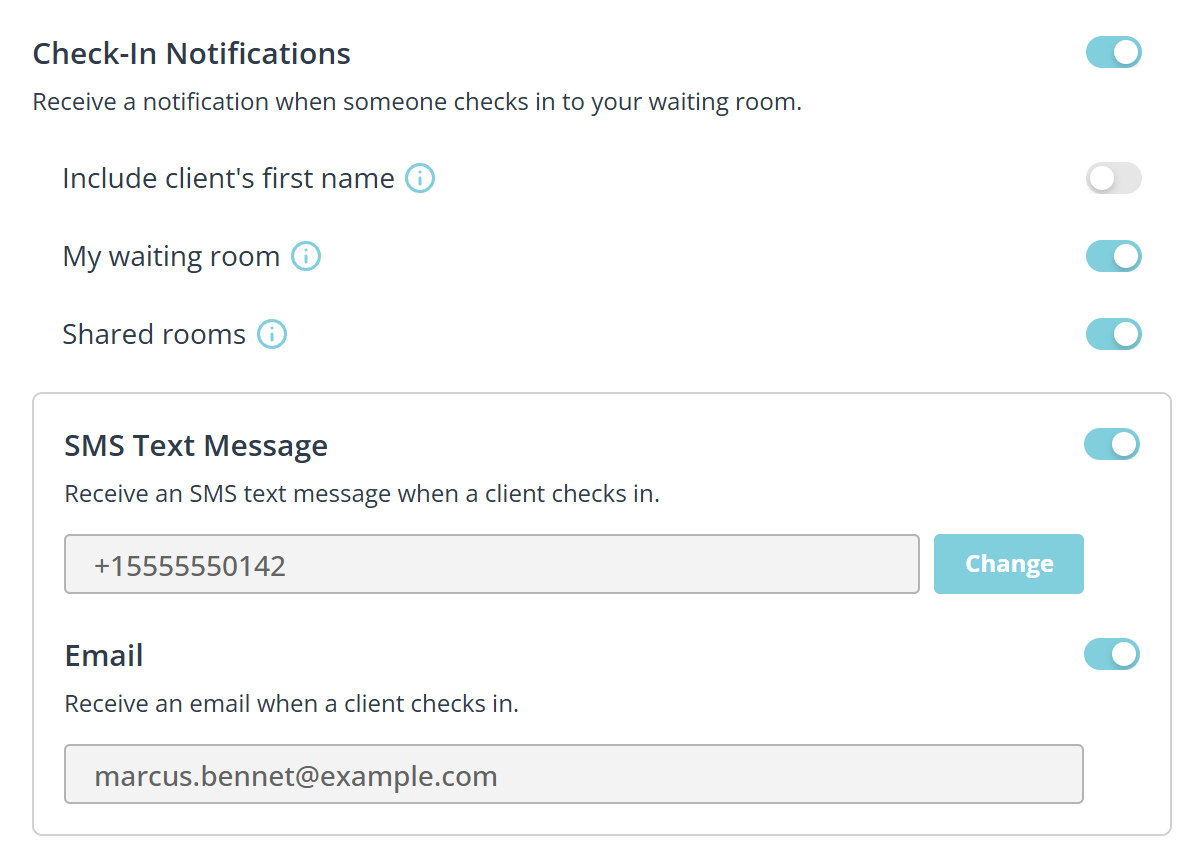
The switch beside Check-In Notifications is the master: turning it off silences the rest, whatever the switches under it say.
Neither address is typed here. SMS Text Message goes to the number held on your account, and Change beside it is how you replace one. With no number saved the button reads Add, and turning the switch on asks you for a number before it turns anything on.
Email goes to the address you sign in with. There is no way to send it somewhere else from this panel.
Which rooms to be told about
Two switches decide which arrivals reach you:
- My waiting room. Notify me when someone checks in to my own waiting room.
- Shared rooms. Notify me when someone checks in to a shared room I am assigned to.
Turn the shared rooms one off if you are in several busy rooms and only want to hear about your own clients.
Names in notifications
Include client's first name puts the client’s first name in the message. Leave it off if your phone shows message previews on a lock screen, or if other people see your email.
What to know
- Notifications fire at check-in, once per arrival. They do not repeat while somebody waits.
- They are sent whether or not you are signed in. That is the point: it is how you find out about somebody arriving early.