
Test your connection before your appointment
A check you can run yourself before the appointment. It tests four things and says which one is wrong.
Run it the day before, on the device and the network you will use. Finding out then is worth a lot more than finding out at the appointment.
You do not have to check in to run it, so doing this the day before does not tell your provider you have arrived.
Run the test
- Open the link your provider sent you.
- Select Test Your Connection, under Having issues?
It checks four things and tells you which one is the problem.
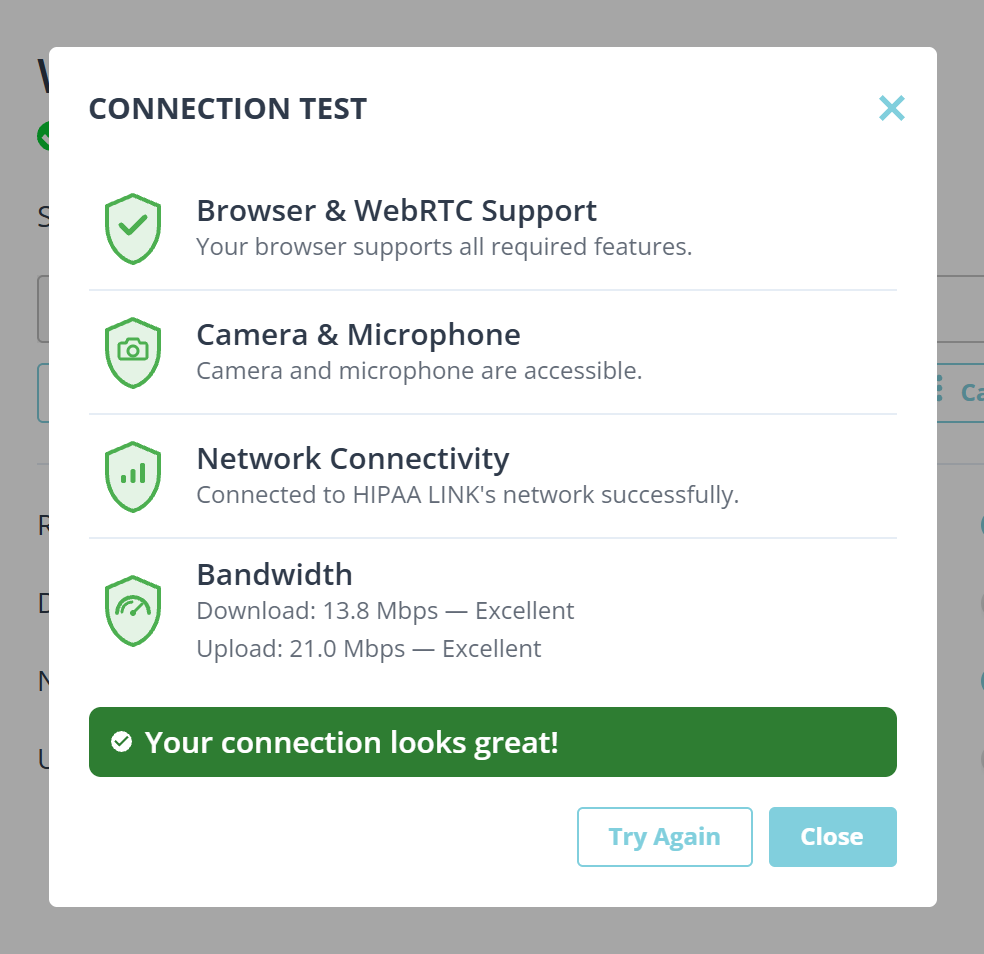
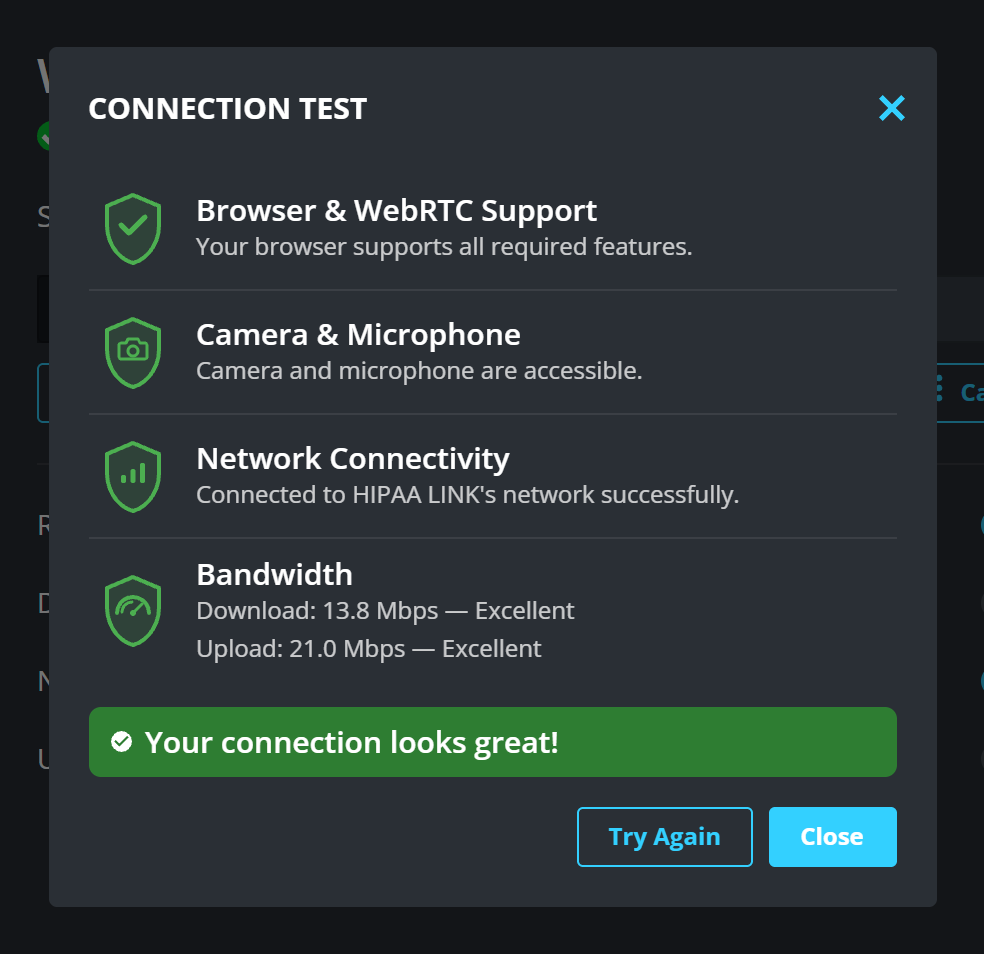
- Browser & WebRTC Support, whether your browser can make video calls at all.
- Camera & Microphone, whether this page is allowed to use them.
- Network Connectivity, whether your connection can reach us.
- Bandwidth, how fast your connection actually is. It measures your download and upload separately and rates each one, because a connection can be fine for watching video and still too slow to send your own.
What the result means
Your connection looks great! Nothing to do.
Your connection may have issues. The call will work, but it may be less smooth. Moving closer to the router, or switching from mobile data to wifi, usually clears it.
Connection problems detected. Something is blocking the call. Try another network, such as your phone’s data instead of a work or school wifi. A network that blocks video calls is the commonest cause, and it is not something your provider can change.
What to know
- A failed camera and microphone step is usually permission, not hardware. See Allow your camera and microphone.
- Test on the device you will actually use. A test that passes on your laptop says nothing about your phone.