
Two-factor authentication
A second step at sign-in, by text message, phone call or email.
- Who can use it
- All staff
- Where
- Account SettingsAccount Security
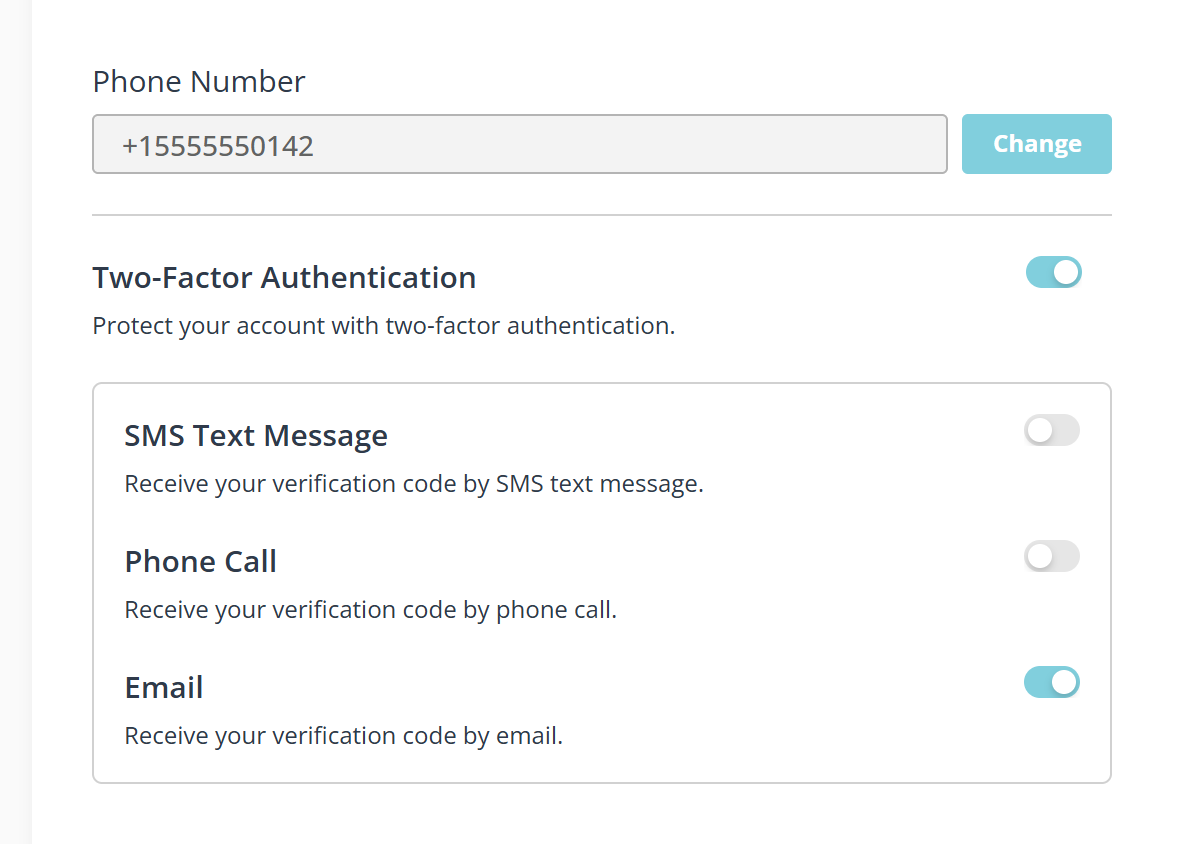
Protect your account with two-factor authentication.
- Open Account Settings › Account Security, then the SECURITY tab.
- Turn on Two-Factor Authentication.
- Turn on the way you want to receive the code.
The three ways
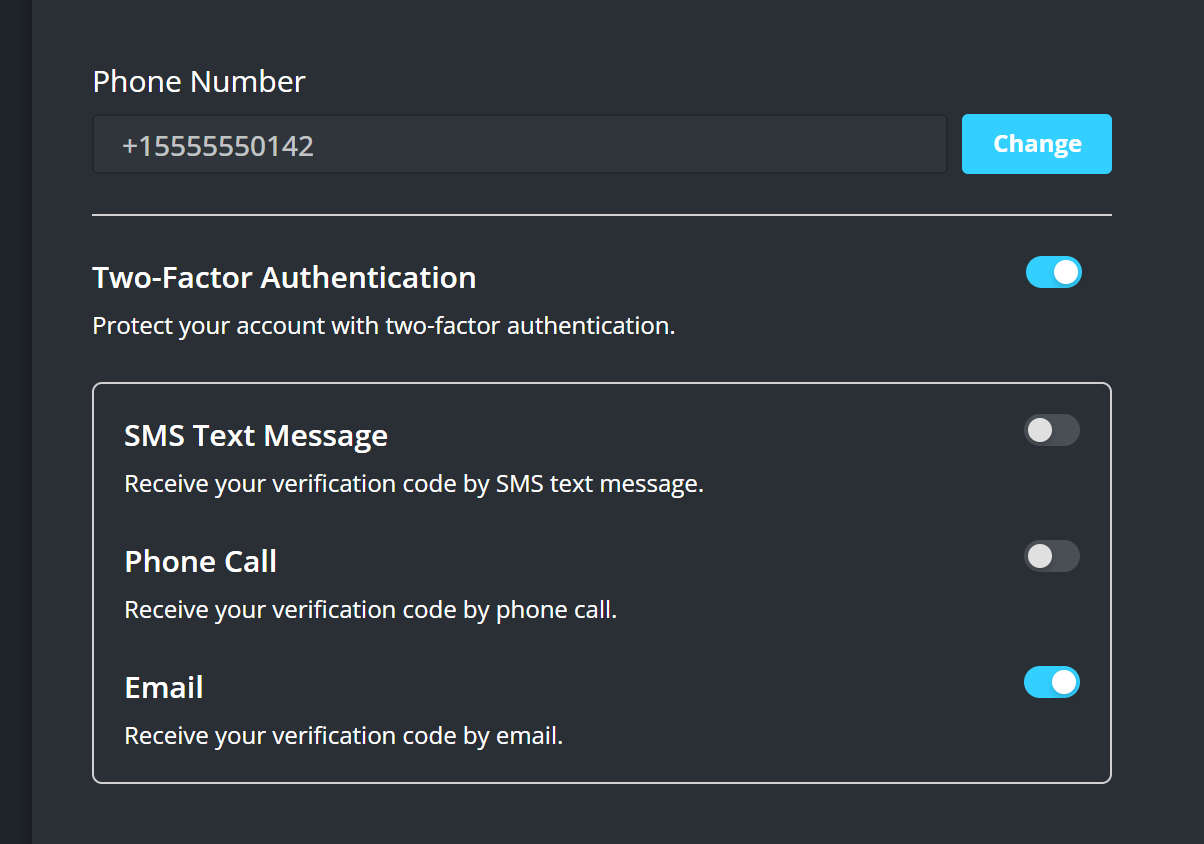
- SMS Text Message. Receive your verification code by SMS text message.
- Phone Call. Receive your verification code by phone call.
- Email. Receive your verification code by email.
The master switch and the three method switches are separate. Turning on Two-Factor Authentication without turning on one of the three leaves you nowhere to receive a code, so set both.
A phone number you keep with you beats email, which is often open in the same browser you are signing in from. Both SMS Text Message and Phone Call go to the Phone Number at the top of the same panel, so check it is current before you rely on either.
What to know
- Changing your phone number needs two-factor turned off first: Turn off 2FA first.
- It applies to your own account. Each person turns it on for themselves.