
Seats, and what happens when you run out
Every active staff member holds one. How to free one up, or buy more.
- Who can use it
- Clinic admins
- Plans
- Paid plans
- Where
- Account SettingsStaff
Every staff member who can sign in and see clients holds one seat, held while they are Active.
When there are none left
Inviting a staff member, or activating one, stops and tells you:
You do not have enough seats to do this. You can either remove a seat from another member or add more seats.
Add seat on that message does not buy anything. It takes you to Subscriptions, which is where the number is actually changed.
Buying more
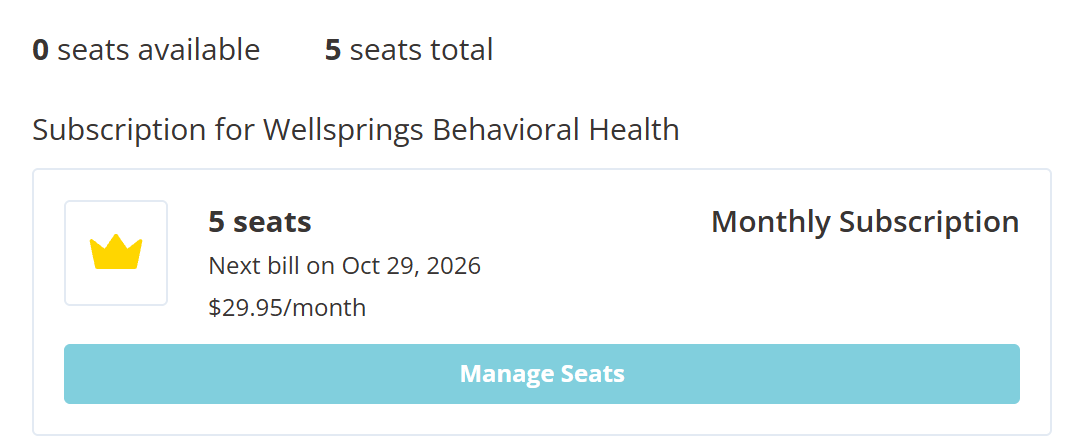
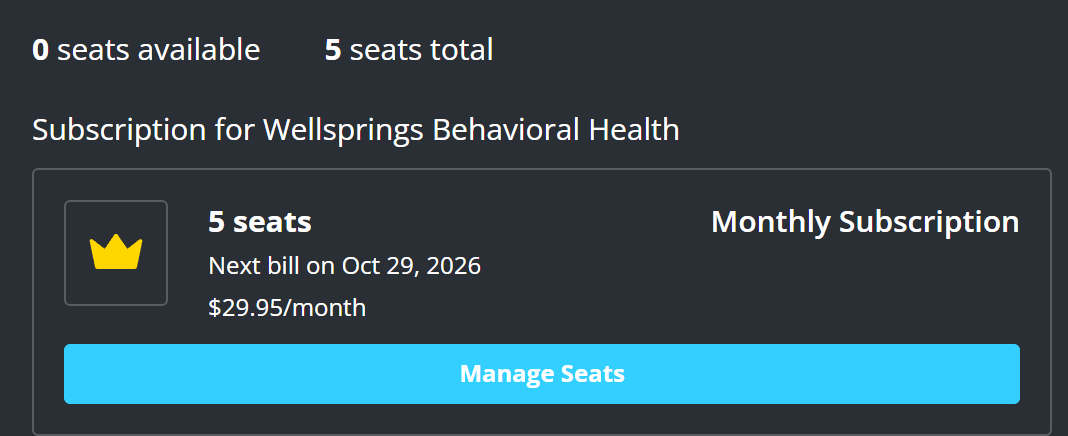
Manage Seats is the button that changes how many seats you have. Open Account Settings › Subscriptions to reach it.
- Select Manage Seats.
- Set Total Seats under New Quantity to the number you want in total, not the number you are adding.
- Check New Total and Prorated Amount Due.
- Select Pay $16.97, which names the amount.
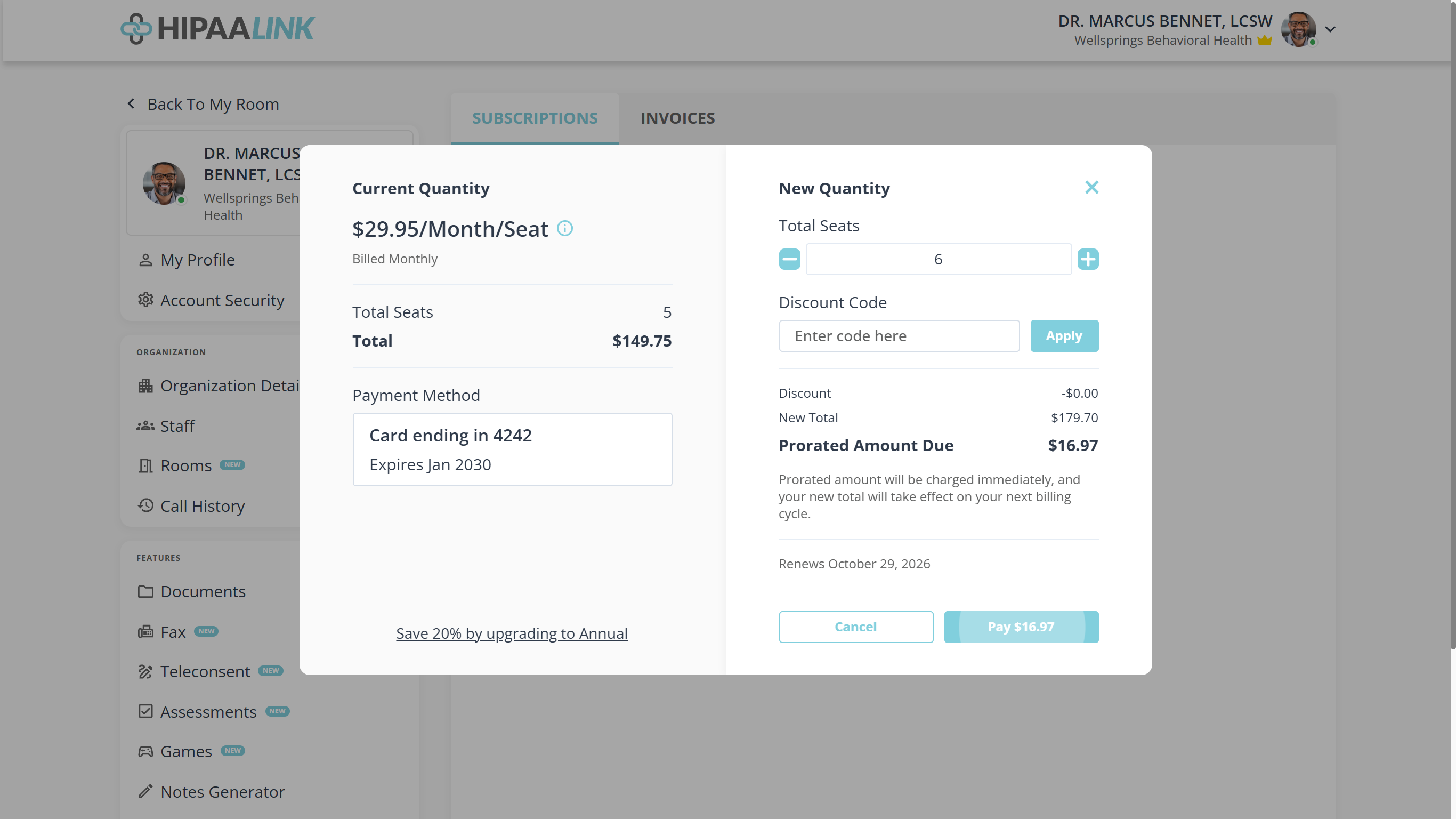
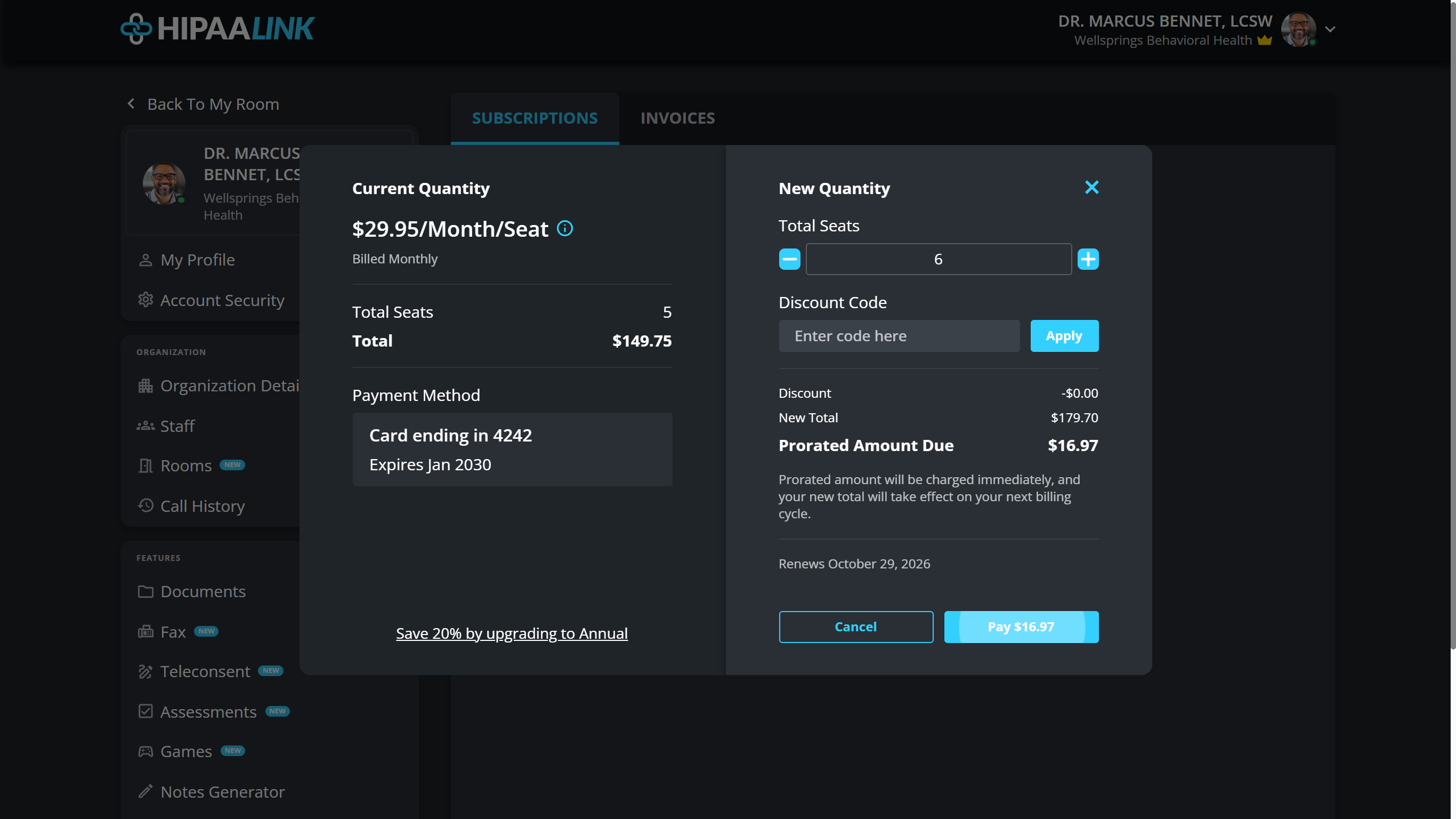
The number in the stepper is the total, so one more person means six rather than one. The two figures underneath are different things and both matter:
- New Total is your new monthly bill from the next cycle on.
- Prorated Amount Due is charged now, and covers only the days left before your renewal date. It is smaller than a full month because you are buying part of one.
Prorated amount will be charged immediately, and your new total will take effect on your next billing cycle.
Removing seats works the other way and is not a refund: The prorated amount will be credited to balance in the next billing cycle.
Free one up instead
Deactivating a staff member releases their seat. You are asked first: Deactivate and unseat Anthony Keene?
Bringing them back asks the same way: Activate and assign seat to Anthony Keene?
Deactivating keeps the account and its history. It is the right move for a staff member on leave, and for somebody who has left it keeps their past sessions attributable.