
Add a staff member
Invite a staff member to the clinic and give them a seat.
- Who can use it
- Clinic admins
- Plans
- Paid plans
- Where
- Account SettingsStaff
- Open Account Settings › Staff.
- Select Invite.
- In INVITE STAFF, fill in First Name, Last Name and Email.
- Select Send.
They get an email and set their own password. You never see or set it for them.
The three states
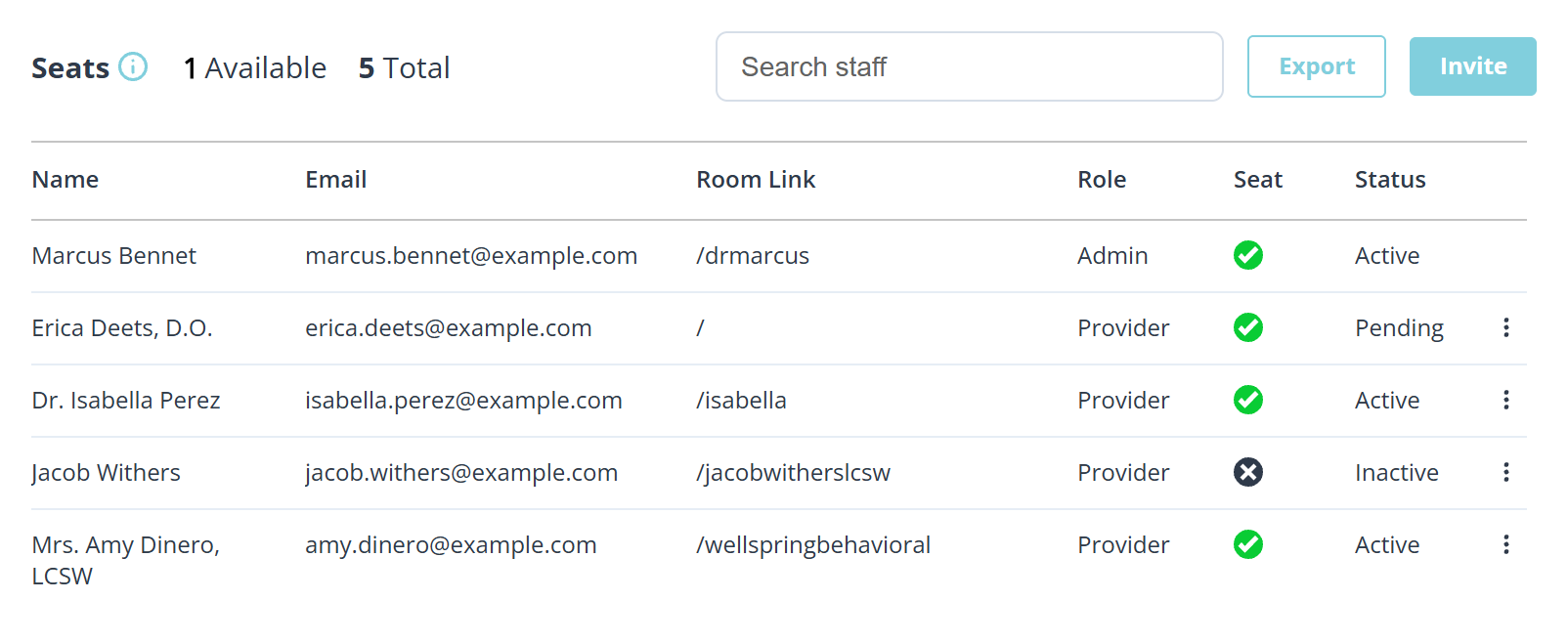
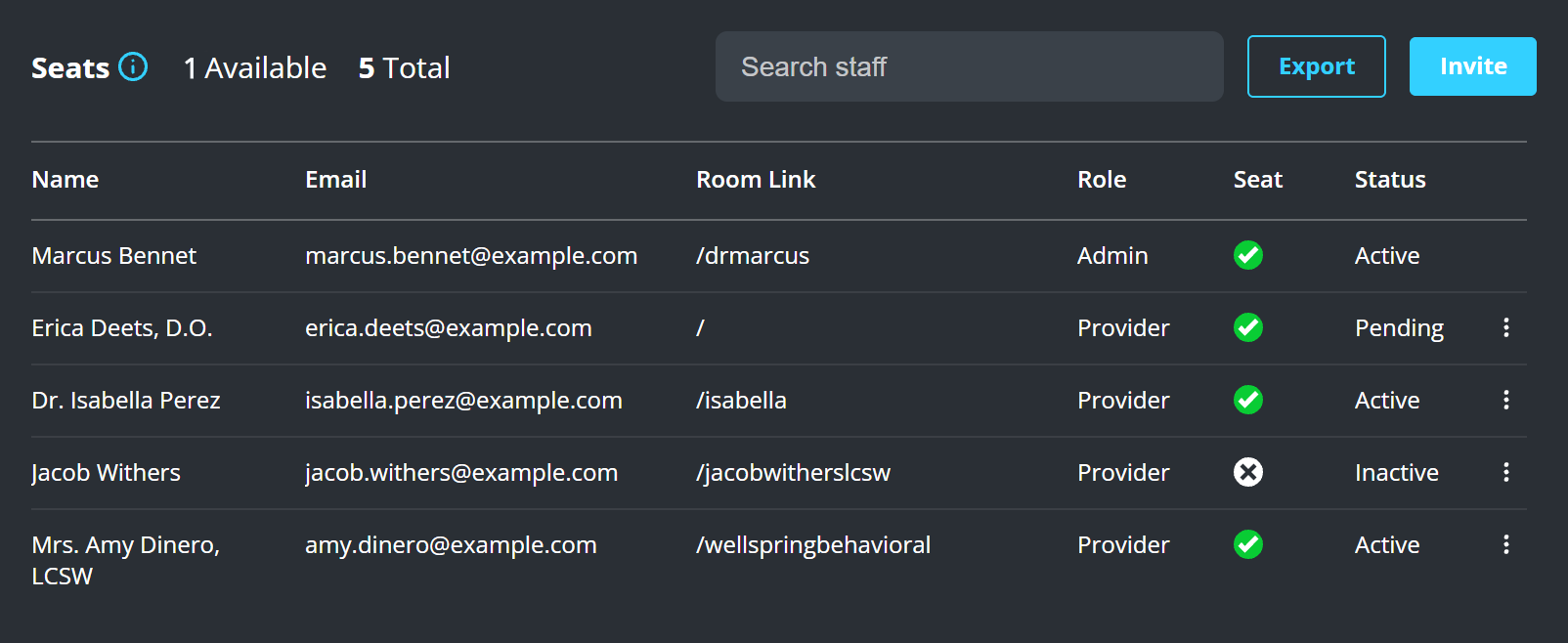
A person is Pending until they accept, Active once they have, and Inactive if you deactivate them.
A staff member who is still Pending has no room yet, which is why their Room Link is bare. They pick it when they accept.
Until the invitation is accepted there is no account behind the row, so the only thing you can do with it is resend the invitation.
Seats and status are not the same column
Seat indicates whether this staff member is currently occupying a seat or not. A seat represents an active user account within the system.
A Pending invitation holds a seat from the moment you send it, not from the moment it is accepted. That is why inviting a staff member can fail for want of a seat while nobody new has signed in.
Deactivating is what gives one back. The confirmation says so: “Deactivate and unseat Jacob Withers?” Turning a staff member back on takes one again: “Activate and assign seat to Jacob Withers?”
See Seats.
What to know
- An invitation needs a free seat. If there is none you are told: You do not have enough seats to do this.
- You can resend an invitation that was missed, which is usually faster than asking them to find it.