
Add your logo to video calls
A watermark over the host's video, for clinics that need calls visibly branded.
- Who can use it
- Clinic admins
- Where
- Account SettingsOrganization Details
Add your organization's logo to video calls. It appears over the host's video, so everyone in the call can see it.
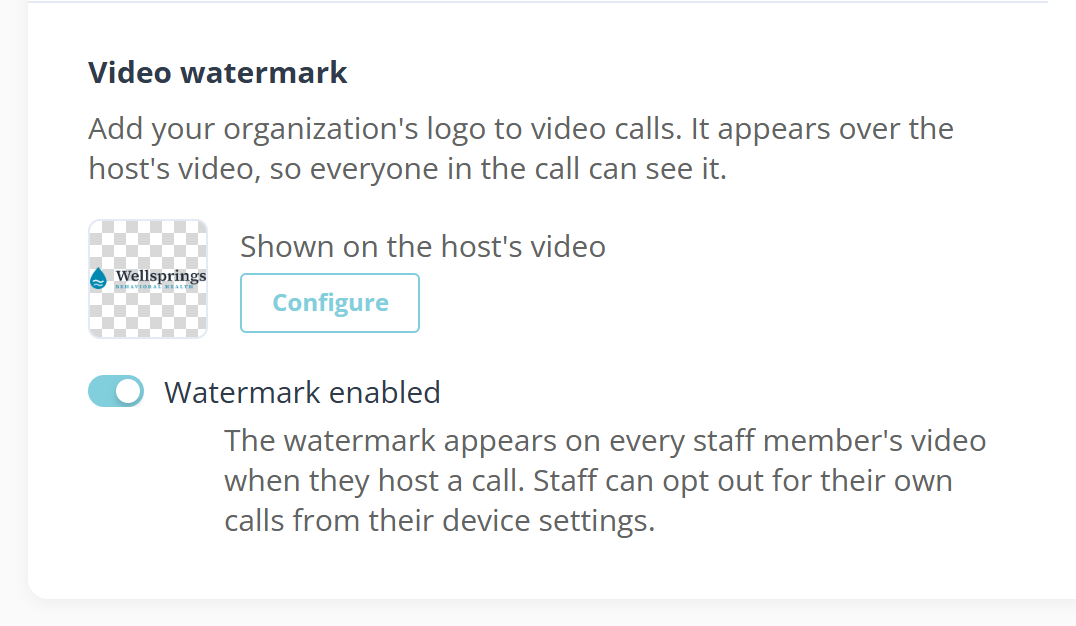
- Open Video watermark and select Configure.
- Upload a Watermark image. PNG with a transparent background works best. Max 10 MB.
- Set Position from the nine box grid, then Size, Opacity and Edge spacing, which is the gap between the mark and the edge of the video.
- Select Save.
- Back on the card, turn on Watermark enabled.


The preview is your real camera, labelled “This is how other participants see your video.”, so you can judge the watermark against a face rather than against an empty frame. 16:9 and 9:16 switch the shape, because a mark that sits clear of your head on a laptop can land on it on a phone.
The switch and the upload are separate, which is why the card names both: uploading an image does not turn the watermark on, and the status reads “Uploaded, but turned off” until you do.
Who it appears on
The watermark appears on every staff member's video when they host a call. Staff can opt out for their own calls from their device settings.
It is on the host’s video only, never on the client’s. Each staff member has Show watermark for their own calls, which Applies only to calls you host.
A provider who sees “Your organization has not turned on the watermark. An admin can activate it in Organization Details.” is looking at a clinic switch that is still off.
What to know
- A PNG with a transparent background is the only format that looks right. A white rectangle over the video is what a JPEG gives you.
- Keep the opacity low. A watermark that competes with a face is worse than none.