
See what your client sees
The check-in page and waiting screen a shared room link opens, which are not the ones your personal room opens.
- Who can use it
- Room members
- Plans
- Paid plans
A shared room link does not open the screens your personal room link opens. It is a different page with a different sequence, and a client who has seen one will not recognize the other.
This article is the client’s side of it, so you can answer a question about a screen you are not looking at.
When they open the link
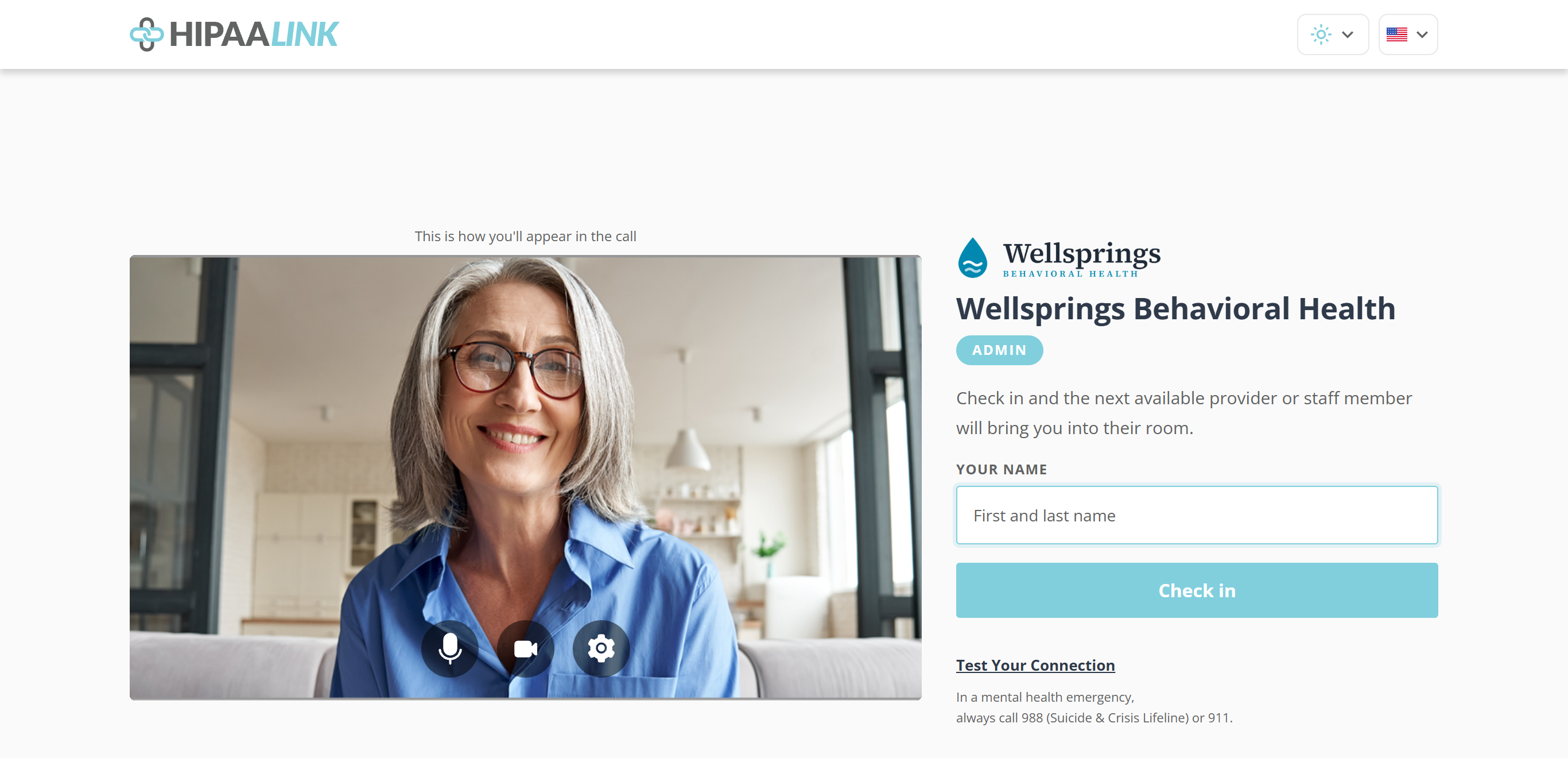
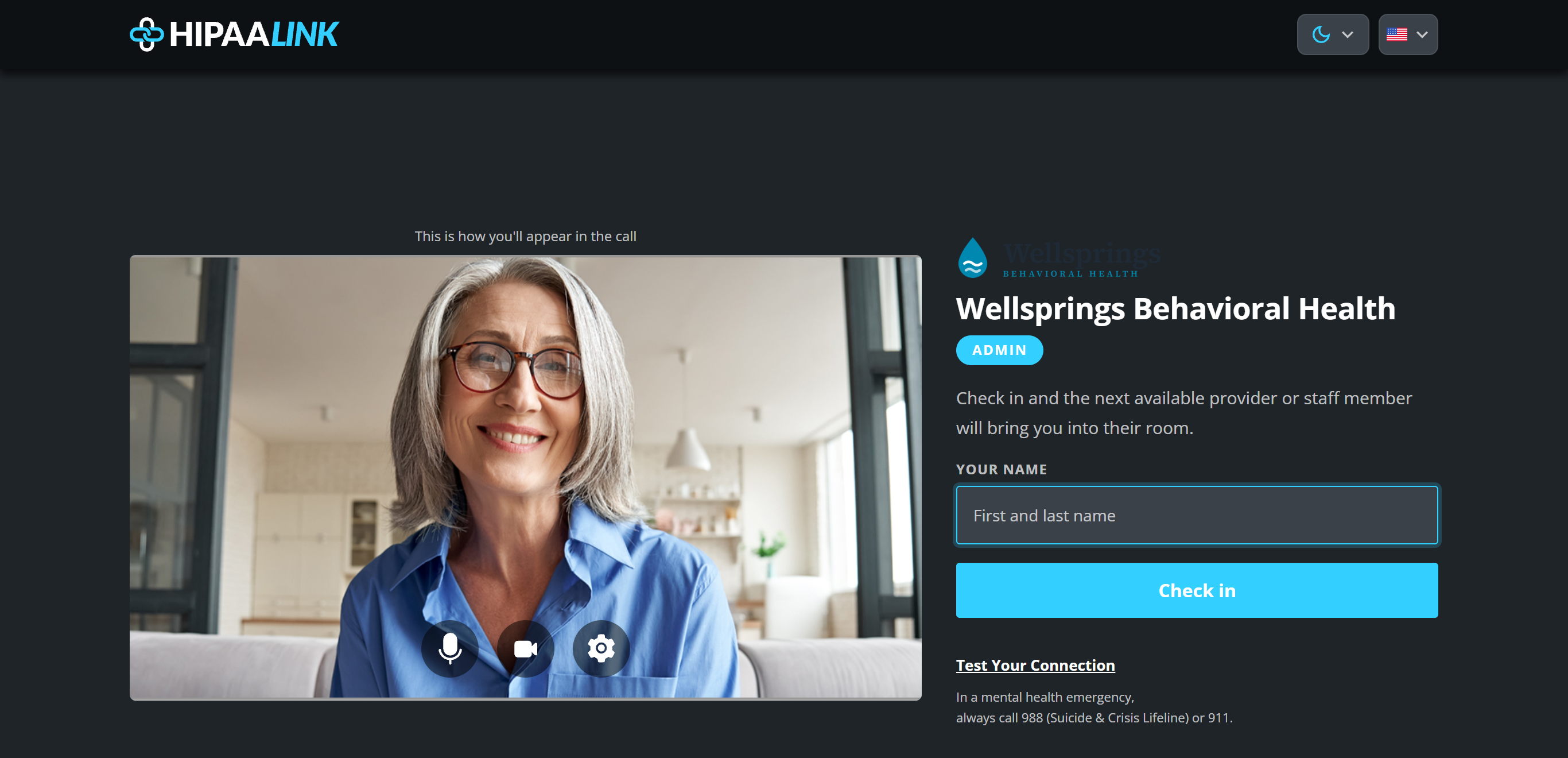
The client sees their own camera before anyone else does, types a name, and selects Check in. Test Your Connection under the button checks their camera, microphone and network first.
What they do not see is a person. The tag under your clinic name is Room name, and the line beneath it says “Check in and the next available provider or staff member will bring you into their room.” rather than naming anyone. That is the difference worth knowing: they are checking in to a desk, so they are not expecting you specifically.
If the room asks for a phone number, the box appears under the name and they cannot check in without it.
While they wait to be claimed
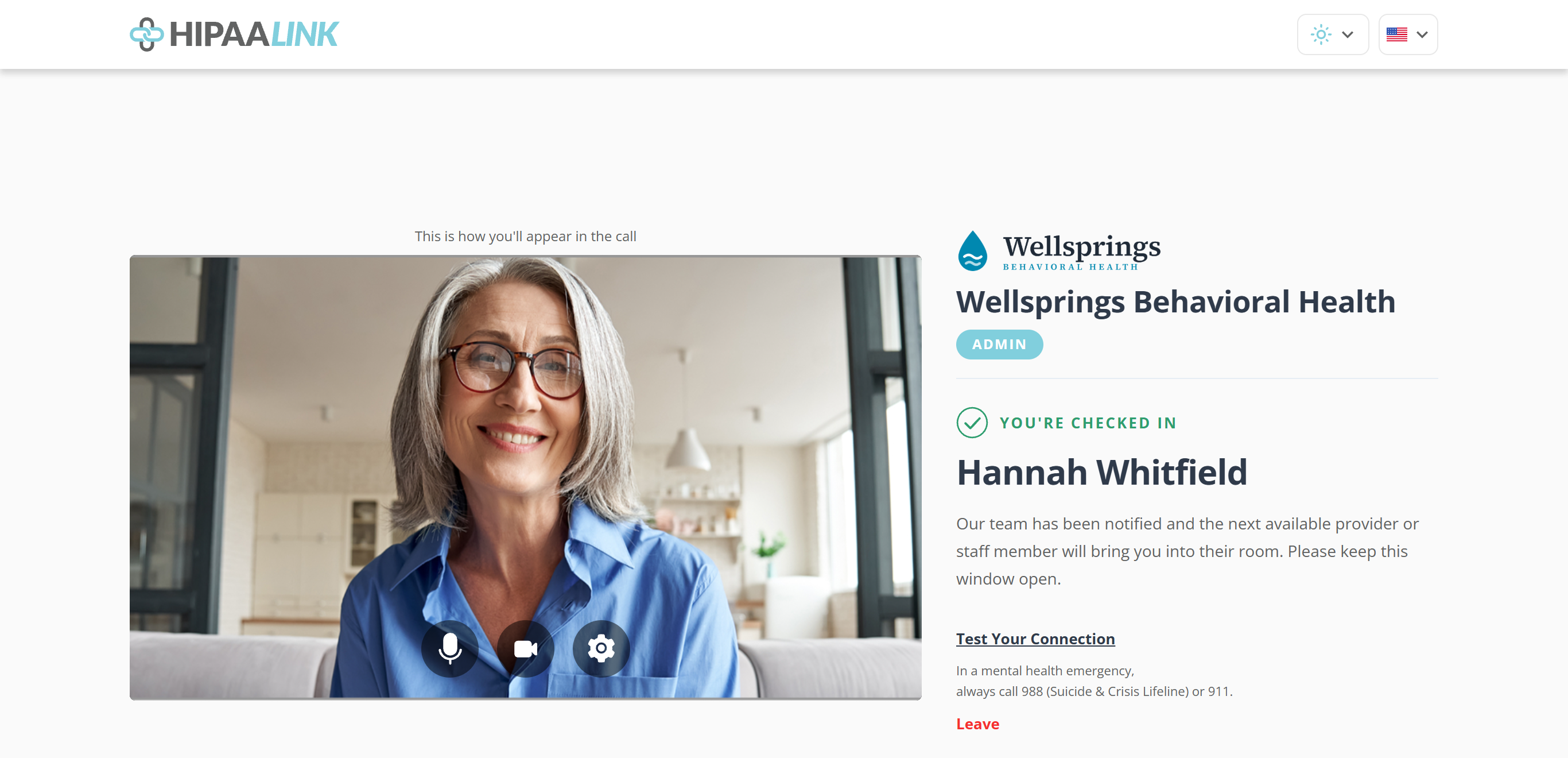
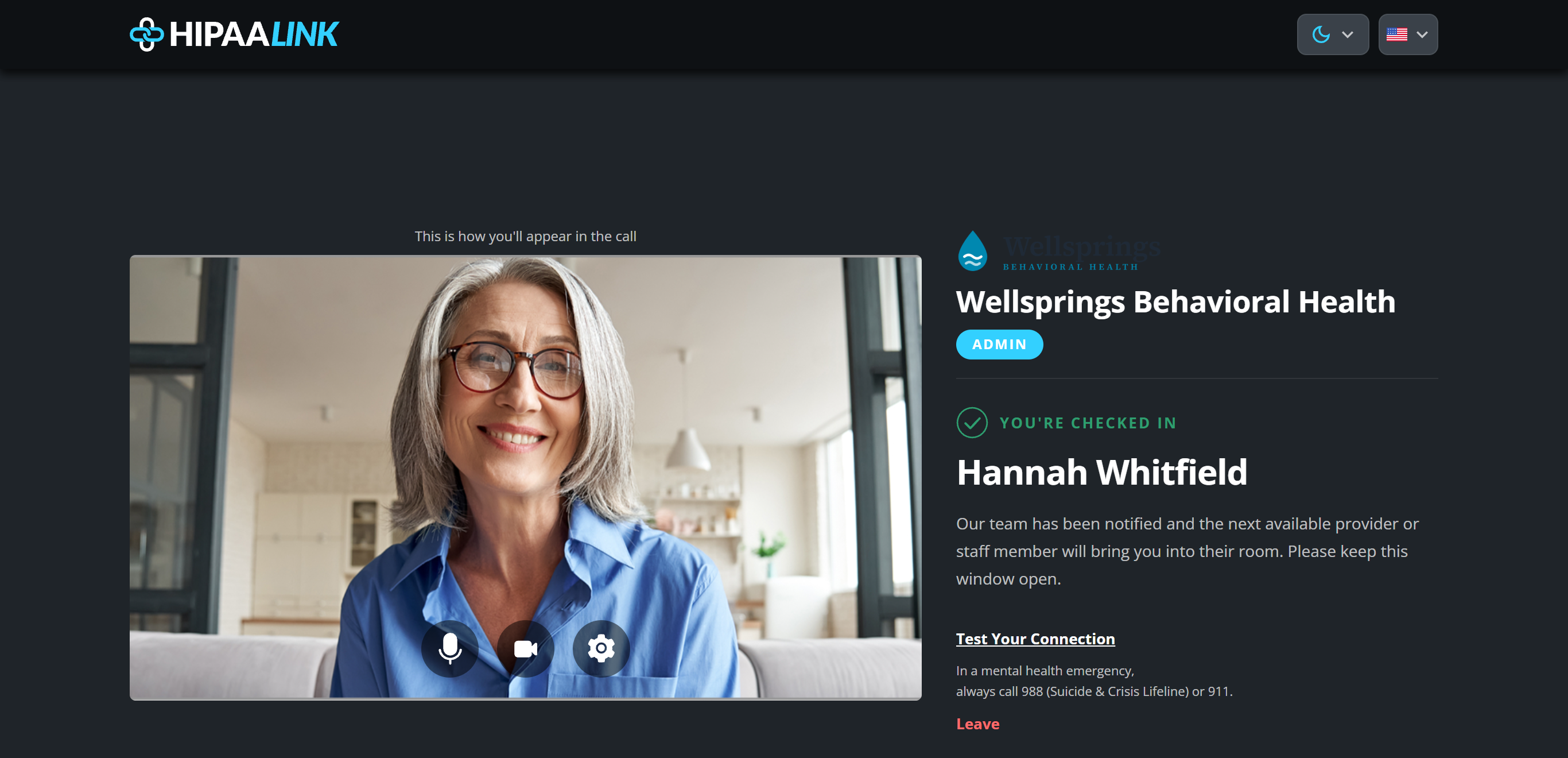
The page confirms You're checked in with their name, and then shows the message you wrote for that room.
Which message they get depends on you, live. Your Welcome message shows while at least one member of the room is online. The moment the last one goes offline it is replaced by your Unavailable message, under the heading “But, no one is available right now”, without the client reloading anything. Both are set per room. See Create a shared room.
A paused room counts as nobody being there. Pausing shows the Unavailable message even while members are online, which is the point of pausing.
When somebody claims them
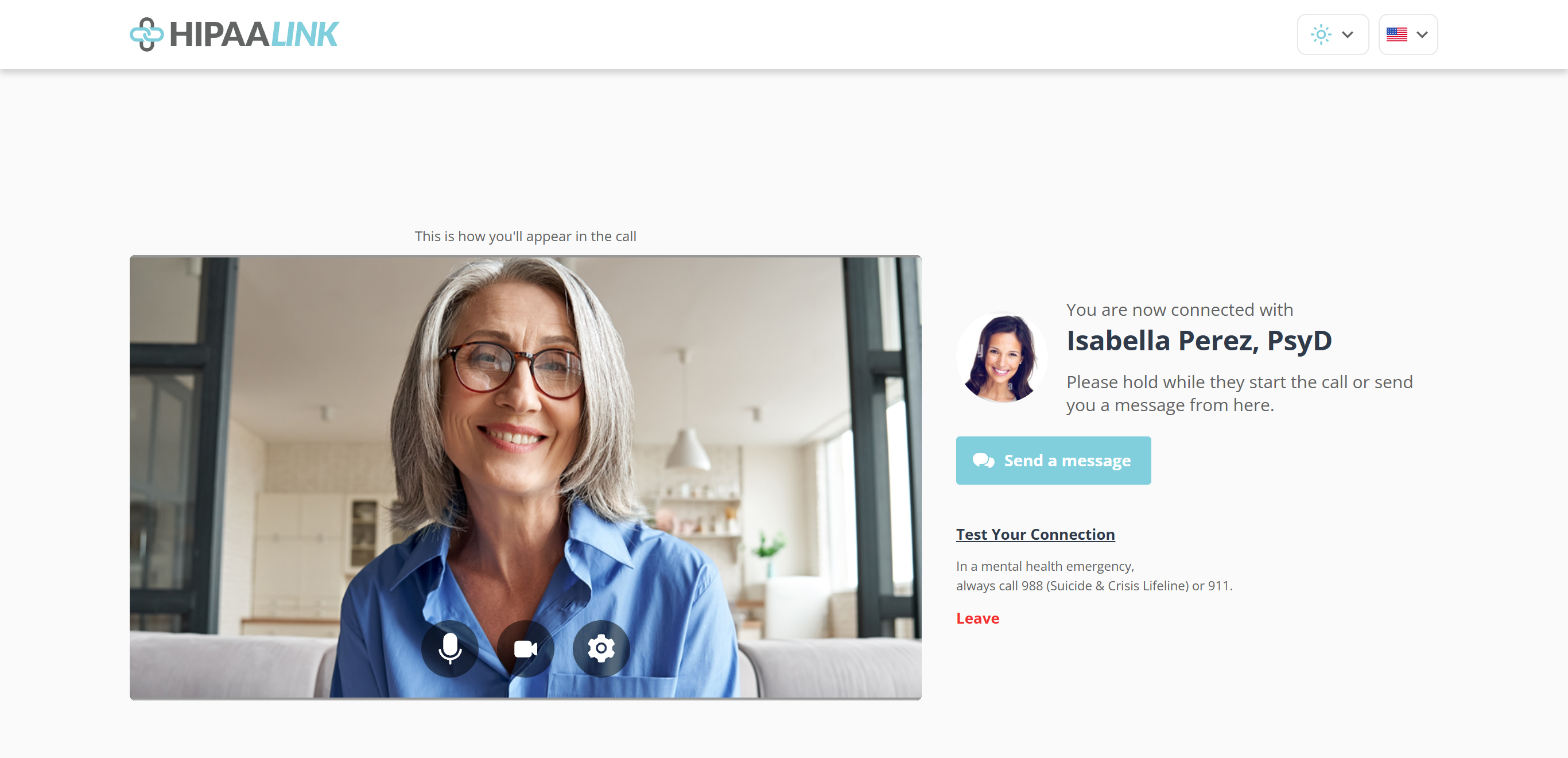
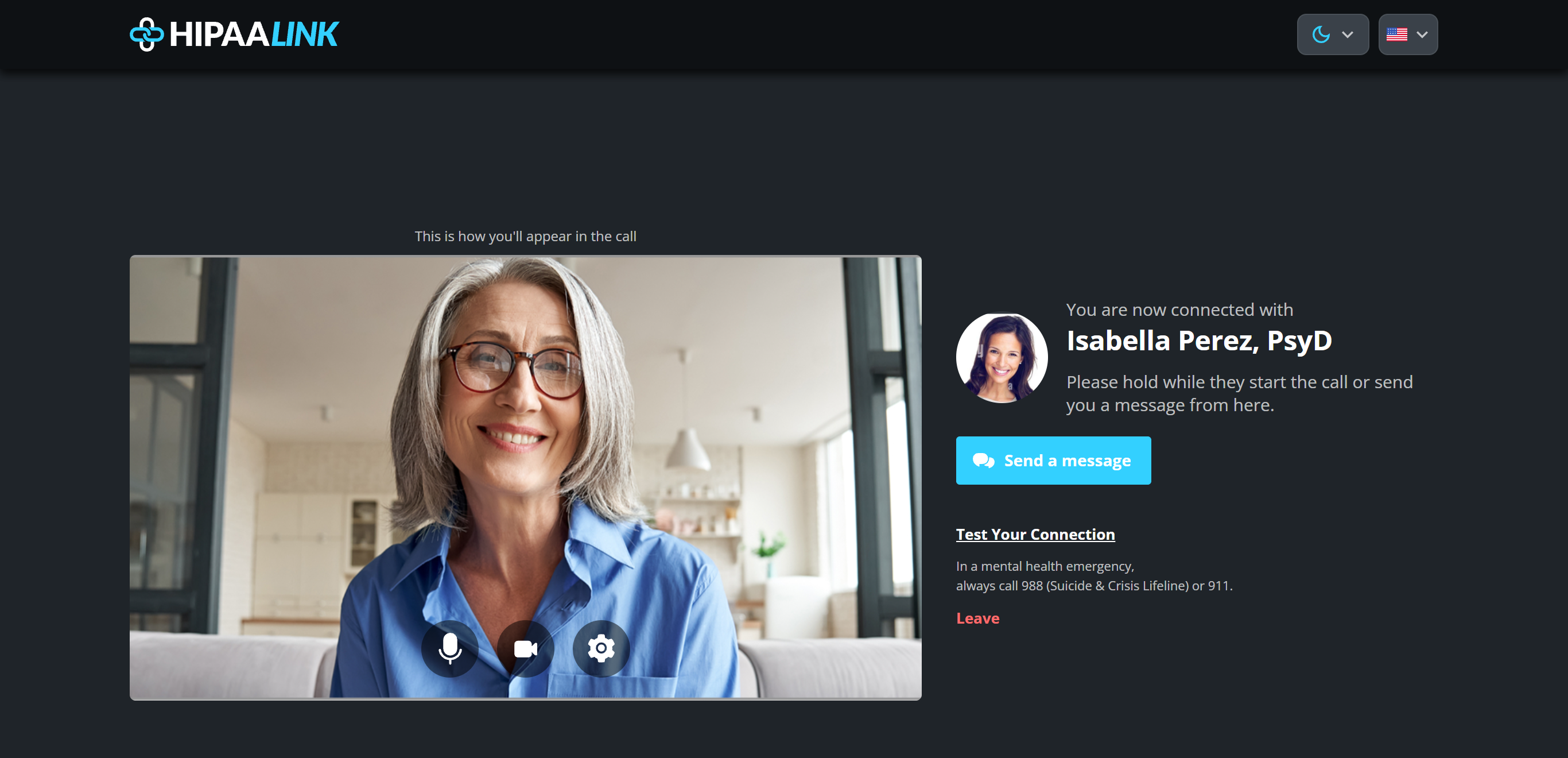
The right column is the only thing that changes. The header and the camera preview stay exactly where they were, so it reads as somebody arriving rather than as a new page.
Three things change at once, and all three are worth knowing:
- The room stops being the subject. The clinic logo, the clinic name and the room tag are replaced by your picture, your name and your credential. Until this moment the client was waiting on a desk; now they are waiting on a person.
- Send a message appears. This is the first point at which the client can reach anyone, and they can write first. It is safe because exactly one person owns them.
- The holding message is replaced by “Please hold while they start the call or send you a message from here.”, which tells them what happens next rather than that they are in a queue.
If you release them, all three are undone: the column goes back to the room, and the button disappears along with the thread. See Release a client someone else has.
What to know
- Their camera and microphone are already running on this page, which is why the preview works. Nobody else can see or hear them until a call starts.
- Leave asks them to confirm, then takes them out of the queue. They can open the same link again at any time.
- Closing the tab has the same effect as leaving, so the page tells them to keep the window open.